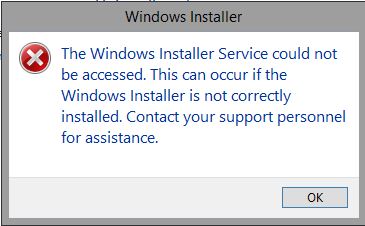
Safe Mode is often the only way to remove a broken driver, security agent or application that crashes Windows at normal startup. The catch is that Windows Installer doesn't run in Safe Mode, so trying to uninstall an MSI-based program fails with:
The Windows Installer Service could not be accessed. This can occur if the Windows Installer is not correctly installed. Contact your support personnel for assistance.
Trying to start the service manually fails too.
Short answer: add the MSIServer service to the Safe Mode allow-list in the registry, start it, then uninstall. The steps are below. If you get the same error in normal mode, skip to the last section, because the cause there is different.
Applies to: Windows 10, Windows 11, Windows Server 2012 R2 – 2025.
Why it happens in Safe Mode
Safe Mode only starts services listed under HKLM\SYSTEM\CurrentControlSet\Control\SafeBoot\Minimal (Safe Mode) or ...\SafeBoot\Network (Safe Mode with Networking). MSIServer, the Windows Installer service, isn't on either list by default, so Windows won't start it.
Fix: enable Windows Installer in Safe Mode
Step 1: Open an elevated Command Prompt
Press Win + R, type cmd, then press Ctrl + Shift + Enter.
Step 2: Add MSIServer to the Safe Mode service list
Safe Mode:
REG ADD "HKLM\SYSTEM\CurrentControlSet\Control\SafeBoot\Minimal\MSIServer" /VE /T REG_SZ /F /D "Service"
net start msiserver
Safe Mode with Networking:
REG ADD "HKLM\SYSTEM\CurrentControlSet\Control\SafeBoot\Network\MSIServer" /VE /T REG_SZ /F /D "Service"
net start msiserver
Step 3: Uninstall the program
Use Programs and Features (appwiz.cpl) as usual. If the entry is missing or the uninstaller fails, uninstall by product code:
Get-ItemProperty "HKLM:\Software\Microsoft\Windows\CurrentVersion\Uninstall\*",
                 "HKLM:\Software\WOW6432Node\Microsoft\Windows\CurrentVersion\Uninstall\*" |
  Where-Object DisplayName -like "*ProductName*" |
  Select-Object DisplayName, PSChildName, UninstallString
PSChildName is the product code (a GUID in braces). Then run:
msiexec /x {PRODUCT-CODE-GUID} /l*v C:\Temp\uninstall.log
Avoid Get-WmiObject Win32_Product for this: querying that class triggers a consistency check and repair of every installed MSI, which is slow and can change other applications.
Step 4: Remove the registry key afterwards
After you're back in normal mode, delete the key you added so Safe Mode returns to its default behaviour:
REG DELETE "HKLM\SYSTEM\CurrentControlSet\Control\SafeBoot\Minimal\MSIServer" /F
REG DELETE "HKLM\SYSTEM\CurrentControlSet\Control\SafeBoot\Network\MSIServer" /F
Getting into and out of Safe Mode
- From Windows: hold Shift and click Restart, then choose Troubleshoot → Advanced options → Startup Settings → Restart, and press 4 (Safe Mode) or 5 (with Networking).
- From an elevated prompt:
bcdedit /set {current} safeboot minimal(ornetwork), then restart. - To return to normal startup:
bcdedit /deletevalue {current} safeboot. If you usedbcdeditand skip this, the machine keeps booting into Safe Mode.
Same error in normal mode?
If you see this error during a normal boot, the Windows Installer service itself is broken or disabled. Work through these in order:
- Check that the service isn't disabled:
sc qc msiserver sc config msiserver start= demand net start msiserver - Re-register Windows Installer:
msiexec /unregister msiexec /regserver - Repair system files:
DISM /Online /Cleanup-Image /RestoreHealth sfc /scannow - Check Event Viewer: look in Windows Logs → Application for source MsiInstaller to see the exact failure.
Related: Setup cannot continue: the Microsoft runtime DLL installer failed · Windows Update logs in Windows 11