Acronis Cyber Protect for Cloud is a comprehensive cybersecurity and data protection solution designed specifically for cloud environments. It combines advanced backup and disaster recovery capabilities with cutting-edge cybersecurity features, all within a single integrated platform.
This solution is geared towards businesses and organizations that operate in cloud-based environments, allowing them to safeguard their critical data, applications, and systems while ensuring the highest level of cybersecurity.
This article explains how IT professionals use Intune for Acronis Cyber Protect unattended installation. Key features of Acronis Cyber Protect for Cloud include:
- Backup and Recovery
- Cybersecurity Protection
- Anti-Malware and Anti-Ransomware
- Vulnerability Assessment
- Integrated Disaster Recovery
- AI-Powered Protection
- Easy Management and Monitoring
- Compliance and Data Privacy
Unattended Installation of Acronis Cyber Protect
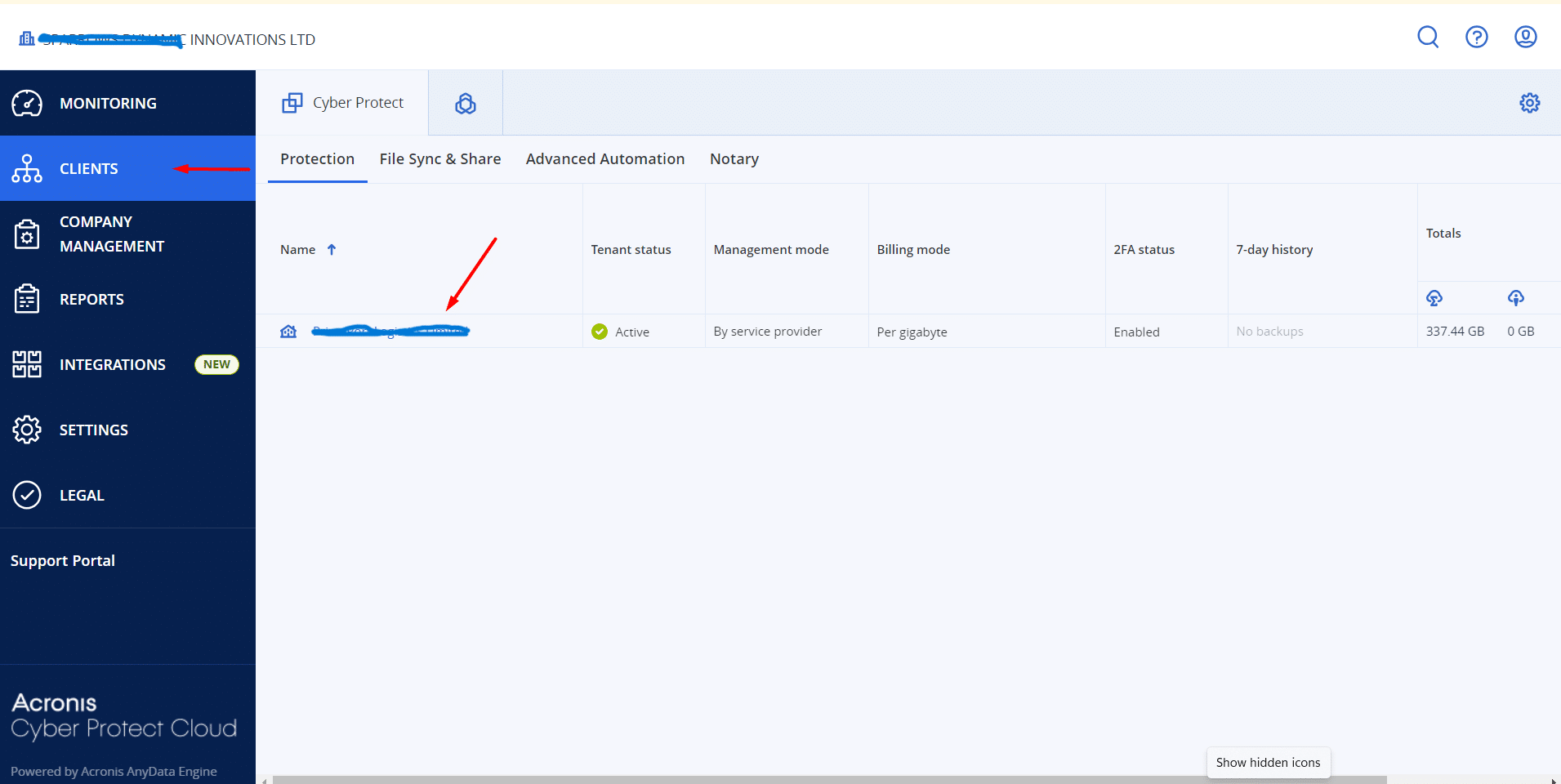
Step 1: Log in to the Admin Panel
Login on Acronis Cyber Protect Admin Panel and click on Clients in the left menu.
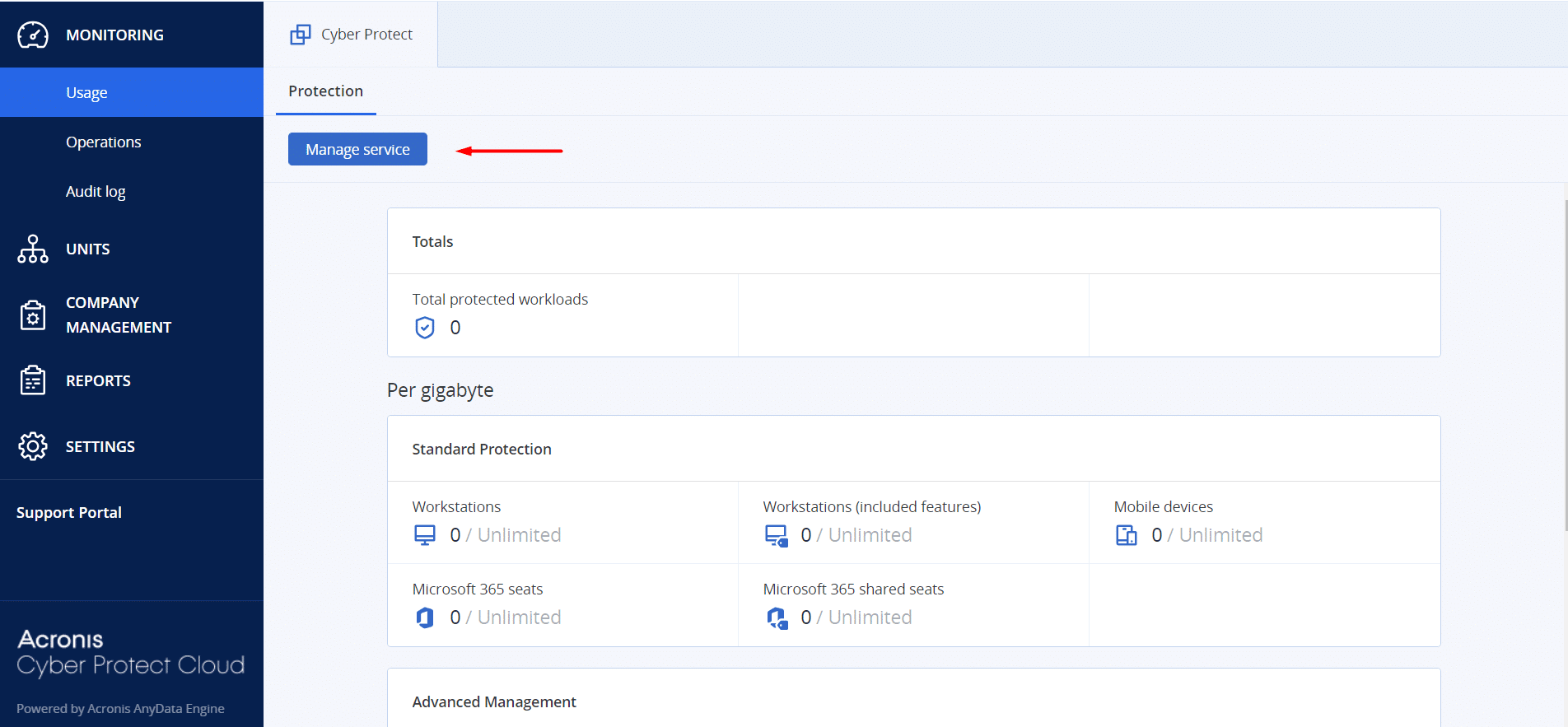
Step 2: Open Manage Service
Click on Manage Service.
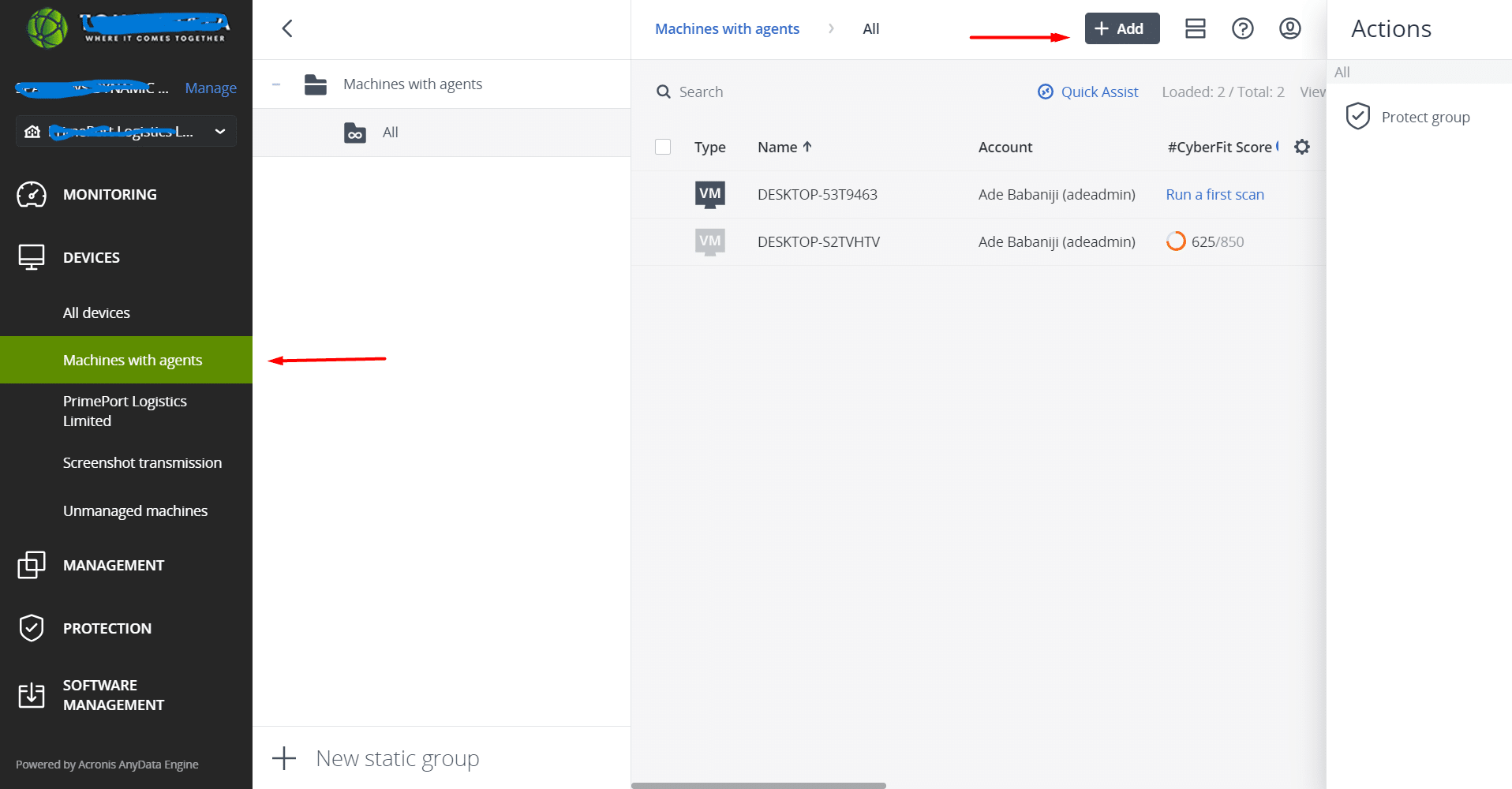
Step 3: Add a Machine with Agent
Click on Machines with Agent and then click Add.
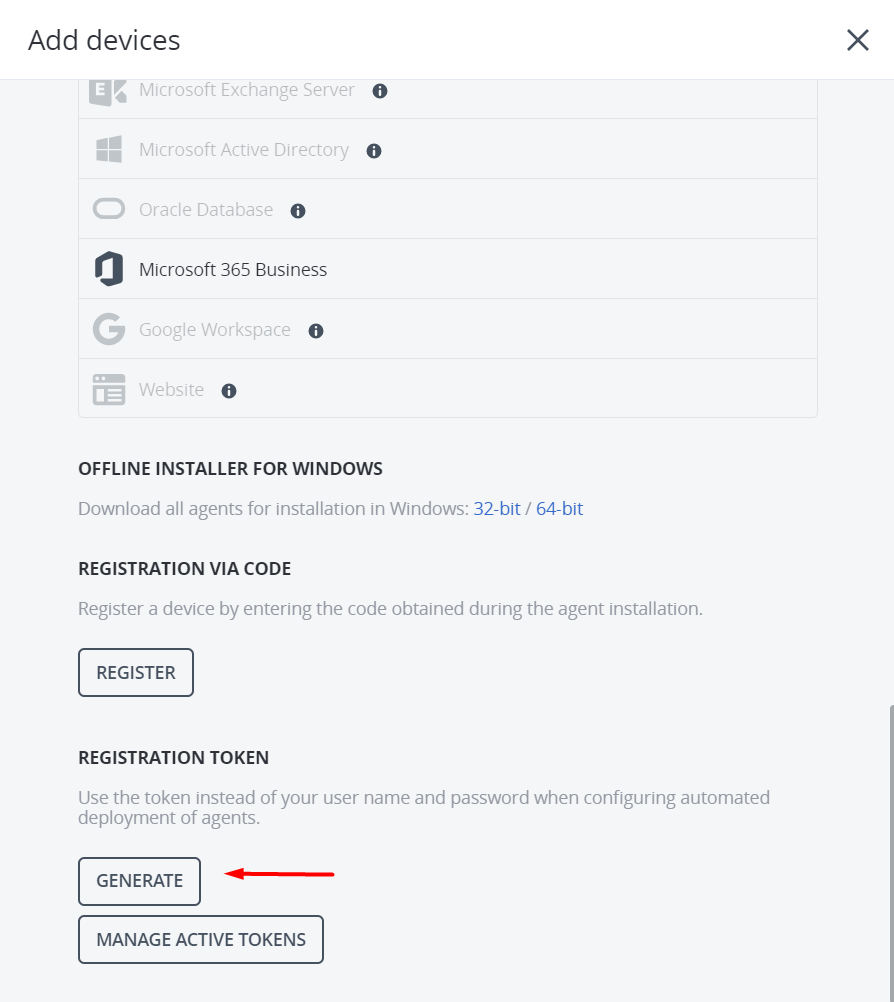
Step 4: Generate a Token
Click on the Generate button.
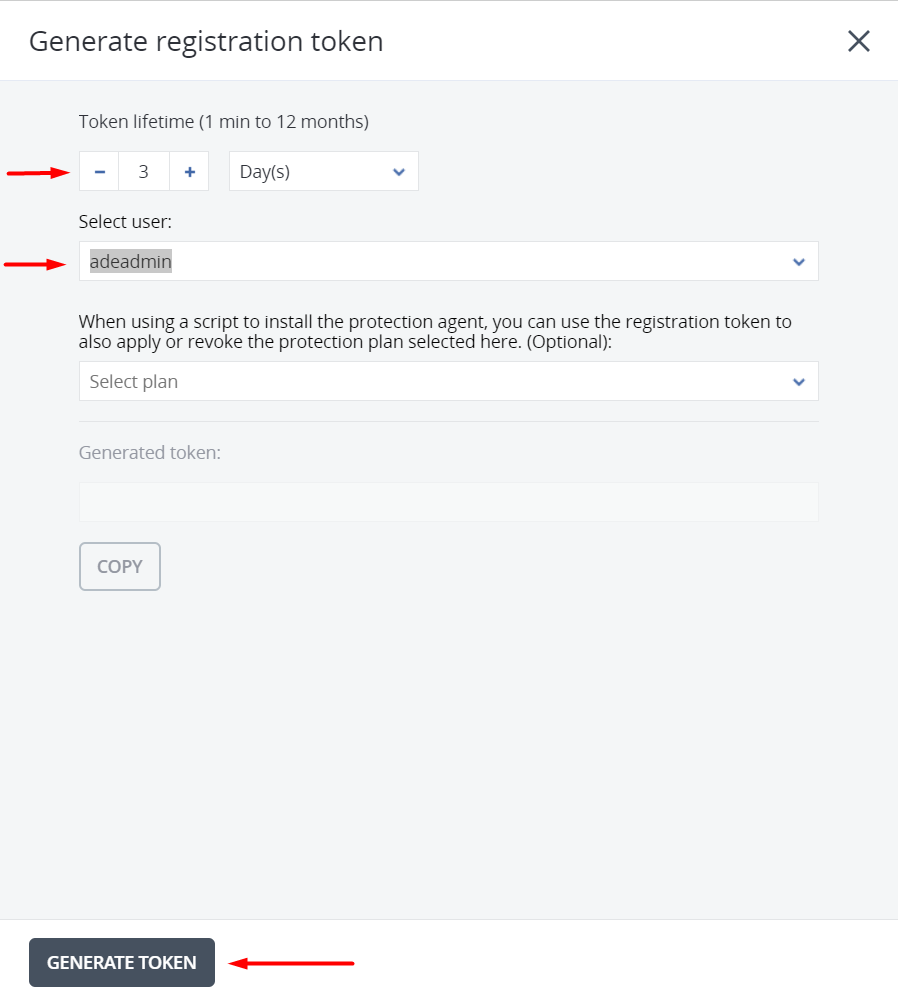
Step 5: Configure Token Settings
Select the token lifetime and select the user, then click Generate Token.
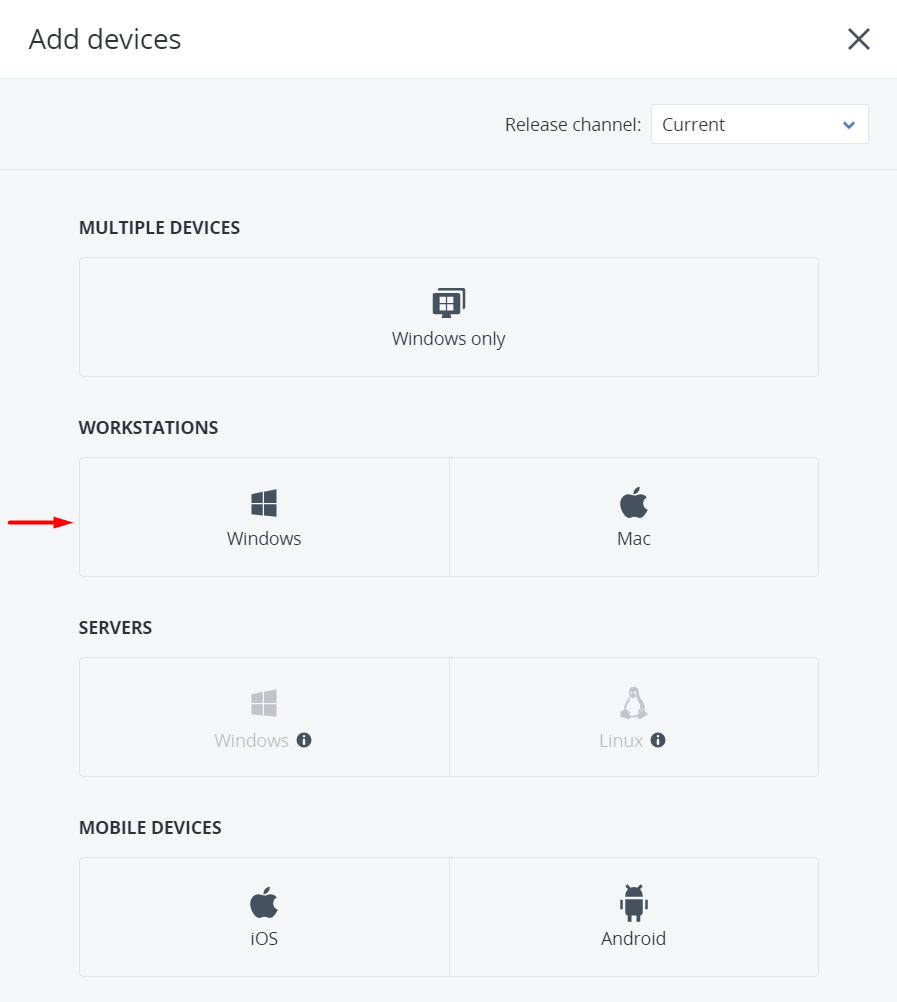
Step 6: Download the Windows Installer
Click on Windows to download the Acronis Cyber Protect Agent Installer.
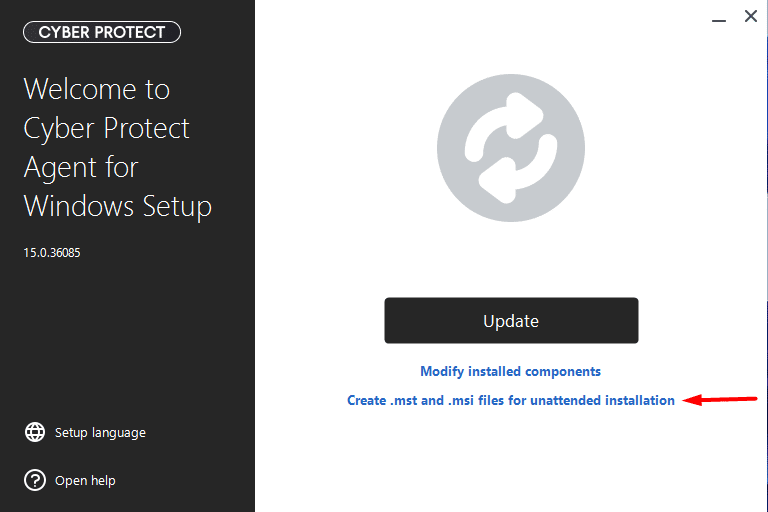
Step 7: Create MST and MSI Files
Run the Installer and select "Create .mst and .msi files for unattended installation".
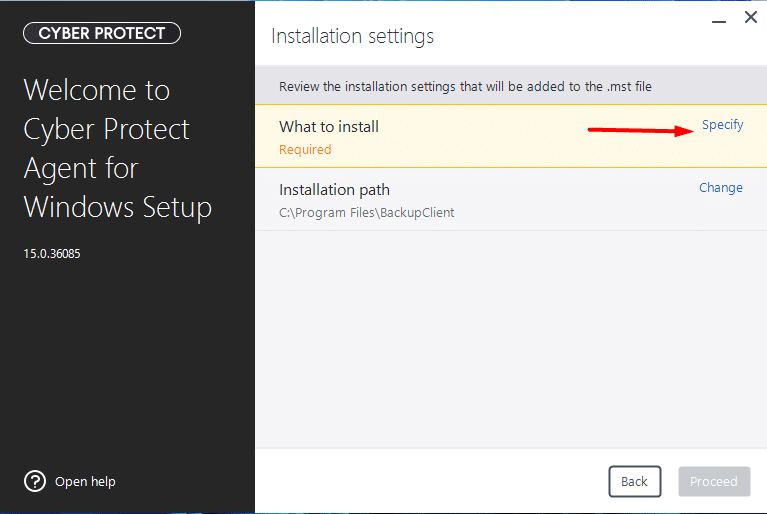
Step 8: Specify What to Install
In the "What to Install" section, click Specify.
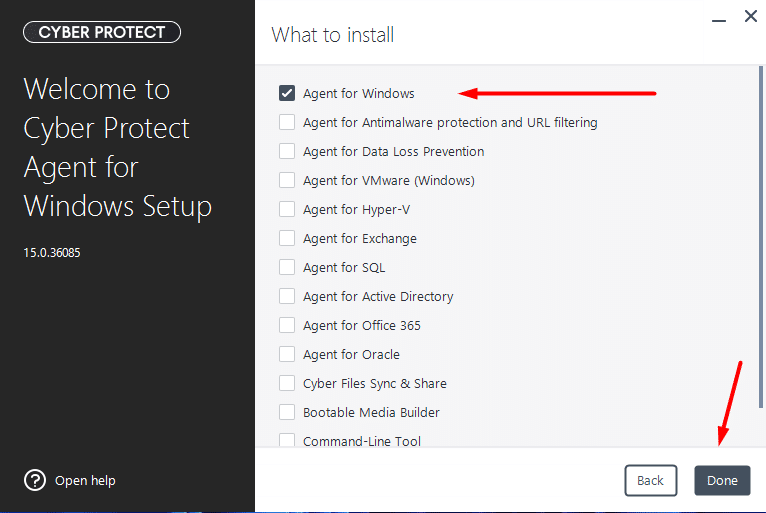
Step 9: Select Agent for Windows
Select Agent for Windows and click Done.
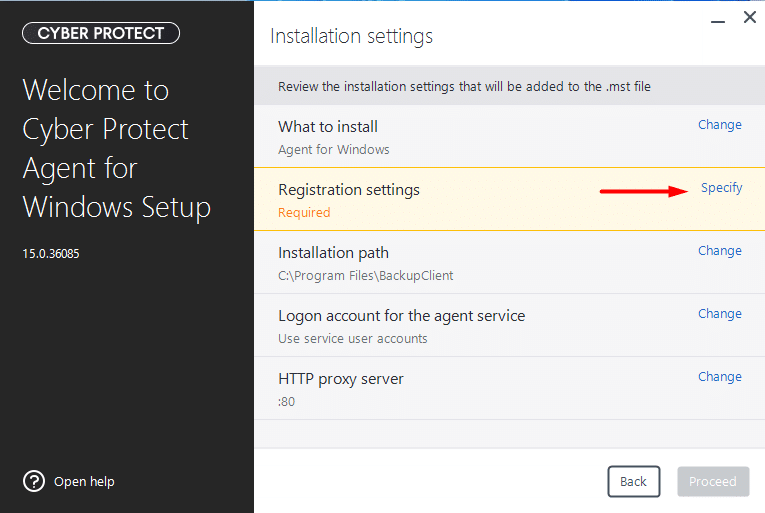
Step 10: Configure Registration Settings
In "Registration settings", click Specify.
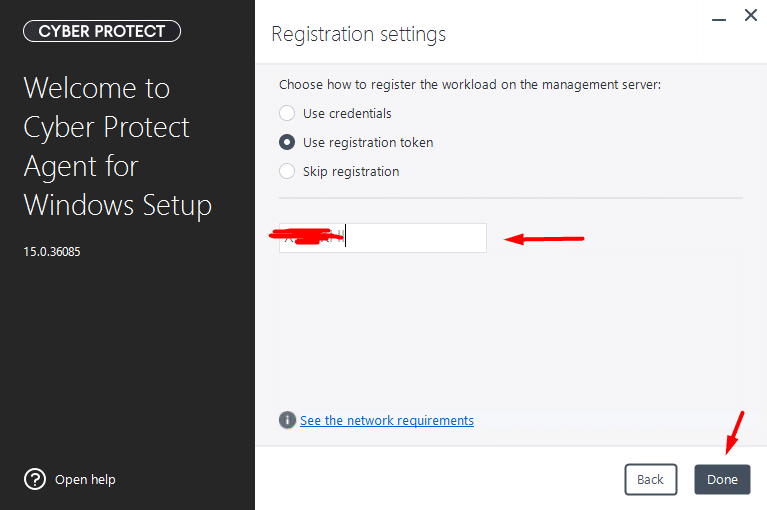
Step 11: Enter the Registration Token
Select "Use registration token", enter the token, and click Done.
Step 12: Proceed with the Installation
Click Proceed.
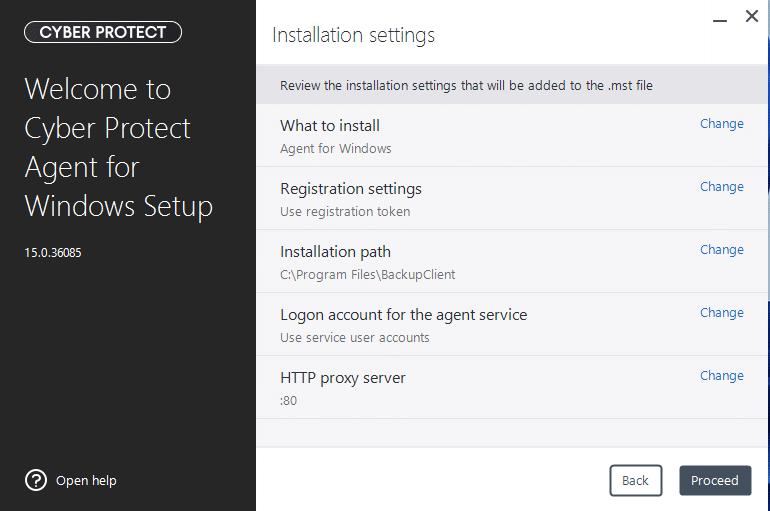
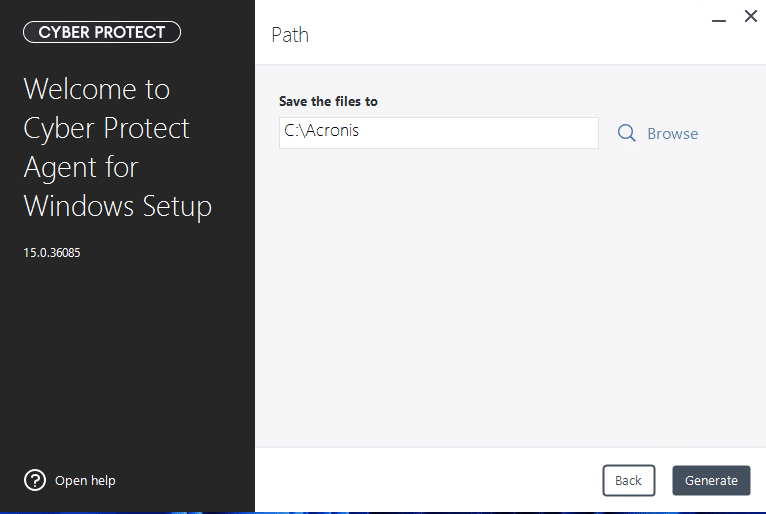
Step 13: Choose the Output Path
Enter the path where you want to generate the installation files.
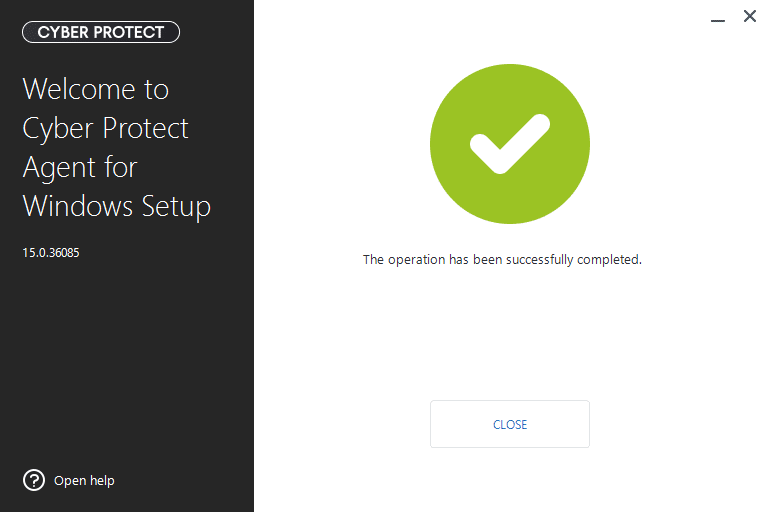
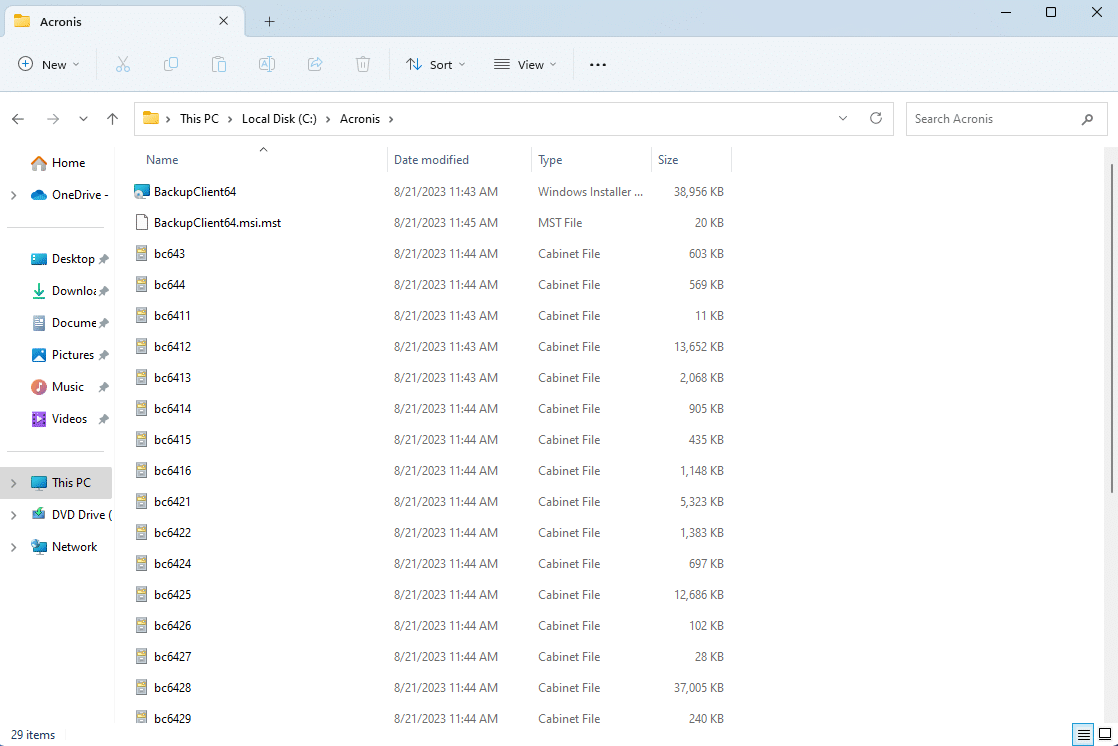
You will see that .msi and .mst files are created along with other files. You can also use it as an Acronis Cyber Protect offline installer.
Acronis Cyber Protect Unattended Installation Using Intune
Step 14: Create the Folder Structure
Create a folder called "Installer" and a subfolder called "Data".
Step 15: Copy the Installation Files
Copy all the files to the "Data" folder which we created in steps 1-12.

Step 16: Create the Installation Batch File
Create a file called "InstallAcronis.bat" and copy the following code. The /qn switch is used for Acronis silent install.
start msiexec /i "%~dp0BackupClient64.msi" TRANSFORMS=BackupClient64.msi.mst /qn
Step 17: Create the Intune Package
You can use "InstallAcronis.bat" to create your Intune package. You can follow the method from step 5 to step 6 of our Intune deployment guide.
Acronis Cyber Protect for Cloud offers a robust solution for cybersecurity and data protection tailored to cloud environments. With its comprehensive features, including backup and recovery, advanced cybersecurity protection, anti-malware, vulnerability assessment, integrated disaster recovery, AI-powered security, and user-friendly management tools, it provides a powerful safeguard for businesses and organizations operating in the cloud.
The unattended installation process through Intune simplifies deployment, making it a convenient choice for securing critical data and systems in the cloud.
Frequently Asked Questions
What is the Acronis Cyber Protect unattended installation?
An unattended installation allows you to deploy the Acronis Cyber Protect agent silently on multiple machines without user interaction. It uses .msi and .mst files along with the /qn switch to perform a silent install, which is ideal for large-scale enterprise deployments through tools like Microsoft Intune.
Can I deploy Acronis Cyber Protect using Microsoft Intune?
Yes. After generating the .msi and .mst files from the Acronis installer, you can package them into a batch file and deploy it as a Win32 app through Microsoft Intune. This allows you to push the Acronis agent to all managed devices in your organization automatically.
How long does the Acronis registration token last?
The token lifetime is configurable when you generate it in the Acronis Cyber Protect Admin Panel. You can set it to last anywhere from a few hours to several days depending on your deployment timeline. Make sure to complete the installation before the token expires.
Can I use this method for offline installation?
Yes. The .msi and .mst files generated during the process can also be used as an offline installer. This is useful when deploying Acronis Cyber Protect to machines that may not have direct internet access at the time of installation.
What components should I select during the unattended installation setup?
For most workstation deployments, selecting Agent for Windows is sufficient. This installs the core backup and protection agent. If you need additional features such as antivirus or vulnerability assessment, you can select those components as well during the "What to Install" step.