If you've ever tried to enroll your device in Intune and encountered Error Code 80180014, you're not alone. This error can be frustrating, especially when you're unsure what's causing it. In this post, we'll explain why this error occurs and how to resolve it.
What Is Error Code 80180014?
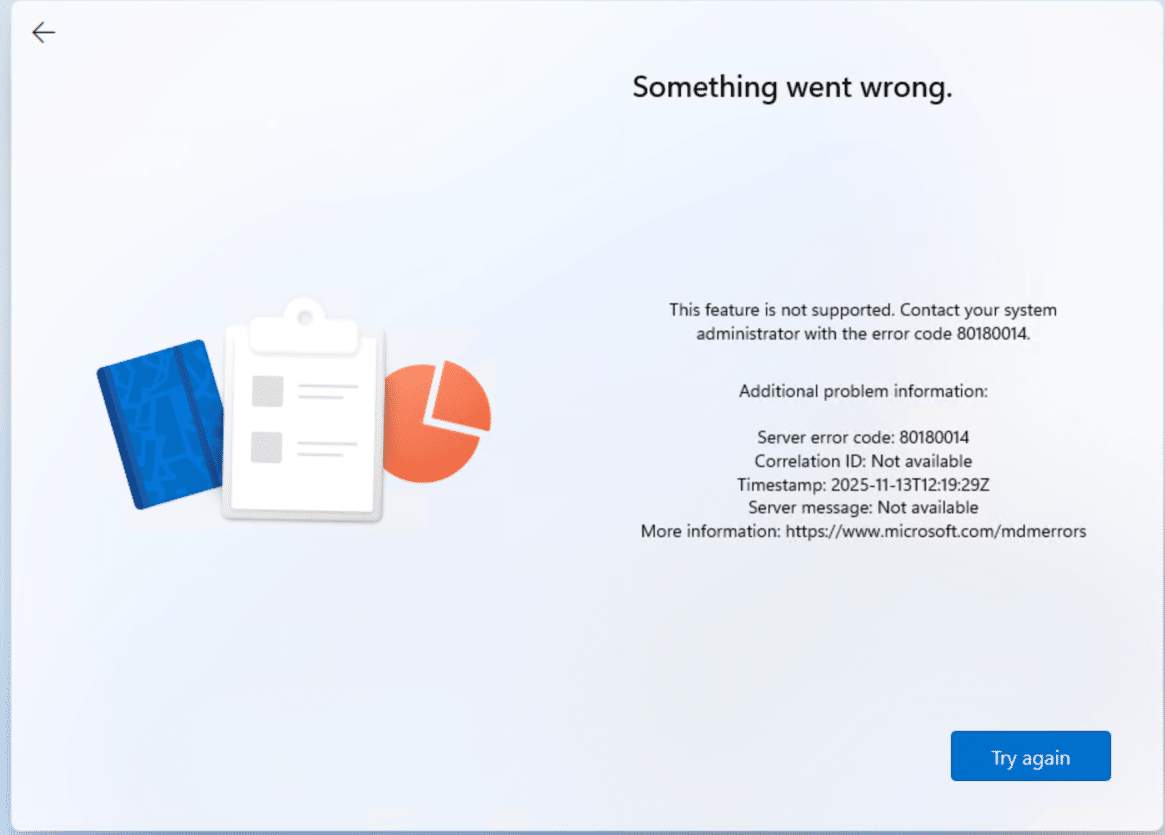
Error Code 80180014 is a Windows enrollment error that typically appears when trying to add a device to Microsoft Intune. The message often looks like this:
"Your organization doesn't allow you to enroll this device. (Error 80180014)"
In plain terms, Windows is telling you that your device cannot be enrolled due to restrictions set by your organization.
Why Does This Happen?
The most common reason for Error 80180014 is that your organization's Intune device restrictions block certain types of devices. Specifically:
- Personal devices are blocked -- if your device is not corporate-owned, Intune policies may prevent it from being enrolled.
- Autopilot-locked devices -- if a device is already assigned to Autopilot, users cannot manually enroll it.
In short, the IT admin has configured Intune so that only corporate devices can be registered, which is why personal devices or manually enrolling Autopilot devices are rejected with this error.
How to Fix Error Code 80180014
Here's the step-by-step solution:
1. Verify Device Ownership
Check whether your device is considered personal or corporate-owned in Intune. Only corporate devices may be allowed for enrollment if personal devices are blocked.
2. Contact Your IT Admin
If your device is personal but needs to be enrolled:
- Reach out to your IT department.
- Ask if they can either:
- Approve personal device enrollment, or
- Provide a corporate device for enrollment.
3. Update Intune Enrollment Restrictions (for IT Admins)
If you're an admin and want to allow personal devices, follow these steps:
- Go to Microsoft Endpoint Manager Admin Center.
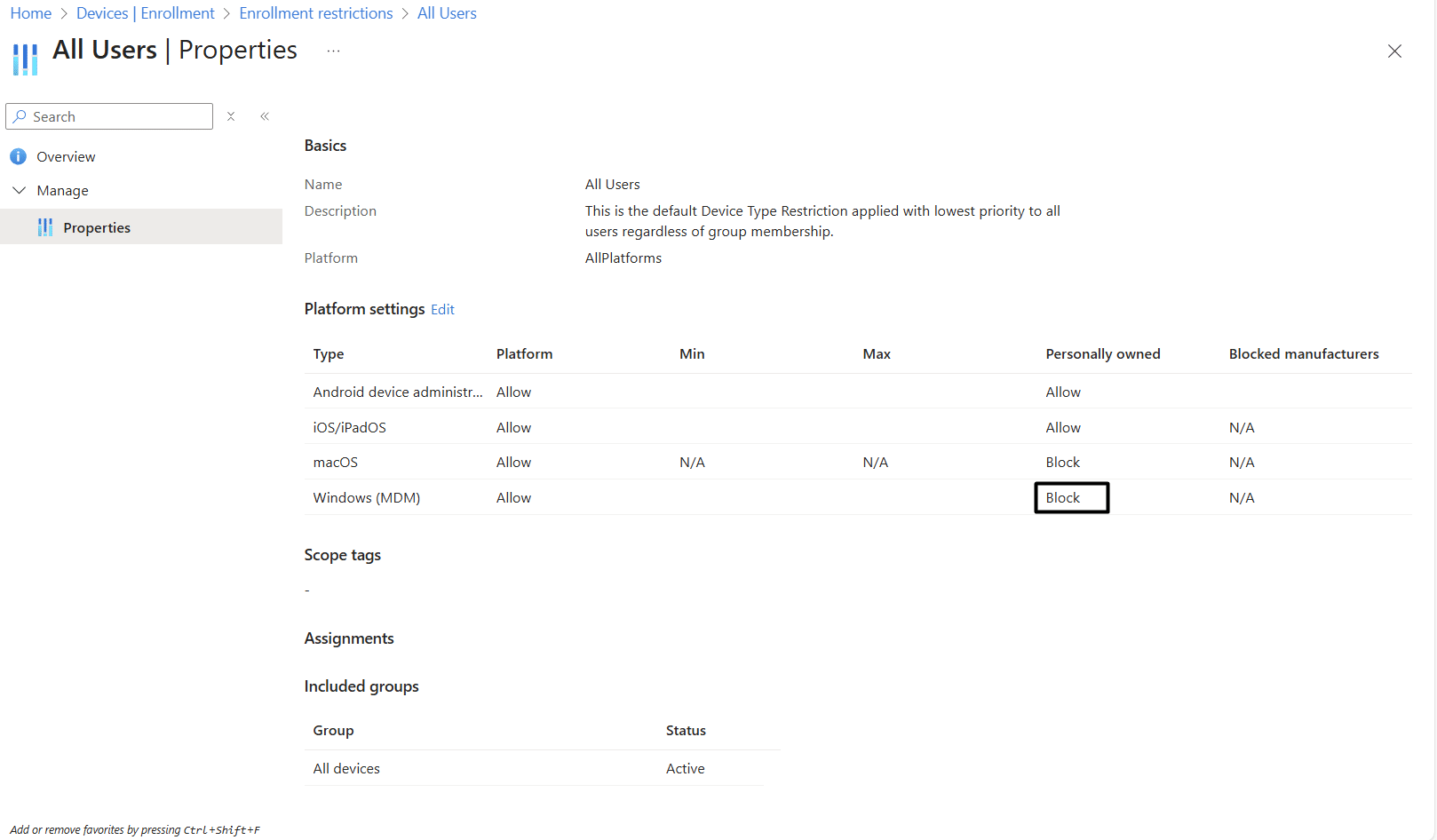
- Navigate to Devices > Enrollment restrictions > Device platform restrictions > All Users > Properties.
- Under Windows MDM, set Personally owned to Allow.
- Save the changes.
Note: If the device is locked to Autopilot, users will still not be able to manually enroll it. Autopilot devices must be enrolled via their assigned deployment profile.
4. Retry Enrollment
After verifying ownership and updating restrictions, try enrolling the device again. The error should no longer appear if your device is allowed by policy.
Summary
- Error Code 80180014 occurs when a device cannot be enrolled in Intune due to organizational restrictions.
- Common reasons include blocking personal devices and Autopilot-locked devices.
- Fixing it requires either policy updates by IT, admin approval, or using a corporate-owned device.
By understanding Intune's device restrictions, you can avoid this frustrating error and ensure smooth device enrollment.