Managing application deployments in Microsoft Intune can be complex, especially when apps rely on prerequisites like .NET Framework, Visual C++ Redistributables, or other runtime components. This is where Intune app dependencies become essential. In this guide, we'll dive deep into what Intune dependencies are, why they matter, and how to configure them effectively.
What Are Intune App Dependencies?
Dependencies in Intune allow administrators to define a strict installation order for Win32 applications. If your main app requires other apps to be installed first, you can configure those as dependencies. Intune ensures these prerequisites are installed before the primary app, improving deployment success rates and reducing errors.
Key Points:
- Works only with Win32 apps packaged as
.intunewin. - Dependencies cannot be applied to Microsoft Store apps or LOB apps.
- Supports up to 100 dependencies per app.
Why Are Dependencies Important?
- Prevent Installation Failures -- Missing prerequisites often cause silent failures or broken functionality.
- Streamline Deployment -- Automates the installation of required components without manual intervention.
- Enhance User Experience -- Ensures apps work as intended from day one, reducing helpdesk tickets.
How to Configure Dependencies in Intune
Step 1: Package Your Apps
Use the Microsoft Win32 Content Prep Tool to convert installers into .intunewin format. This step is mandatory for all Win32 apps.
Step 2: Upload Apps to Intune
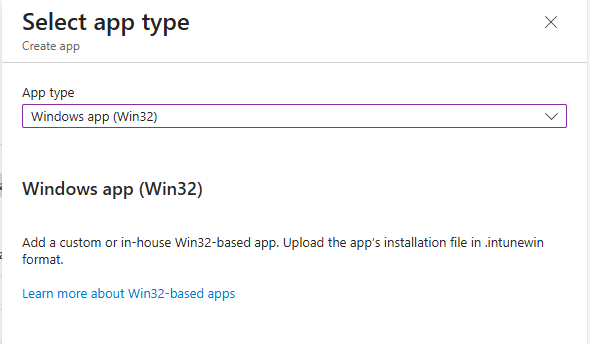
Navigate to Apps > Windows > Add > Win32 app in the Intune admin center. Upload both the main app and its dependencies.
Step 3: Define Dependencies
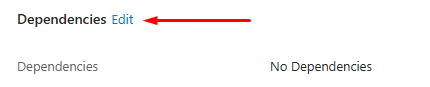
- Go to Properties > Dependencies for your main app.
- Add required apps as dependencies.
- Enable Automatically Install to ensure prerequisites are installed first.
Step 4: Test Deployment
Always validate on a clean VM or test device to confirm dependency behavior before rolling out to production.
Best Practices for Intune Dependencies
- Document All Prerequisites -- Identify frameworks and runtimes early in the deployment planning phase.
- Avoid Circular Dependencies -- Intune does not support circular or bidirectional dependency chains.
- Limit Dependency Chains -- Keep chains short for faster deployment and easier troubleshooting.
- Use Version Control -- Maintain organized installers for upgrades and supersedence scenarios.
Common Use Cases
- Deploying business-critical apps that require .NET Framework.
- Installing security tools that depend on specific runtime libraries.
- Rolling out custom enterprise apps with multiple prerequisite components.
Troubleshooting Tips
- Check Intune logs for dependency-related errors.
- Ensure detection rules are correctly configured for each app.
- Validate install commands and exit codes for silent installations.