
Deploy file to workstations with Microsoft Intune
Microsoft Intune is a very powerful tool for Azure administrator and can be used to perform a large number of tasks. You can set policies, deploy packages, run PowerShell scripts on azure domain-joined devices. This post is related to copy files or folders to the user’s desktop using Intune. I am creating a PowerShell script and batch file then I will convert them to Win32 Intune package for deployment.
Push Files via Intune
Let’s start.
Step 1: Create a folder named package in C drive
Step 2- Copy the file or folder which you want to copy to the desktop using Intune.
Step 3- Create a PowerShell script as below with file name PSscript.ps1
$PSScriptRoot = Split-Path -Parent -Path $MyInvocation.MyCommand.Definition
$Source = “$PSScriptRoot\name of file or folder”
$Destination = “C:\Users\Public\Desktop\”Copy-Item -Path $Source -Destination $Destination –Recurse -Force
Step 4- Create a batch file Install.cmd
@ECHO OFF
SET ThisScriptsDirectory=%~dp0
SET PowerShellScriptPath=%ThisScriptsDirectory%PSscript.ps1
PowerShell -NoProfile -ExecutionPolicy Bypass -Command “& ‘%PowerShellScriptPath%'”
Step 5- Download Microsoft Win32 Content Prep Tool
Step 6- Create a Win32 Intune package
PS C:\IntuneAppsWinAppsUtil> .\IntuneWinAppUtil.exe
Please specify the source folder: C:\Temp\package
Please specify the setup file: Install.cmd
Please specify the output folder: C:\Temp\package
Do you want to specify catalog folder (Y/N)?n
Step 7- Sign in to the Azure portal and select the Intune blade.
Step 8- Select Client apps –> Apps –Add
Step 9- Select app type “Windows app (Win32)”
Step 10 – Select the app package file which we created in step 6.
Step 11- On the program tab, follow as below screenshot

Step 12- Requirement tab

Step 13- Detection rules tab
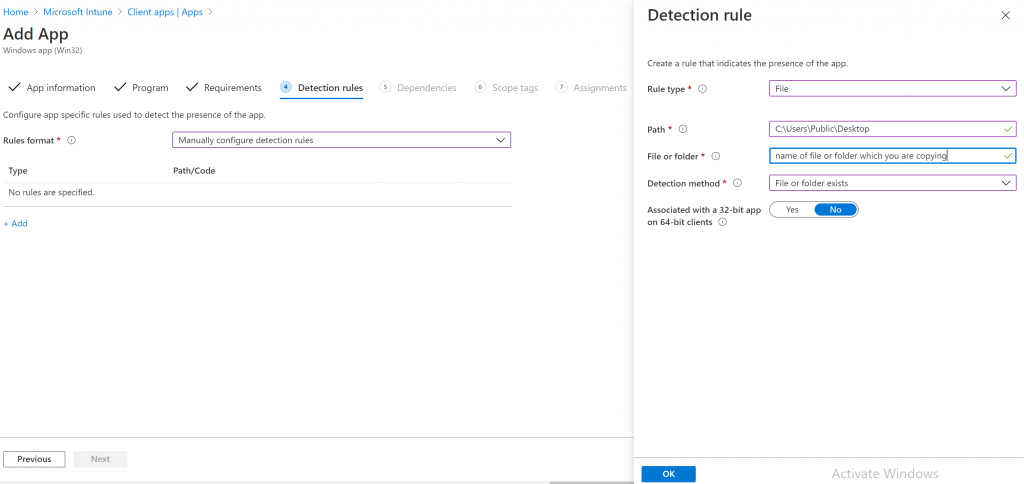
Step 14- Assignments
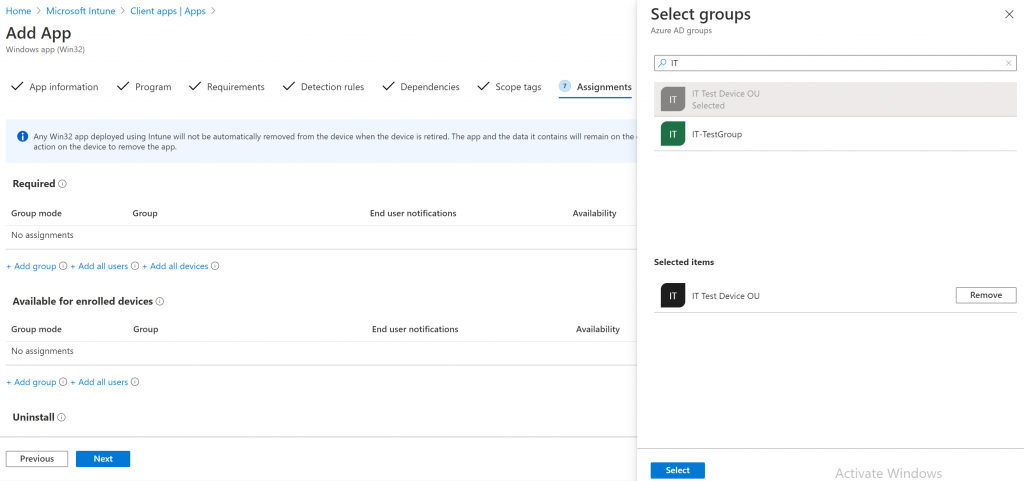
Step 15- Review + create tab. Create the package.
I hope this small tutorial will help you to copy files or folders to workstations using Intune.
Hi does this copy the install.cmd file as well? if so how can you have the install.cmd file removed after copying the folder you need with just the basic files? i am trying to copy an app to the desktop which works successfully,, but it requires an additional file for the software to work. I am pointing it to the public documents folder but our documents folder is redirecting to one drive and it does not copy to that specific documents folder. The students do not have access to the c drive to get in to the local documents folder. Thank you for your assistance.
Thanx so much, works like a charm
Just wanted to throw out a warning that copying and pasting the Install.cmd file for me did not work, but manually typing it in did work for anyone who runs into an Execution issue.
Thanks Usman for the script, and thanks ryan. you’re the GOAT! 🙂
for me, the script also ran into an installation error.
the problem is that it copies the ” characters incorrectly. if you delete them and manually set a new path in the install.cmd, everything works fine.
greetings and stay healthy
jannis
You need to add an uninstall.cmd as well for Intune to allow this script to be added
Not able to make it work.. not sure if something was missed. I am trying to drop Teamviewer QS on to the desktop (you don’t need to install this so all I wanted to do is drop the file on the all user desktop and call it a day.
Either im really dumb or im missing something but I have tried this solution a handful of time and it doesnt work. Also, im confused on step 2, am I copying the file to my desktop or the destination machine? Lastly, creating a install.intunewin to upload is fine, but what happens to the actual file that I want copied?
Sorry, im just having a hard time understanding this process.
Actual file will be copied from the source to the destination path.
I am attempting to copy a pdf file into the C:\Users\public\desktop directory usint the method described above. From Intune it fails with 0x80070001. When I run the install.cmd locally it will only complete if I am running it from an elevated command prompt. When executing from a standard command prompt I get an access denied to the C:\Users\Public\Desktop folder. Does anyone know of a way around this?
Thanks,
Rob
Hi Rob,
I don’t think the issue is with the script as public folder access is allowed to all users without administrative rights. Can you please share the error or try copying a file with copy command to the Public desktop folder?
Hi Osman,
I am trying something similar. Script is copying a file from a network location to local machine’s ProgramData folder. It works fine when I run this script locally in elevated mode but in Intune it throws and error “network path not found” but when I put this machine on company VPN it works. I believe this is either or both because System context doesn’t access to network folder or off VPN machine cannot reach the network location.
Any advice will be highly appreciated.
Copy-Item “\\abc\xyz\totalsoft\science\Software\GBX\Hello.xml” -Destination “C:\ProgramData\GBX\GBX\Profile\Hello.xml”
Thanks
Hi James,
Did you try with ip address of your network location isntead hostname?
Hi, do we need to modify the following in the Install.cmd file?
PowerShellScriptPath or leave it as is?
I’m getting installation failure, when I run the Install.cmd on my machine as Admin, I get the below error
ÔÇ£ : The term ‘ÔÇ£’ is not recognized as the name of a cmdlet, function, script file, or operable program. Check the
spelling of the name, or if a path was included, verify that the path is correct and try again.
At line:1 char:1
+ ÔÇ£
+ ~~~
+ CategoryInfo : ObjectNotFound: (ÔÇ£:String) [], CommandNotFoundException
+ FullyQualifiedErrorId : CommandNotFoundException
It’s possible that when you copy text, it may change double or single quotes so you may need to rewrite it in a script and test it again
I can run the cmd as admin locally from my machine and it works without issue.
Packaged it, in intune and it fails. Double Checked detection rules and verified it’s not copying the file to the directory I’m attempting to copy to C:\WINDOWS\System32
Update on my previous comment added.
I can see its actually copying the file to the syswow64 folder instead of the designation in the script to system32