Virtual machines are an important part of modern computing, allowing flexibility and efficiency in managing various operating systems. However, the installation of crucial components like VMware Tools can hit roadblocks, leading to errors that can be quite frustrating.
One such issue is encountered when attempting to install VMware Tools on a Windows virtual machine, only to face the following error message: "Setup cannot continue. The Microsoft Runtime DLL installer failed to complete installation."
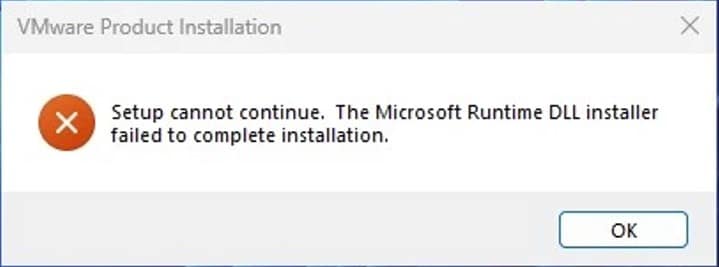
The root cause of this error is due to registry settings of the Windows virtual machine. Specifically, changes made manually or through group policy changes might have changed the installation location for files, causing the VMware Tools installation to not work as expected.
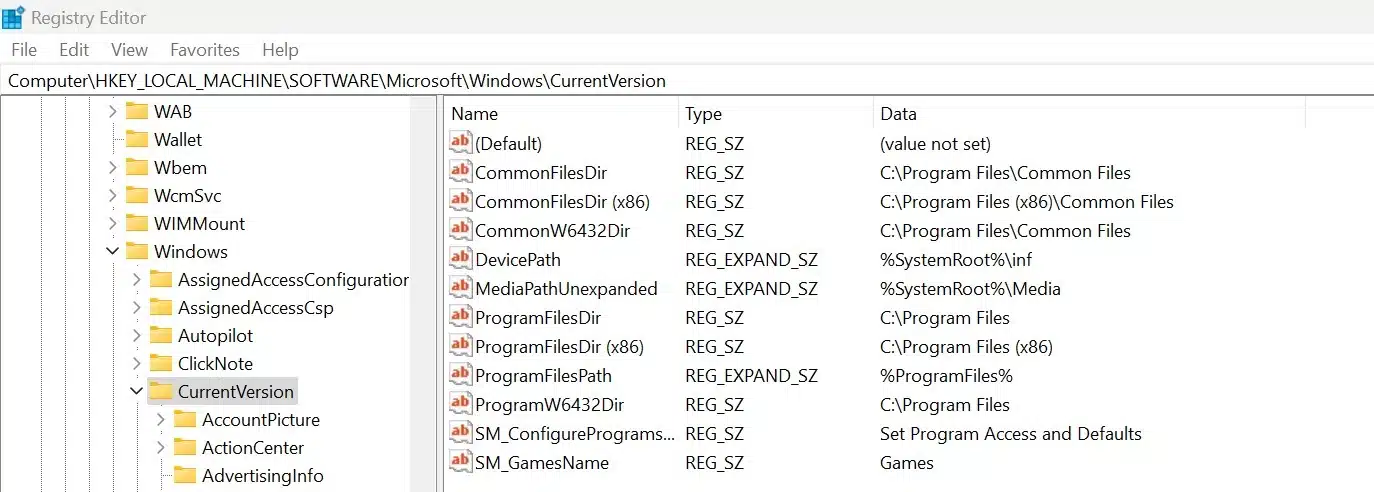
An indicative snapshot of the registry information could resemble the following:
Hive: HKEY_LOCAL_MACHINE
Key: Software\Microsoft\Windows\Current Version
Name: CommonFilesDir
Value: F:\Program Files\Common Files
It's important to note that the Value field may display a different drive letter based on the system's configuration.
Cause of the Issue
This installation failure typically occurs due to a mismatch between the specified installation path in the registry and the accessible drives within the virtual machine.
For instance, if the registry points to a location like F:\Program Files\Common Files, but the virtual machine does not have access to the F: drive, the VMware Tools installation fails.
Resolving the Installation Error
To solve this issue and start the successful installation of VMware Tools, an adjustment within the registry settings is necessary. Here's a step-by-step guide to resolve the problem.
Step 1: Backup Your Registry
Before diving into any registry modifications, ensure you have a recent and reliable backup of both the registry and the virtual machine.
Step 2: Access the Registry Editor
- Click on Start > Run
- Type in
regedit - Press OK to launch the Registry Editor
Step 3: Navigate to the Key
In the Registry Editor, go to:
HKEY_LOCAL_MACHINE\Software\Microsoft\Windows\Current Version\
Step 4: Edit the CommonFilesDir Key
- Locate the "CommonFilesDir" key
- Double-click it
- Modify the Value string to represent a valid drive letter accessible within the virtual machine
For example, if the C: drive is available, adjust the CommonFilesDir Value string to:
C:\Program Files\Common files
Step 5: Save Changes
Click OK to confirm the modification.
Step 6: Exit the Registry Editor
Select File > Exit within the Registry Editor to close the window.
Step 7: Verify the Installation
Attempt to install VMware Tools again to confirm whether the adjustment has resolved the issue.
Remember, changes in the Windows registry require caution. Be careful while making changes and always have a backup in place to mitigate any potential risks associated with registry modifications.
By following these steps, the hurdle preventing the installation of VMware Tools on your Windows virtual machine should hopefully be overcome, allowing for a successful installation process.
Frequently Asked Questions
What causes the "Microsoft Runtime DLL installer failed" error in VMware Tools?
The error is caused by a mismatch in the Windows registry where the CommonFilesDir key points to a drive letter that does not exist or is not accessible inside the virtual machine. This prevents VMware Tools from writing the necessary runtime DLL files during installation.
Is it safe to edit the Windows registry to fix this issue?
Yes, editing the registry is safe as long as you take proper precautions. Always create a full backup of the registry and a snapshot of the virtual machine before making any changes. Only modify the specific key mentioned in the guide (CommonFilesDir) and verify the new value points to a valid drive.
Do I need to restart the virtual machine after changing the registry key?
In most cases, a restart is not required. You can attempt to reinstall VMware Tools immediately after saving the registry change. However, if the installation still fails, try restarting the virtual machine and then running the VMware Tools installer again.
Can group policy changes cause this VMware Tools installation error?
Yes. Group policy settings applied by your organization can redirect default installation paths to network drives or alternate drive letters. If those drives are not mapped inside the virtual machine, the VMware Tools installer will fail with the Microsoft Runtime DLL error.
Does this fix apply to all versions of VMware Tools and Windows?
This registry-based fix applies broadly across Windows versions (Windows Server and desktop editions) and various VMware Tools releases. The CommonFilesDir registry key exists in all modern Windows versions, so the solution remains consistent regardless of the specific VMware Tools or Windows version you are running.