Last week, attackers used compromised Microsoft Intune credentials to push a mass device wipe across Stryker's endpoints. Hundreds of managed devices were wiped in a single action — no MFA prompt, no second pair of eyes, no friction whatsoever. Just one compromised admin account and a policy that executed instantly.
This is not a novel attack vector. It is a predictable consequence of missing a control that Microsoft ships natively with Intune: Multi Admin Approval (MAA).
MAA requires a second administrator to explicitly approve destructive actions — device wipe, retire, delete — before they execute. It takes about 5 minutes to configure. If Stryker had it enabled, the wipe would have sat in an approval queue instead of running.
This post walks you through exactly how to configure it.
What Is Intune Multi Admin Approval?
Multi Admin Approval is a built-in Intune governance control that adds a mandatory human approval step to high-impact actions. When MAA is active, any admin who initiates a covered action — such as wiping a device — triggers an approval request. A designated second admin must review and approve the request before it executes.
This directly breaks the single-account compromise attack pattern. Even if an attacker has full Intune admin credentials, they cannot execute a destructive action unilaterally. The approval request lands with a separate group of administrators who would immediately see an unexpected request and deny it.
What Actions MAA Covers
MAA policies are configured per action type. Each of the following requires its own policy:
| Action | Description |
|---|---|
| Device wipe | Factory resets the device, removing all data |
| Device retire | Removes corporate data and unenrolls the device |
| Device delete | Removes the device record from Intune |
| Scripts | PowerShell and shell script deployments |
| App deployments | Required app assignments pushed to devices |
Critical caveat: Most organizations only configure the device wipe policy and call it done. That leaves retire, delete, scripts, and app deployments completely unprotected. If an attacker can't wipe, they'll retire. If they can't retire, they'll push a malicious script. Configure all five policy types.
How to Configure Intune Multi Admin Approval
Prerequisites
- Microsoft Intune Plan 1 or higher (included in Microsoft 365 E3/E5, EMS E3/E5)
- Intune Administrator or Global Administrator role
- A security group containing your designated approvers (at minimum two people, ideally a dedicated Intune Security Approvers group)
Step 1: Navigate to Multi Admin Approval
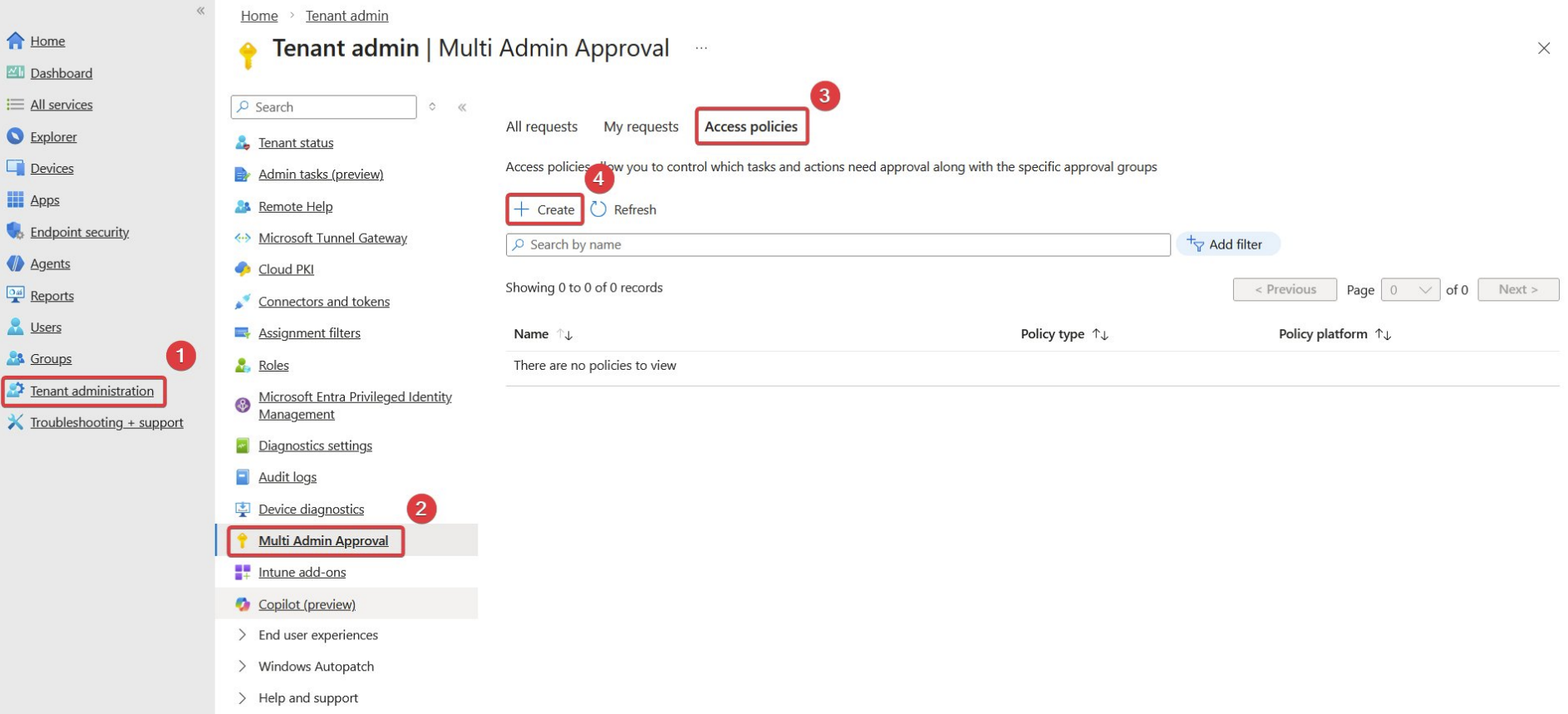
In the Microsoft Intune admin center, go to:
Tenant administration > Multi Admin Approval > Access policies
Click + Create to begin.
Step 2: Create the Access Policy
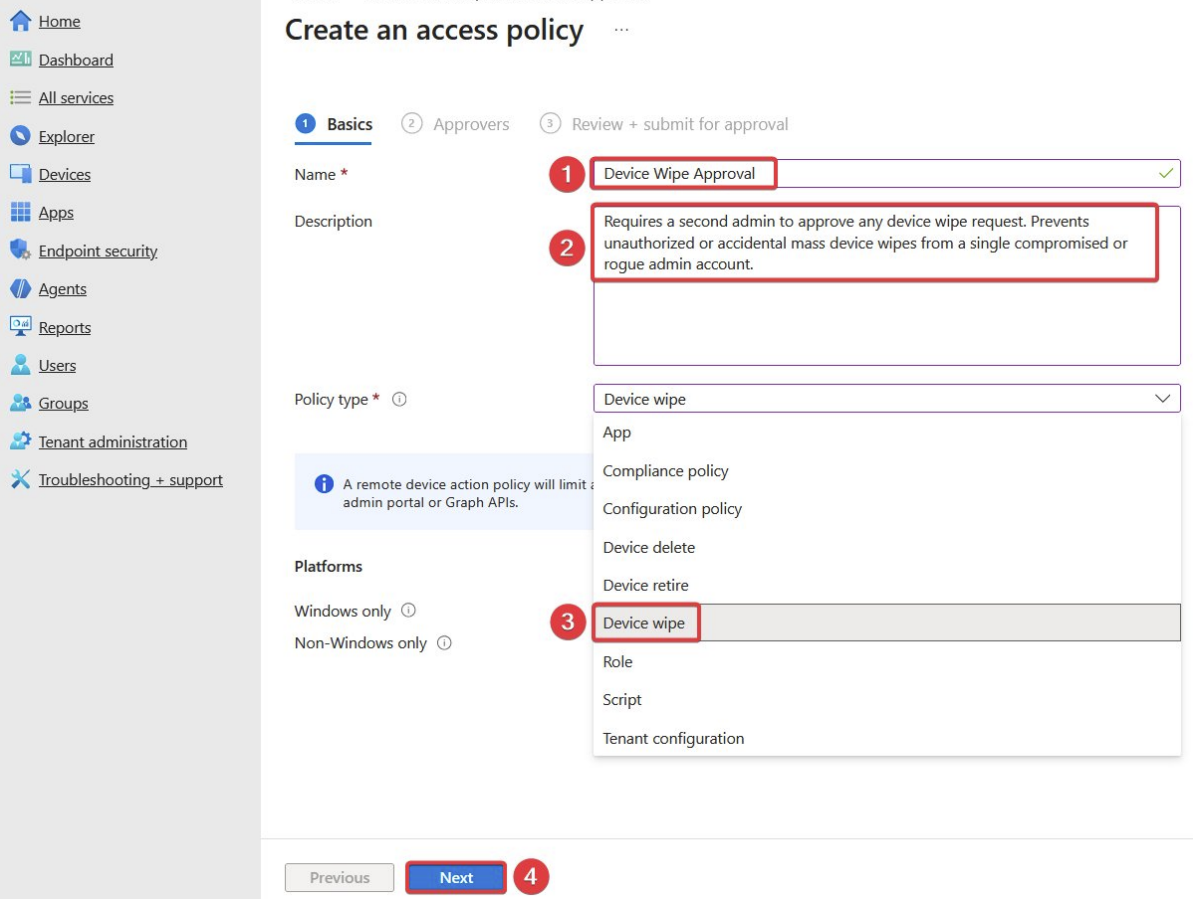
On the Create access policy blade, give the policy a descriptive name. Use something operationally clear like MAA - Device Wipe so approvers instantly understand what they are reviewing.
Step 3: Set the Policy Type to Device Wipe
Under Profile type, select Device wipe from the dropdown.
This scopes the policy to device wipe actions only. You will need to repeat this process for each additional action type you want to protect.
Step 4: Add the Approver Group
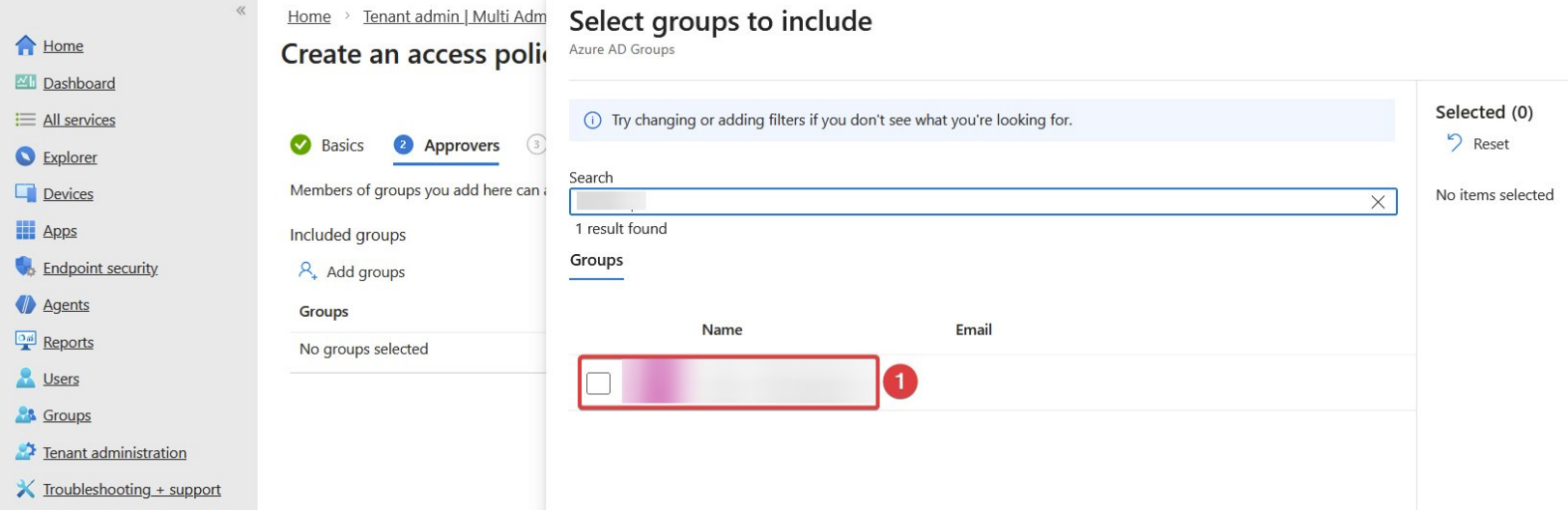
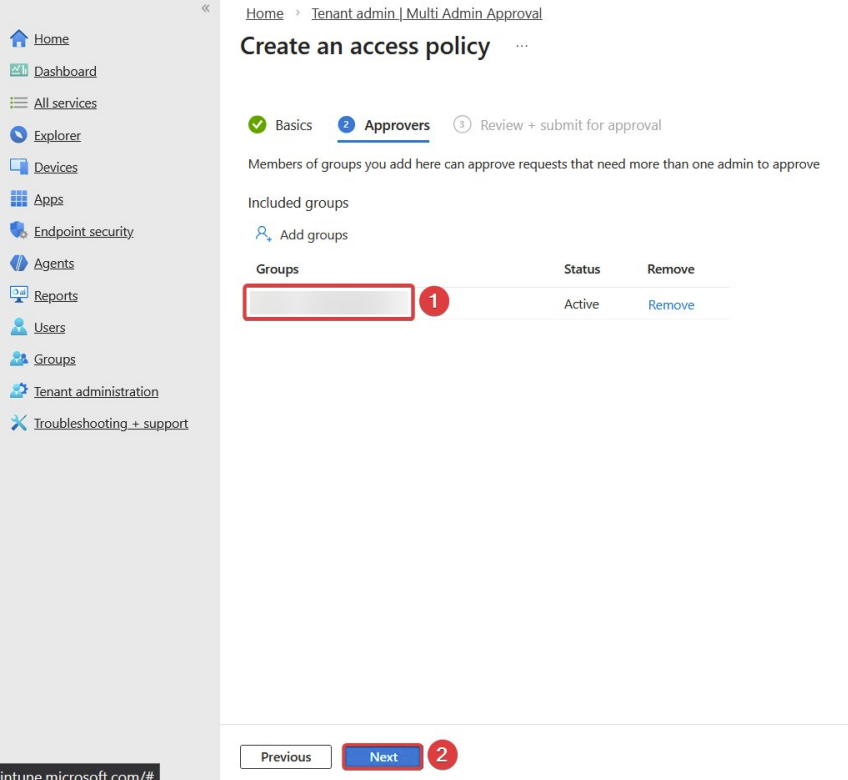
On the Approvers tab, click + Add groups and select the security group that contains your designated approvers.
Best practice recommendations:
- Use a dedicated group — do not reuse your general IT admins group
- Require at least two members in the approver group
- Ensure approvers are covered by stricter Conditional Access policies (phishing-resistant MFA, compliant device requirement)
- Exclude the approver group members from being able to initiate the same action themselves where possible
Step 5: Submit the Policy for Approval
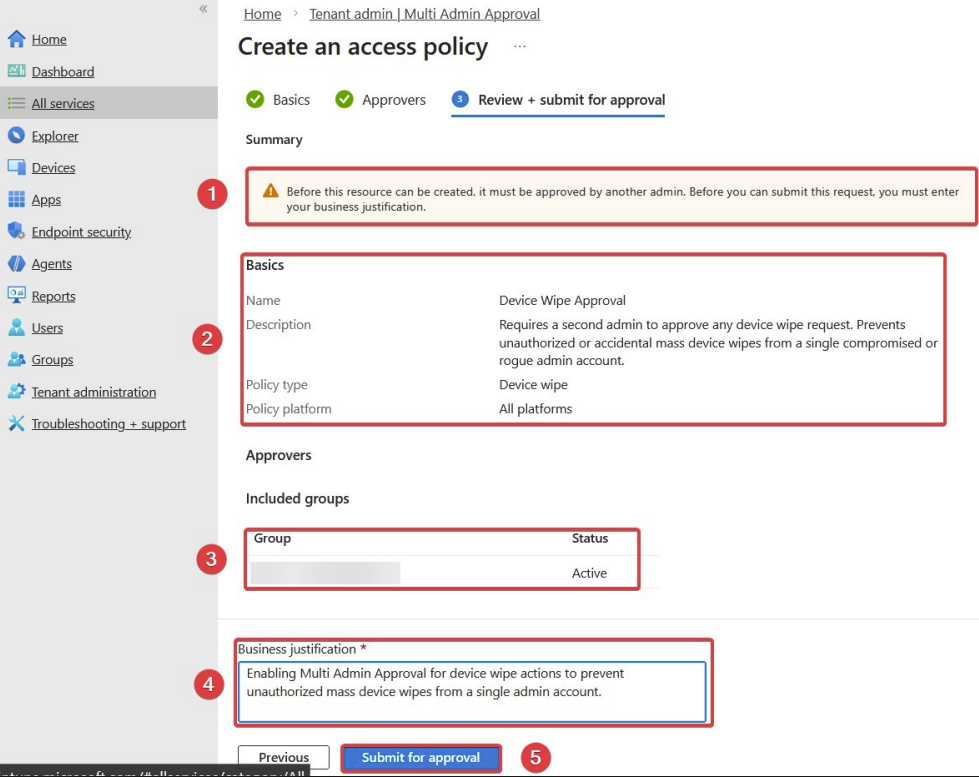
On the Review + create tab, enter a business justification explaining why you are creating this policy. This justification is logged and visible to approvers.
Click Submit. Because MAA is recursive — the policy creation itself is a sensitive action — a second admin in your approver group must approve this policy before it goes live.
Step 6: Approve the Policy
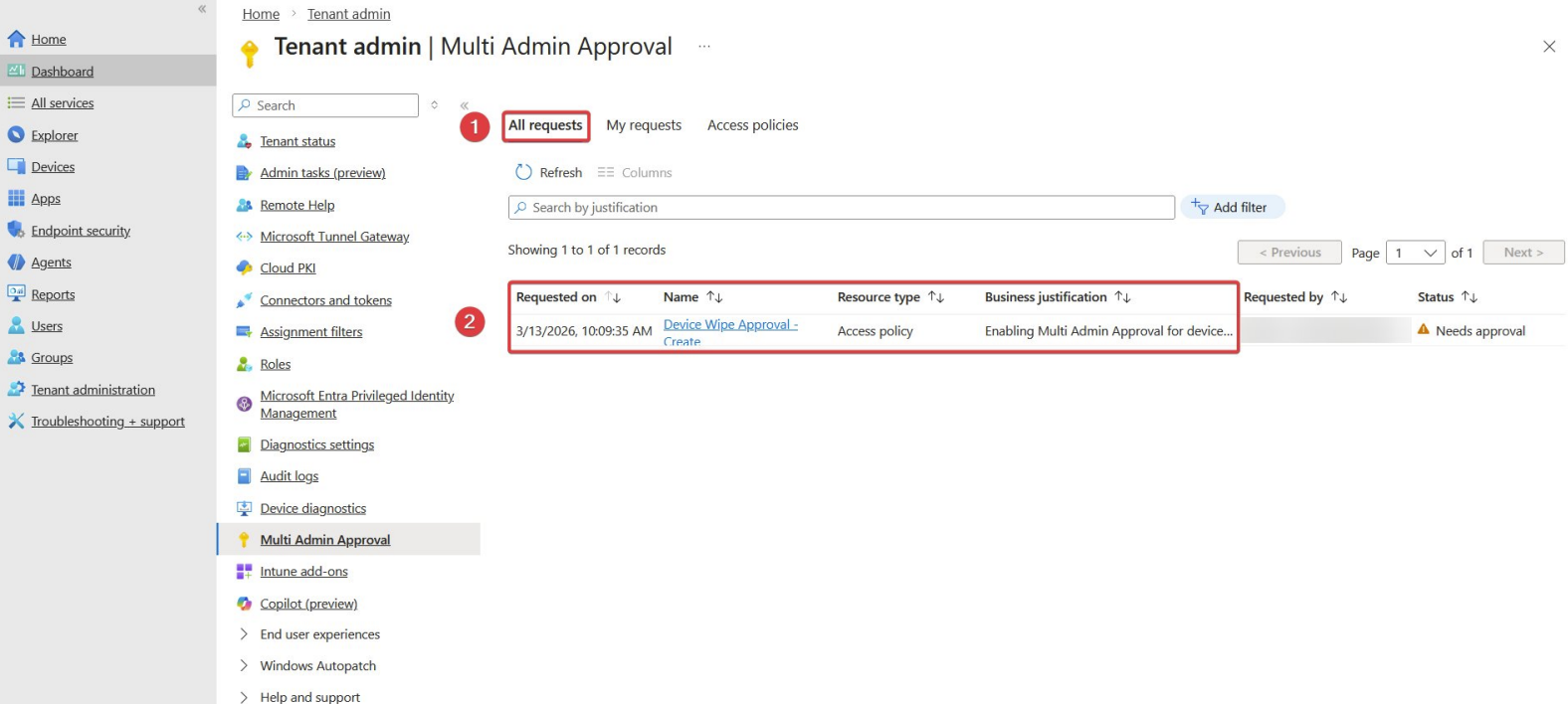
The approver will see a pending approval request in Tenant administration > Multi Admin Approval > Pending approvals.
They review the details, confirm the justification is legitimate, and click Approve. Once approved, the policy is active.
What Happens When MAA Is Active
When an admin attempts a protected action (e.g., wipes a device), here is what occurs:
- The action is held — it does not execute immediately
- An approval request is sent to all members of the approver group
- Approvers receive an email notification and see the request in the Intune portal
- An approver reviews the request, including the device name, initiating admin, and business justification
- If approved, the action executes; if denied or if no action is taken within the timeout, it is cancelled
From an attacker's perspective: they trigger the wipe, nothing happens, and your security team immediately sees an unsolicited approval request from an account they may have already flagged as compromised.
What MAA Does Not Cover
MAA is a strong compensating control but it is not a complete solution on its own. It does not protect:
- Compliance policy changes — an attacker could weaken compliance rules to mark non-compliant devices as compliant
- Conditional Access policy modification — policies could be disabled to allow access from unmanaged devices
- Configuration profile deletions — security baselines could be removed from device groups
- Bulk operations via Graph API — if the compromised account has Graph API access, MAA may not apply depending on how the request is made
For these vectors, complement MAA with:
- Privileged Identity Management (PIM) — just-in-time Intune admin elevation with time-limited access
- Conditional Access for Intune admin roles — require phishing-resistant MFA and compliant device for any admin portal access
- Entra ID audit logs and Microsoft Sentinel alerts — alert on bulk device actions and admin policy changes in real time
- Break-glass account monitoring — alert immediately on any sign-in from your emergency access accounts
Complete MAA Configuration Checklist
Before you close this tab, confirm you have covered all five policy types:
- Device wipe policy created and approved
- Device retire policy created and approved
- Device delete policy created and approved
- Scripts policy created and approved
- App deployments policy created and approved
- Approver group has minimum two members
- Approver group members are under stricter Conditional Access
- Approver group members are trained on what a legitimate vs. suspicious request looks like
- An alert is configured if an MAA request is denied (potential indicator of an attack attempt)
Frequently Asked Questions
Does MAA apply to bulk actions? Yes. If an admin selects multiple devices and initiates a wipe, the entire batch is held pending approval. This is exactly the scenario the Stryker attack represents.
Can an approver approve their own requests? No. The admin who initiated the action cannot also approve it. This is enforced by Intune.
What happens if no approver responds? The request expires after a configurable timeout. The action is not executed. This is a safe default.
Does MAA work with the Intune Graph API? MAA applies to actions taken through the Intune admin center. Actions taken directly through the Microsoft Graph API may bypass MAA depending on the method used — this is an important gap to be aware of. Restrict Graph API access through Entra ID app registrations and conditional access accordingly.
Is MAA available on all Intune licensing tiers? MAA requires Intune Plan 1, which is included in Microsoft 365 E3, E5, Business Premium, EMS E3, and EMS E5 licenses.
Summary
The Stryker incident is a reminder that speed is the enemy of safety when it comes to destructive admin actions. Intune Multi Admin Approval adds exactly the friction that prevents a single compromised account from causing catastrophic damage.
Configure it for all five action types — not just device wipe. Add your approver group. Approve the policies. Do it today, before the next incident is yours to explain.
If you found this useful, share it with your team. This is a 5-minute configuration that every Intune environment should have.
Credit: Thanks to Ivailo M. for originally highlighting this attack pattern and the MAA walkthrough that inspired this post.