Google Chrome was developed and released by Google in 2008. It's a quite popular browser on Microsoft Windows, Linux, Mac OS. It also supports mobile devices such as Android and iOS. In today's post, we will discuss how we can deploy or install Chrome browser using Intune on remote devices.
Step 1: Download the Chrome Enterprise Bundle
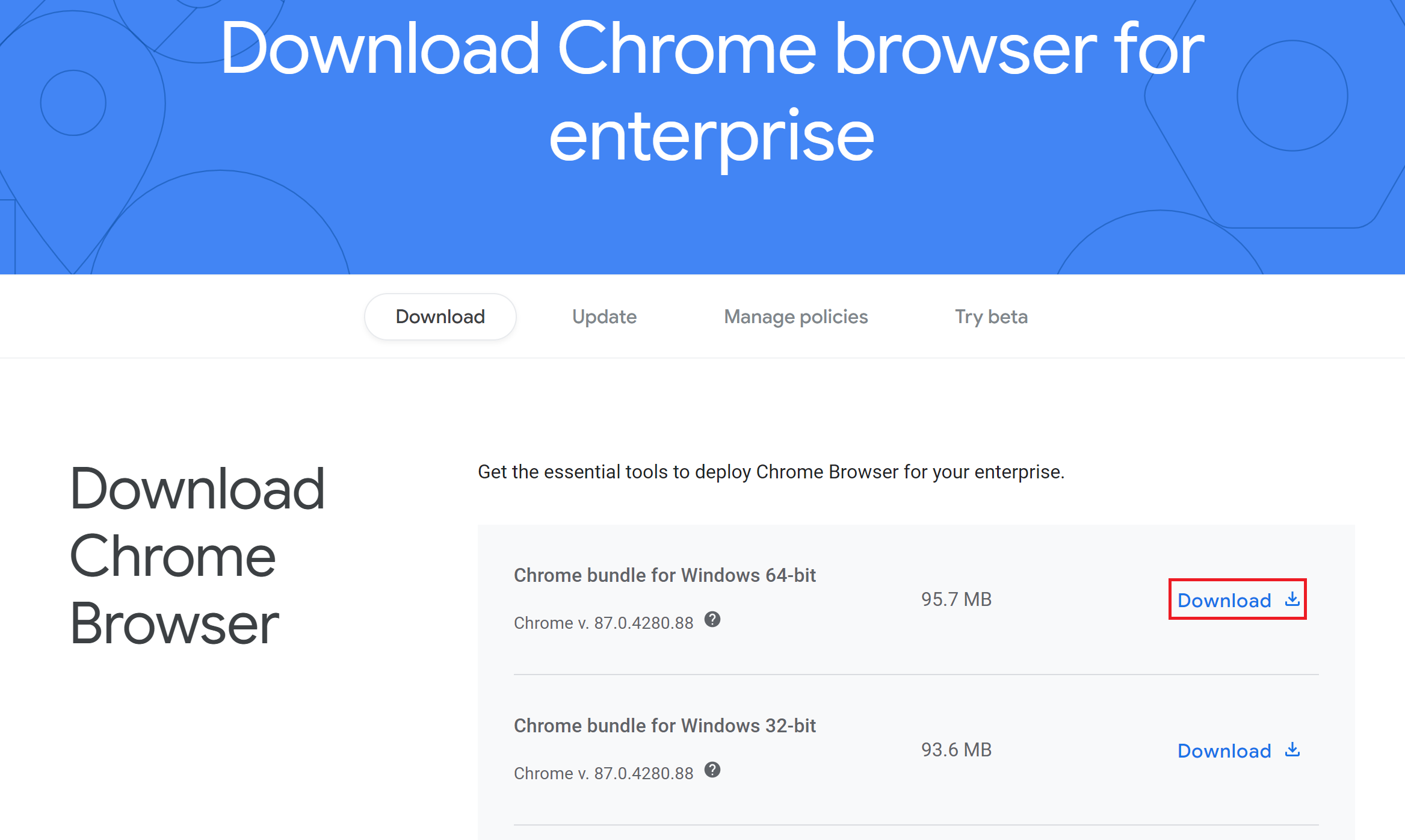
Go to the following URL and download "Chrome bundle for Windows 64-bit":
https://chromeenterprise.google/browser/download/
Step 2: Extract the MSI File
Extract the zip file and find the file "GoogleChromeStandaloneEnterprise64.msi" in the Installer folder.
Step 3: Open Intune Endpoint Manager
Navigate to Intune Endpoint Manager: https://endpoint.microsoft.com/
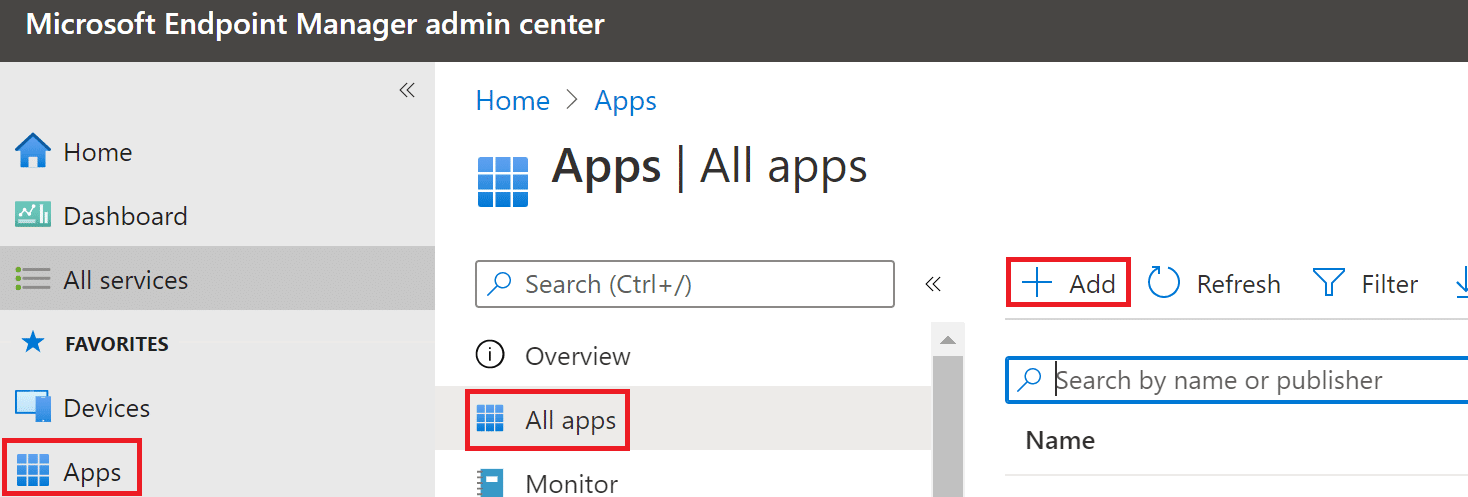
Select Apps and All Apps, then Click on Add App.
Step 4: Select App Type
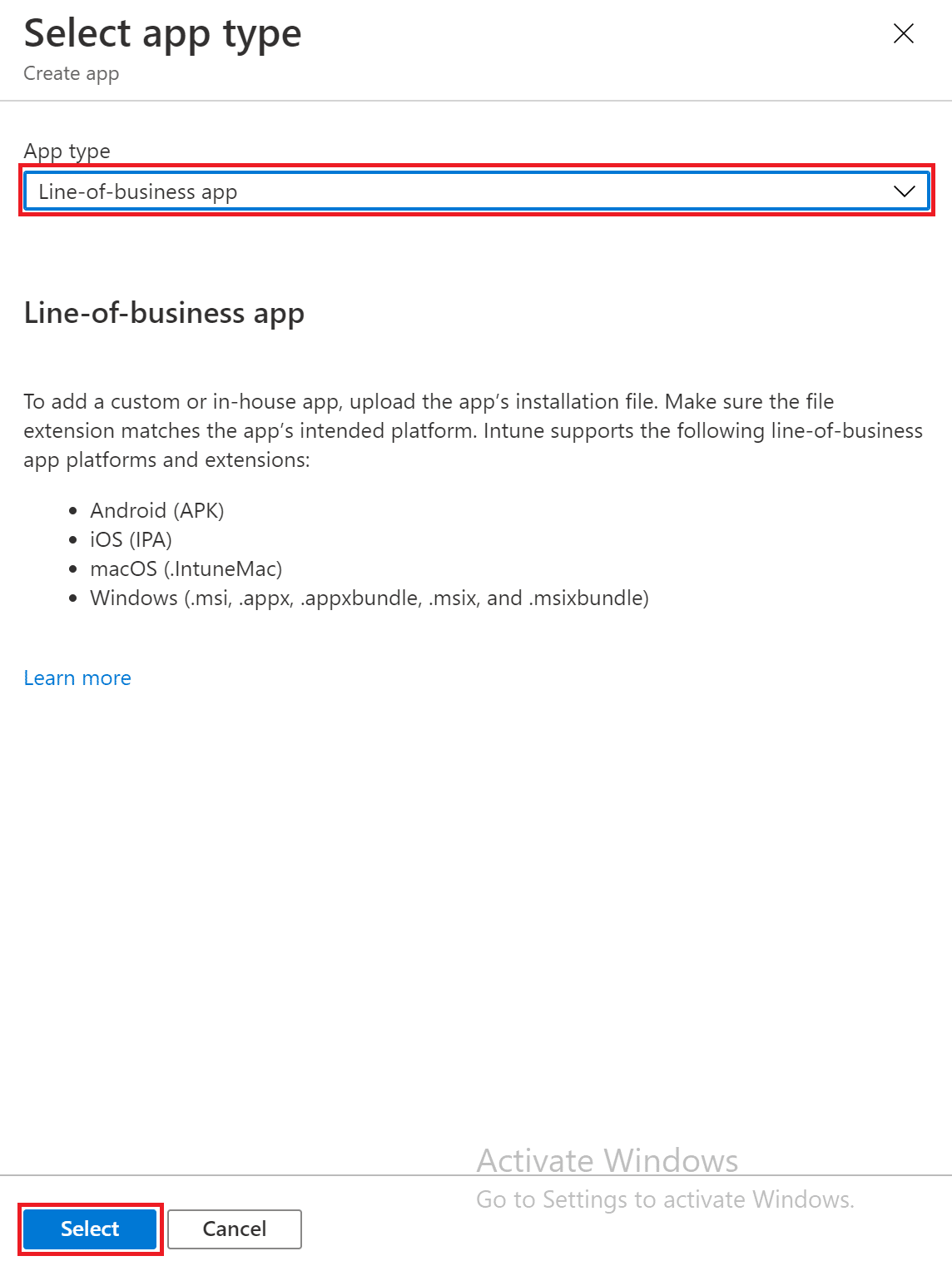
Select App type as "Line-of-business app".
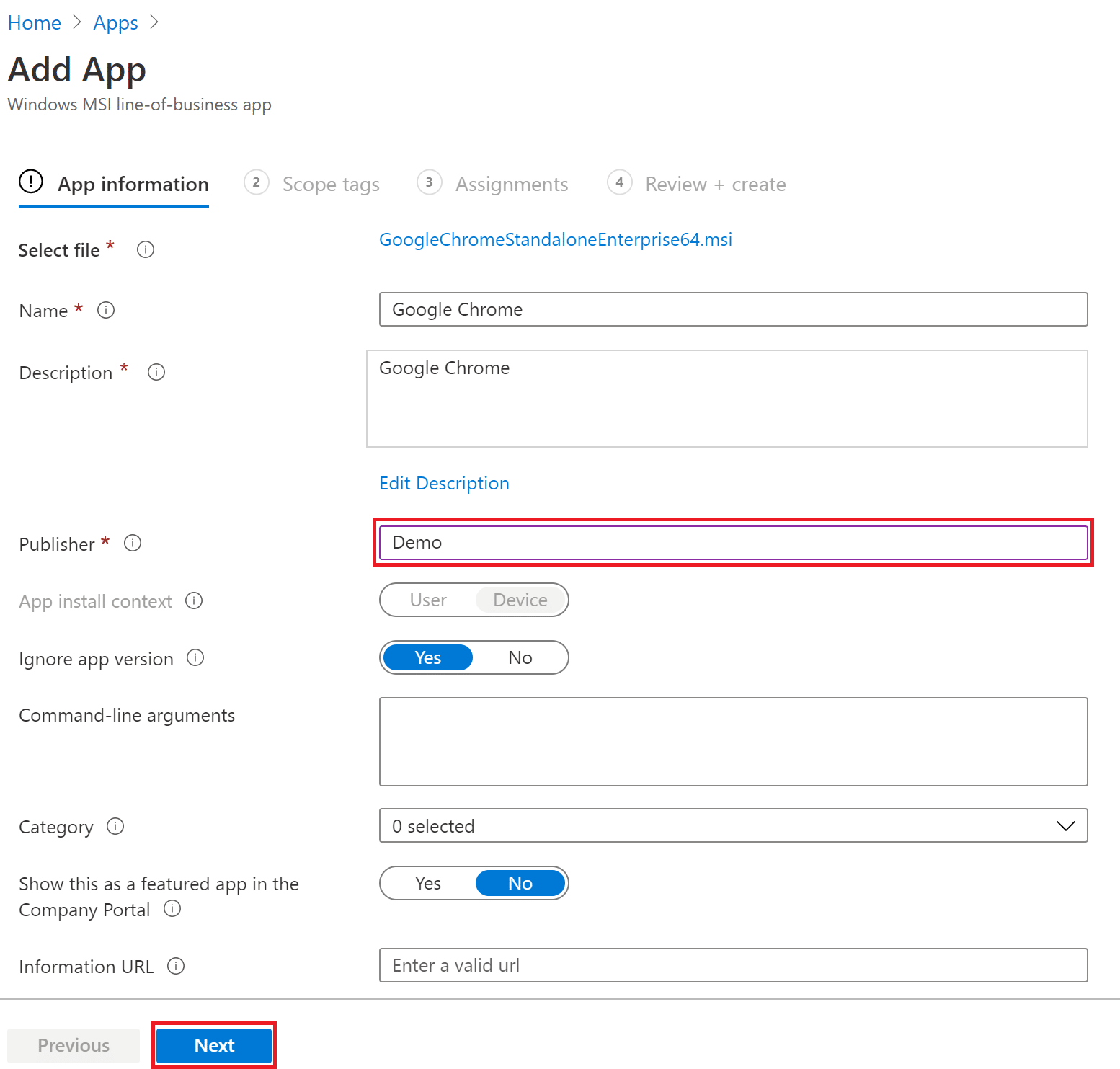
Step 5: Configure App Information
You can change Name and Description, Enter Publisher name.
Step 6: Set Scope Tags
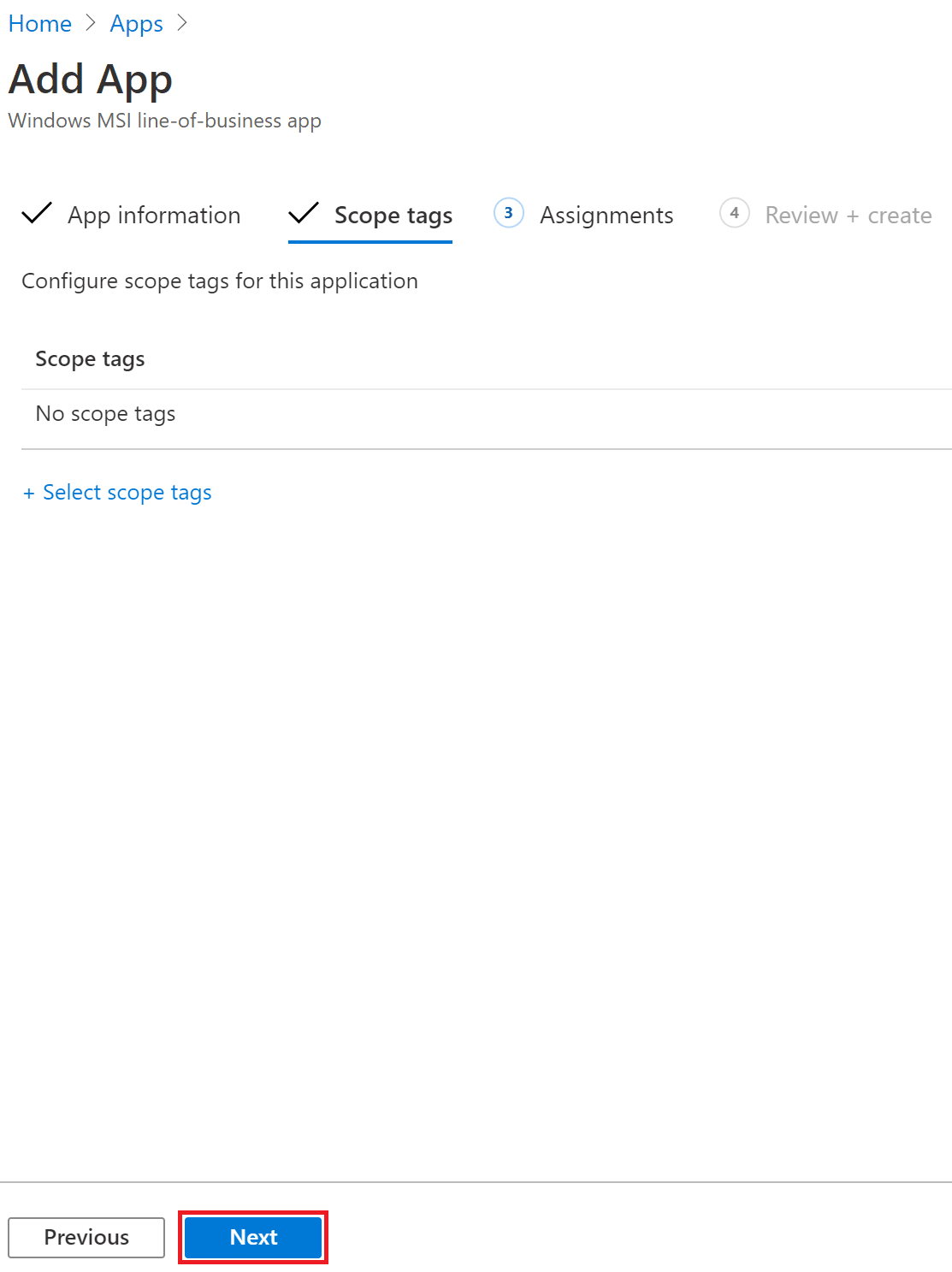
Select Scope tags if you are using tags.
Step 7: Assign to Groups
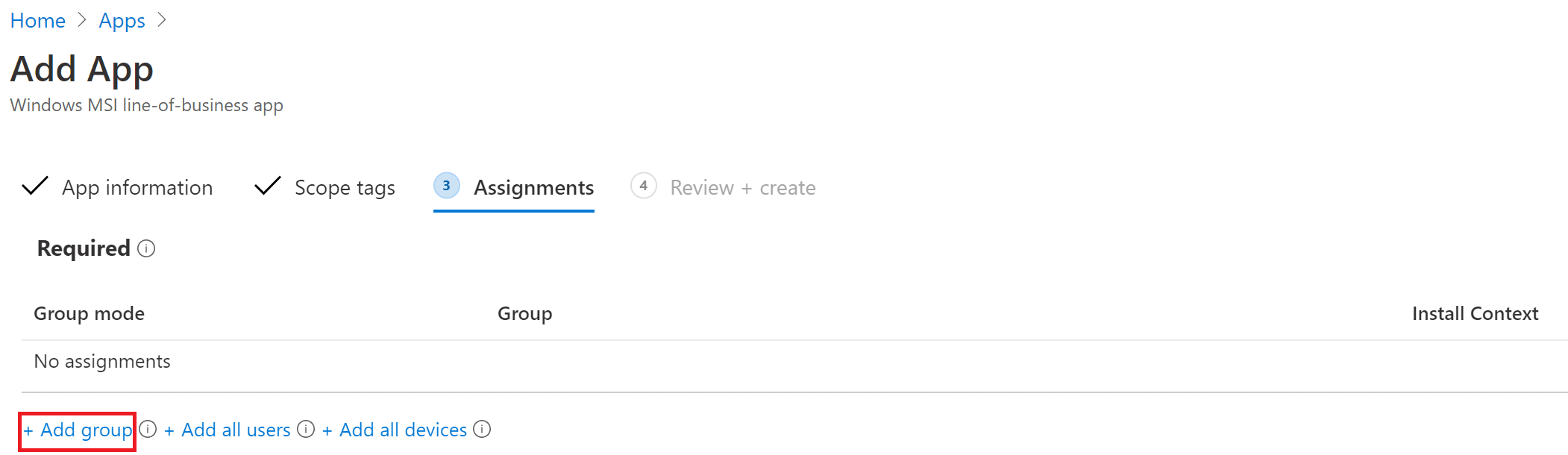
Add group is required to install Chrome on devices.
Step 8: Create the Deployment
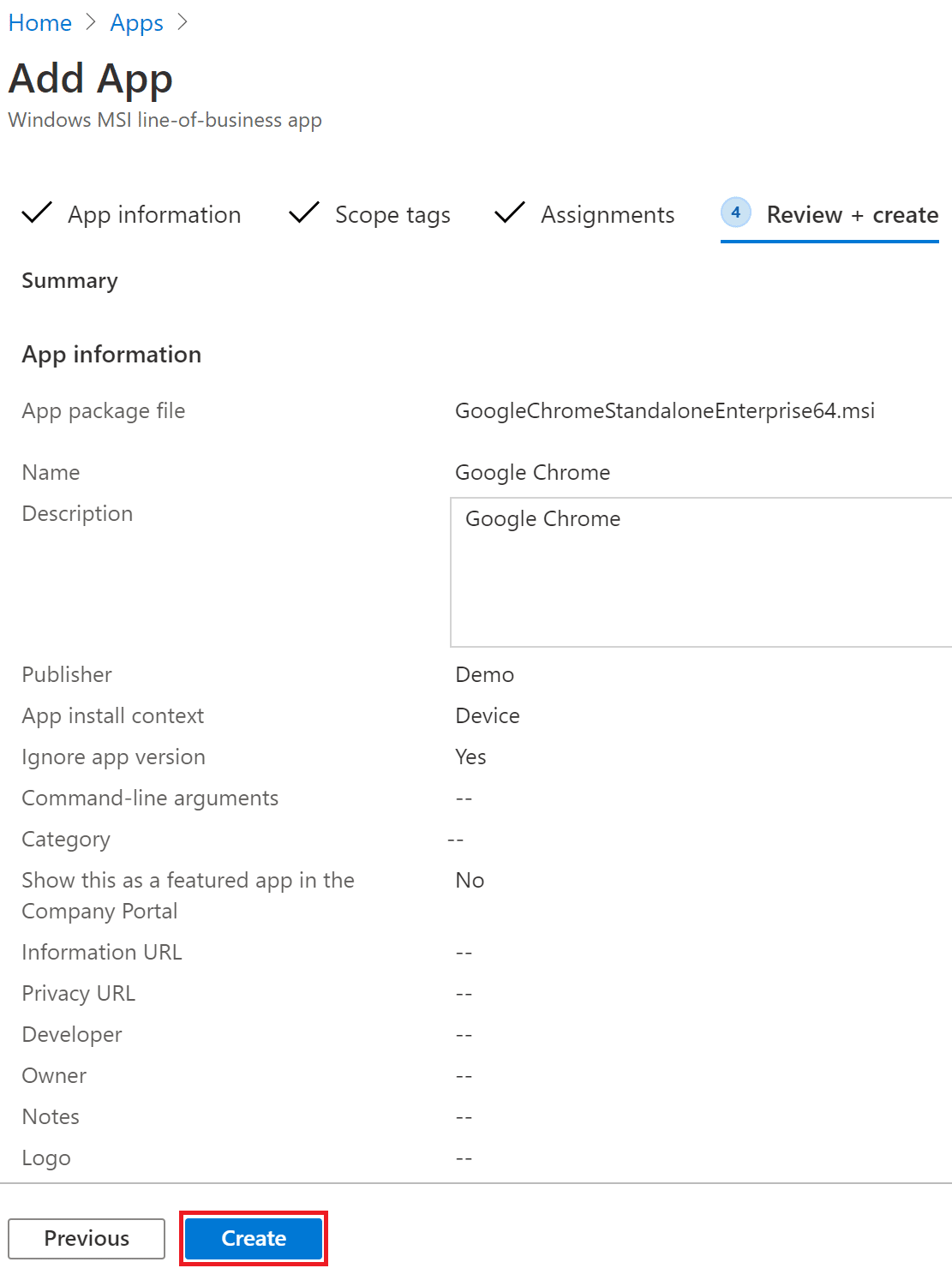
Click Create to start the deployment.