
In large organizations, multiple IT teams work on different projects and they need different rights. It does not make sense to provide Global Administrator or Intune Service Administrator rights to everyone.
That is why we have Intune custom-based roles which can be created to handle different services. In this article, we will create a custom Intune role for the Help Desk to wipe and sync Intune devices.
Prerequisites
Before creating a custom role, ensure you have:
- Global Administrator or Intune Service Administrator access
- Access to Microsoft Endpoint Manager admin center
- A clear understanding of the permissions your team needs
Creating the Custom Role in Intune
Step 1: Open Tenant Administration
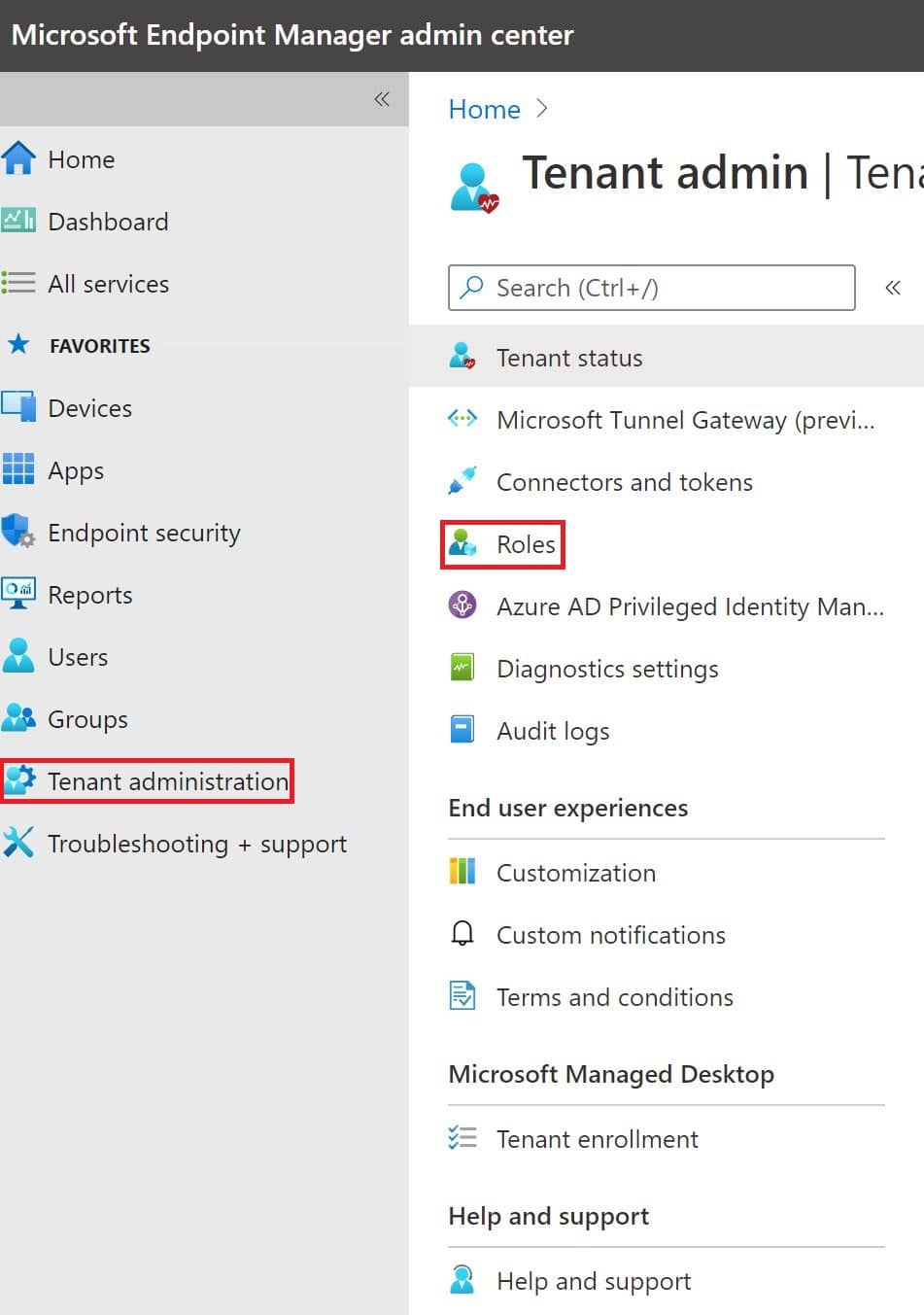
Login to Endpoint Manager using https://endpoint.microsoft.com/. Select Tenant administration and then Roles.
Step 2: Create a New Custom Role
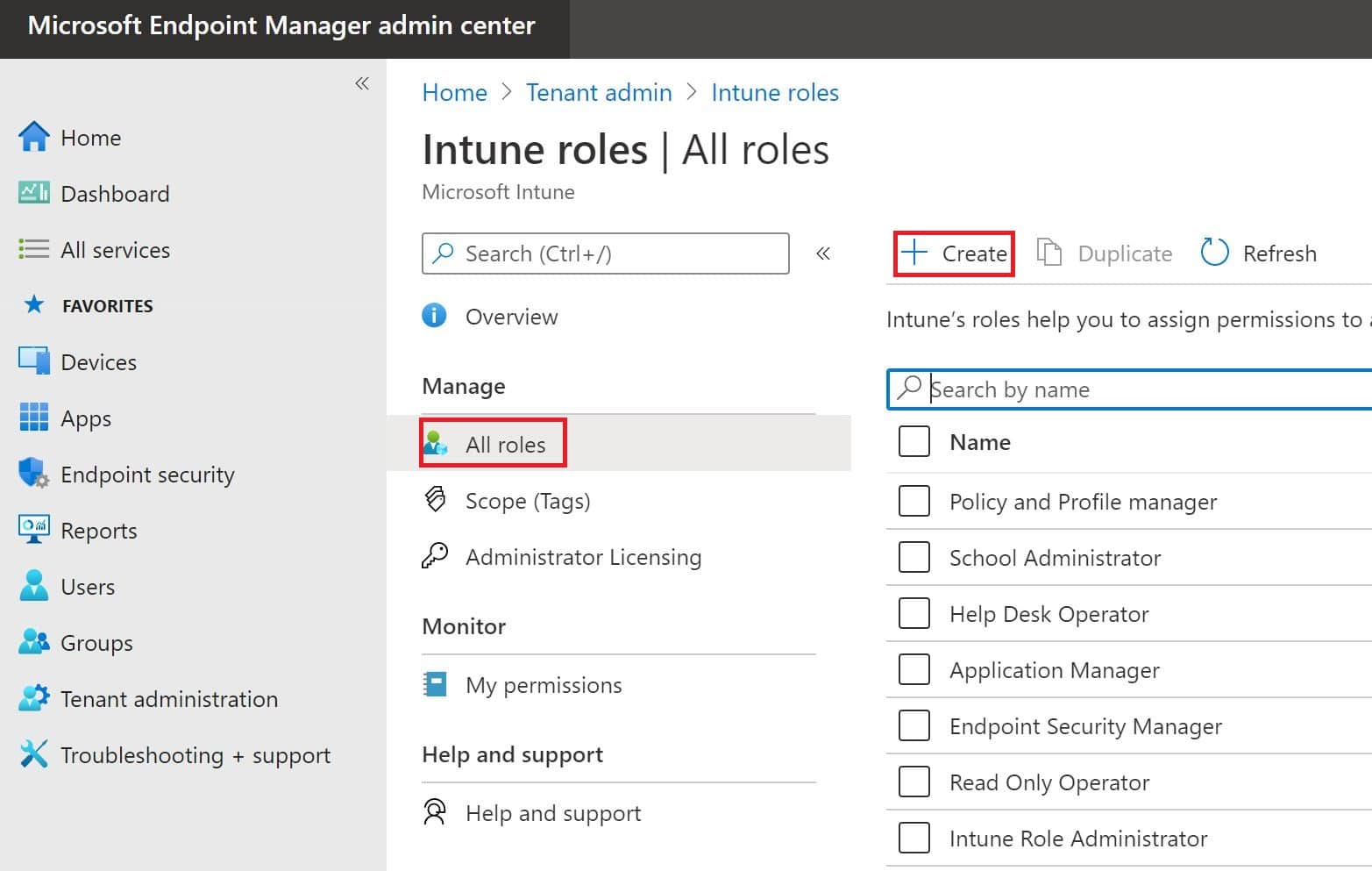
Select All Roles and create a new custom role in Intune.
Step 3: Enter the Role Name
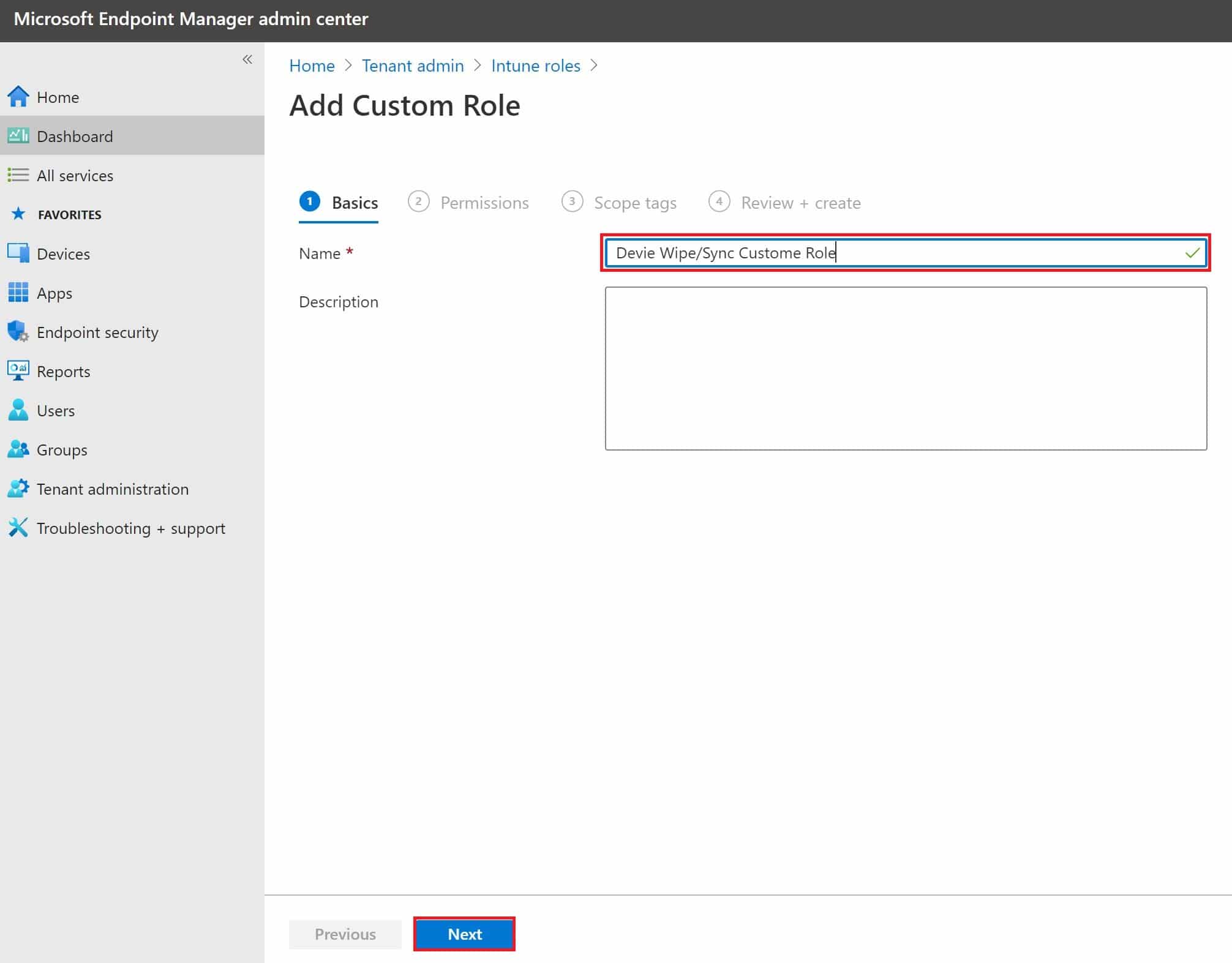
Enter a descriptive name for your Intune custom role.
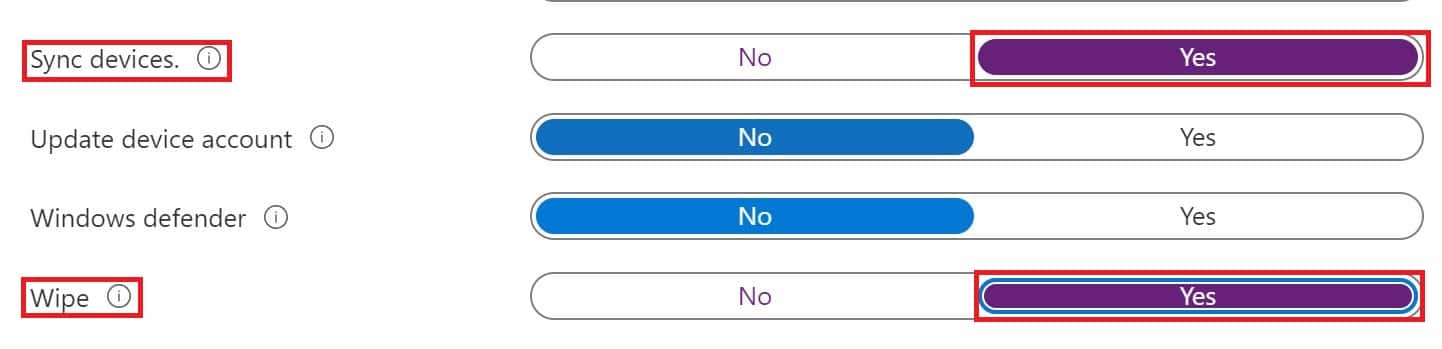
Step 4: Select Permissions
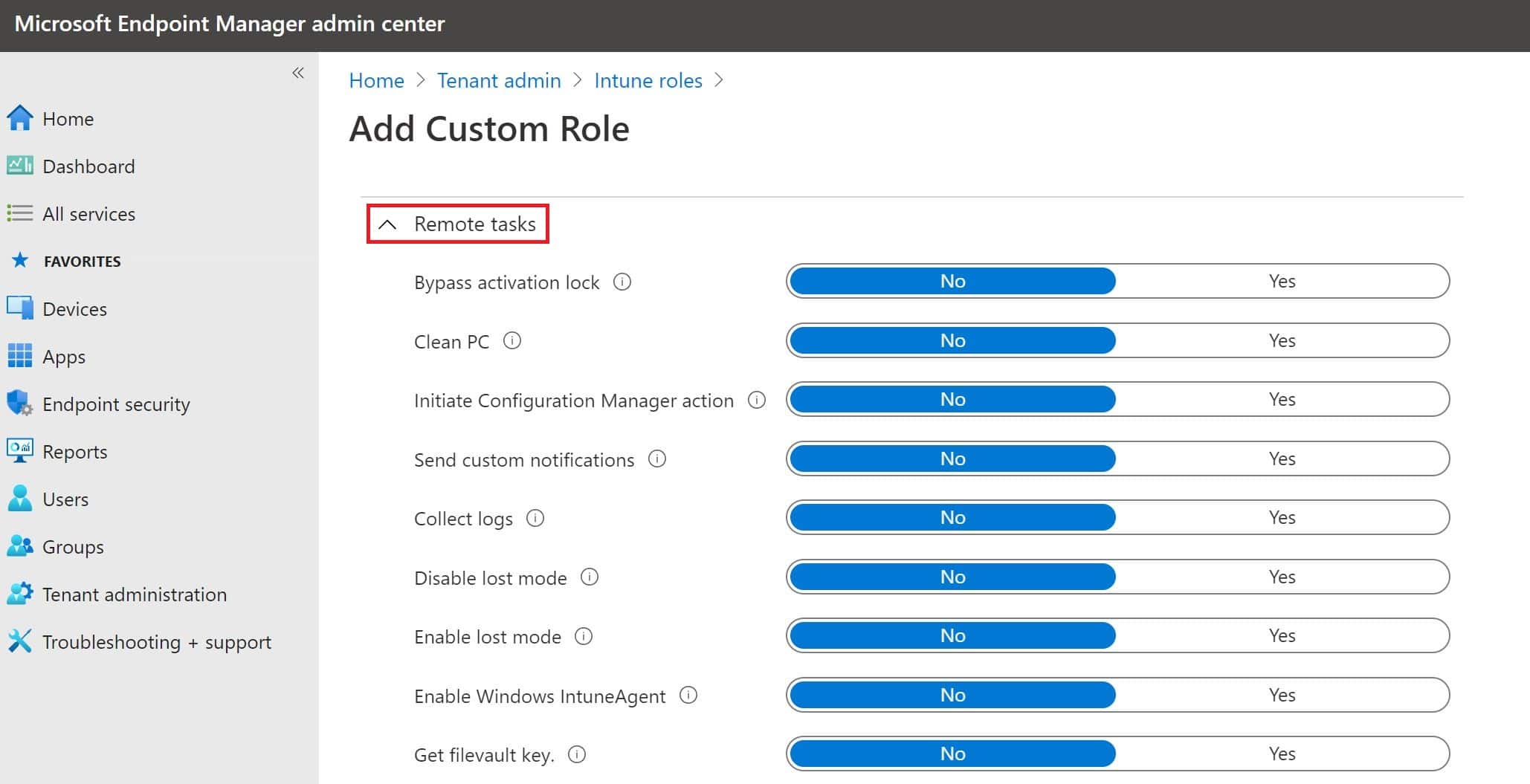
You need to select which permissions should be assigned to this role. In this article we will assign 2 permissions: Wipe and Sync.
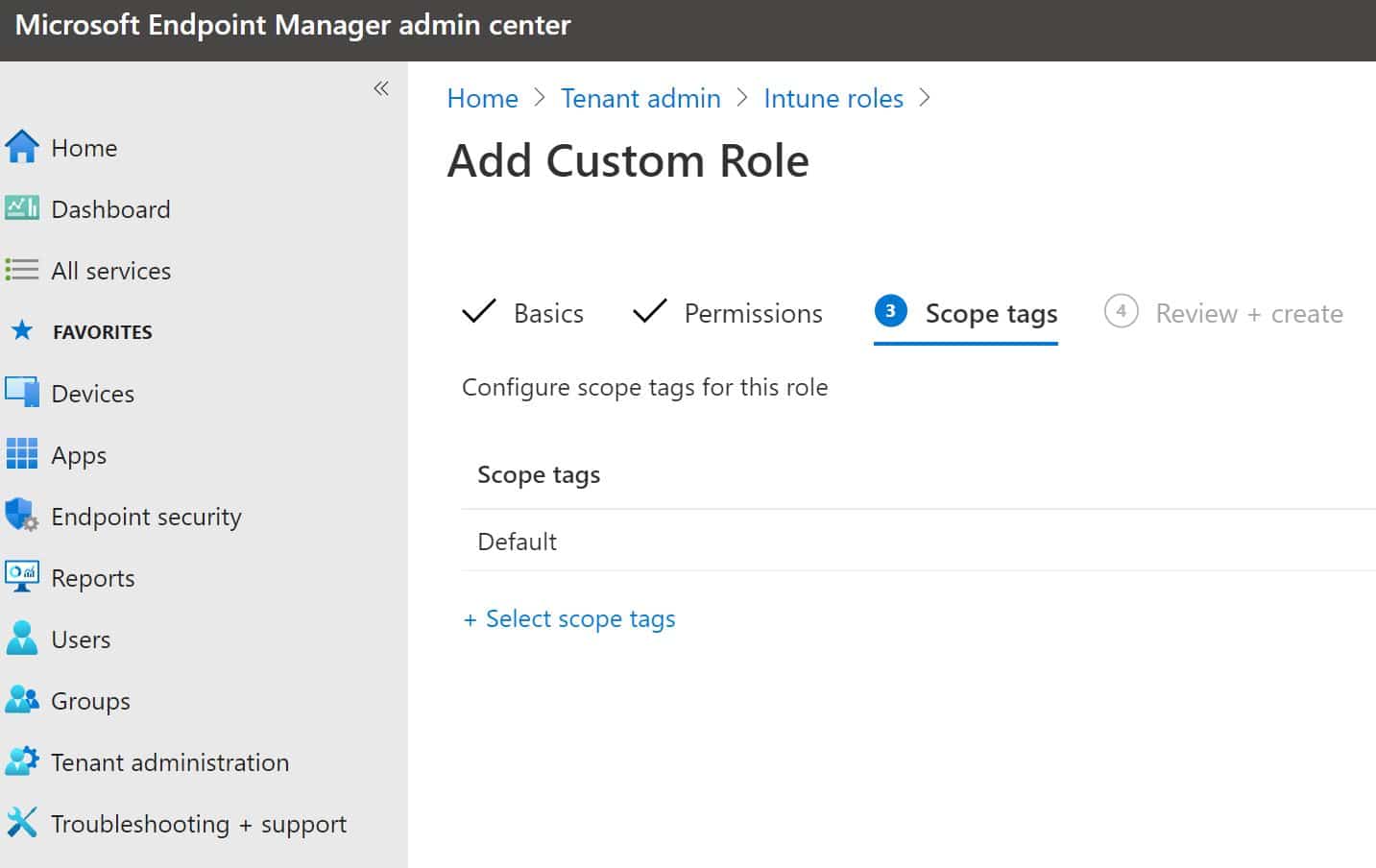
Step 5: Configure Scope Tags
You can assign scope tags if you are using them.
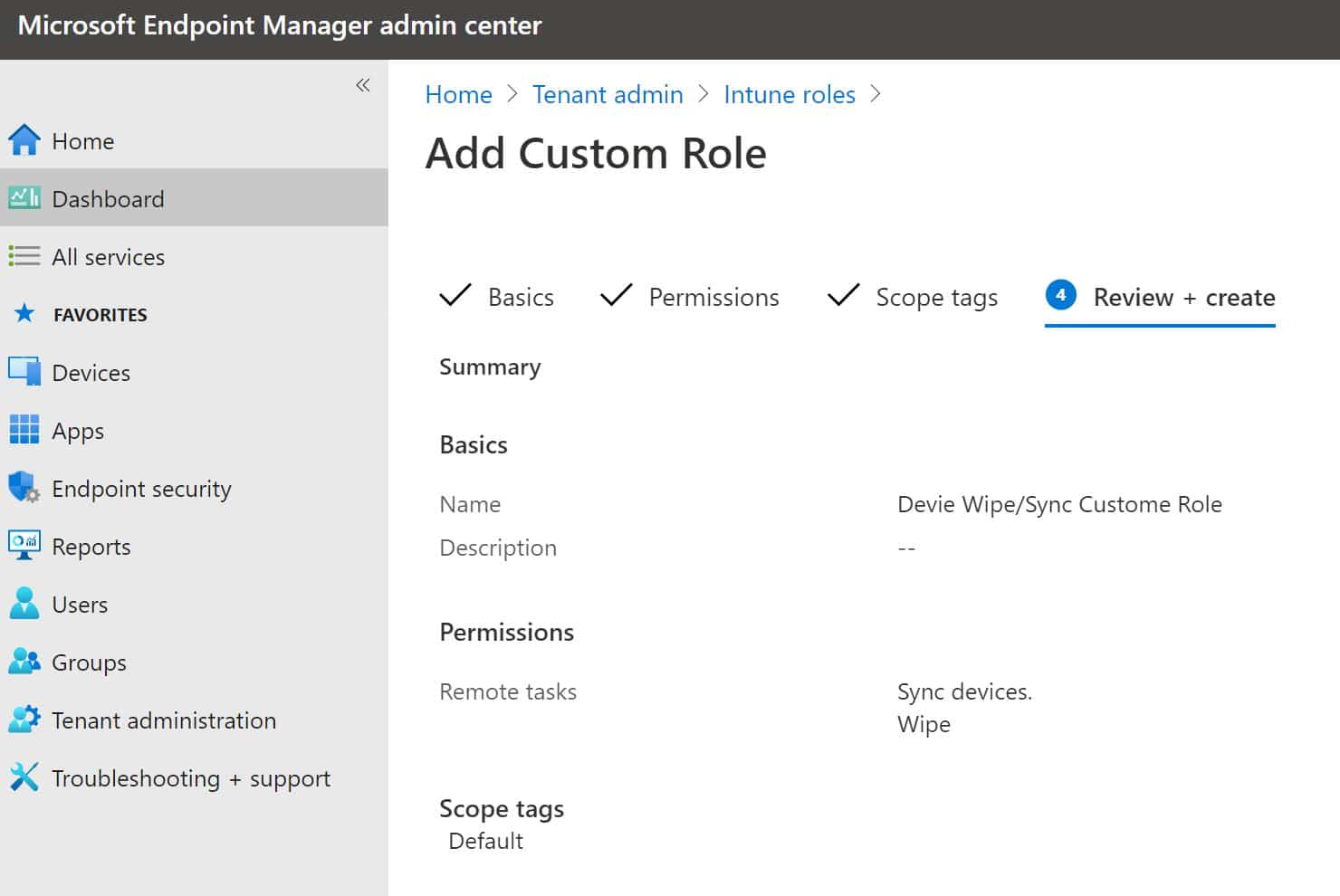
Step 6: Review and Create
Review all settings and create the Intune custom role.
Assigning the Custom Role
Step 7: Start the Assignment
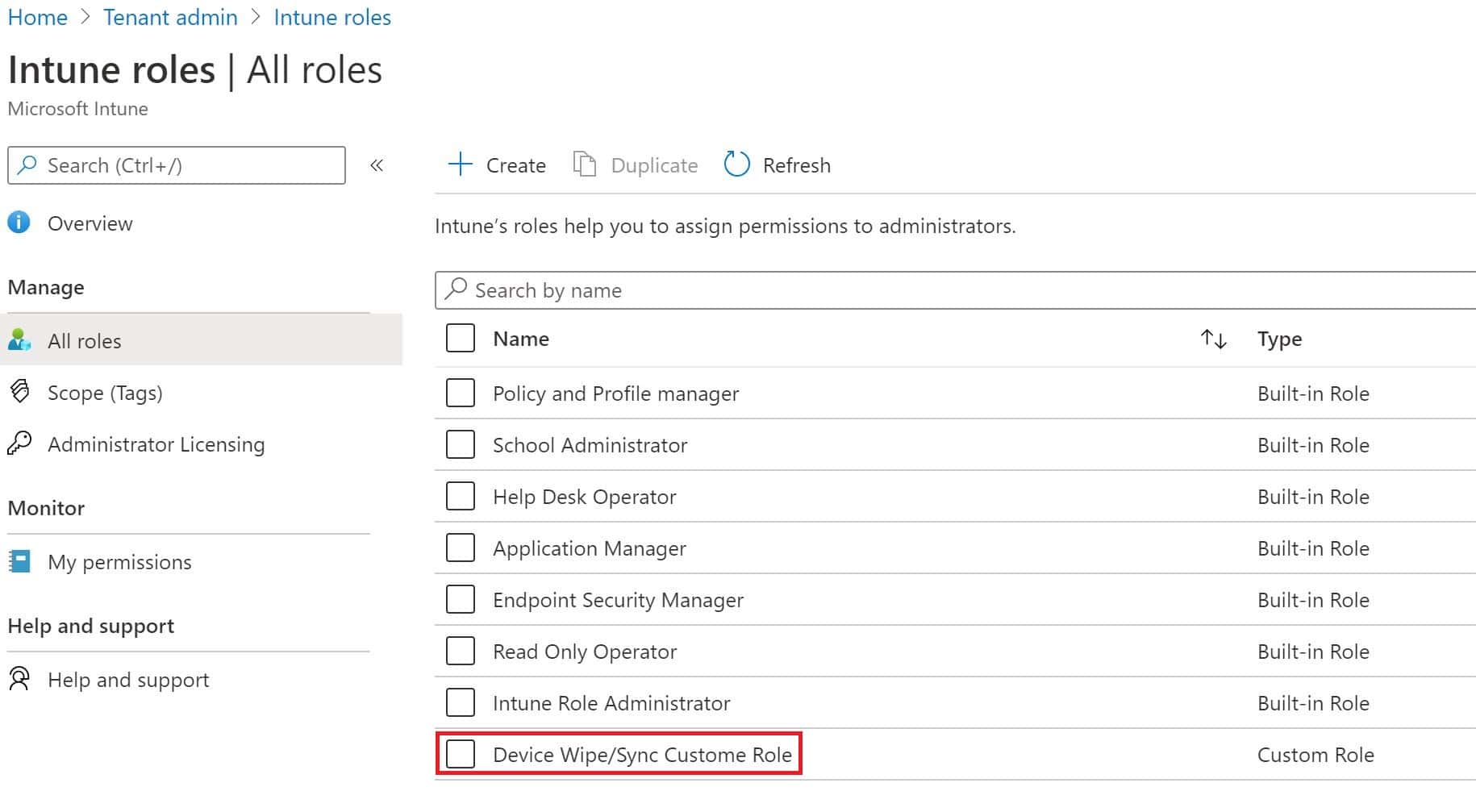
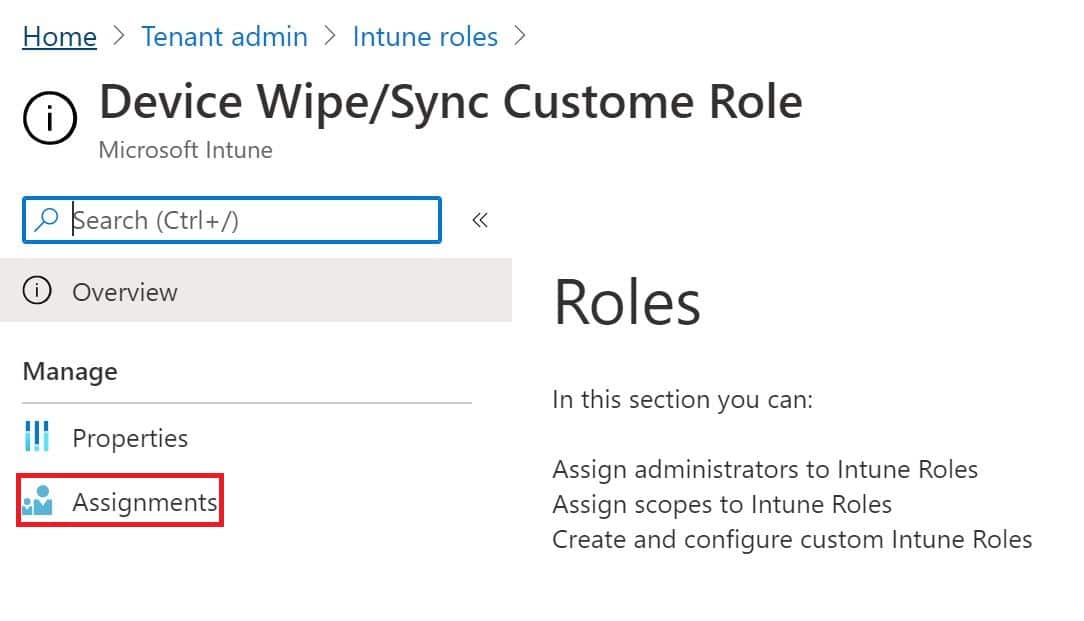
A new Intune role has been created and the next step is to assign the group. Select the new role and select Assignment.
Step 8: Name the Assignment
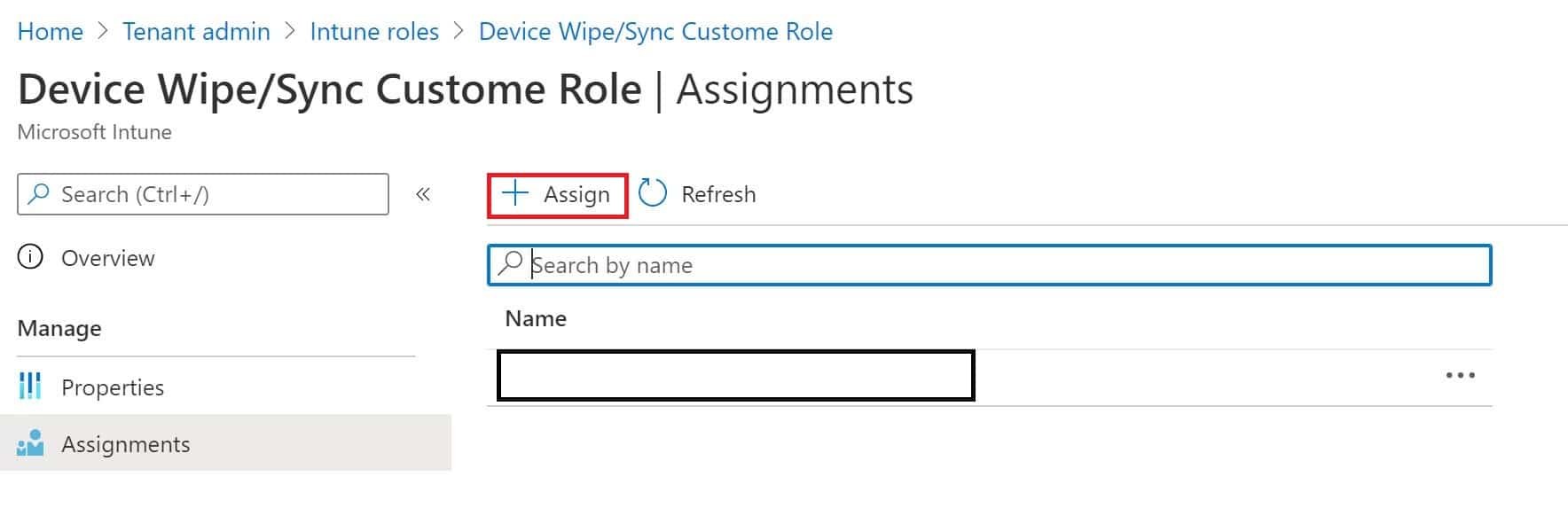
Select Assign and enter a name for the assignment of this new Intune role.
Step 9: Assign the Group
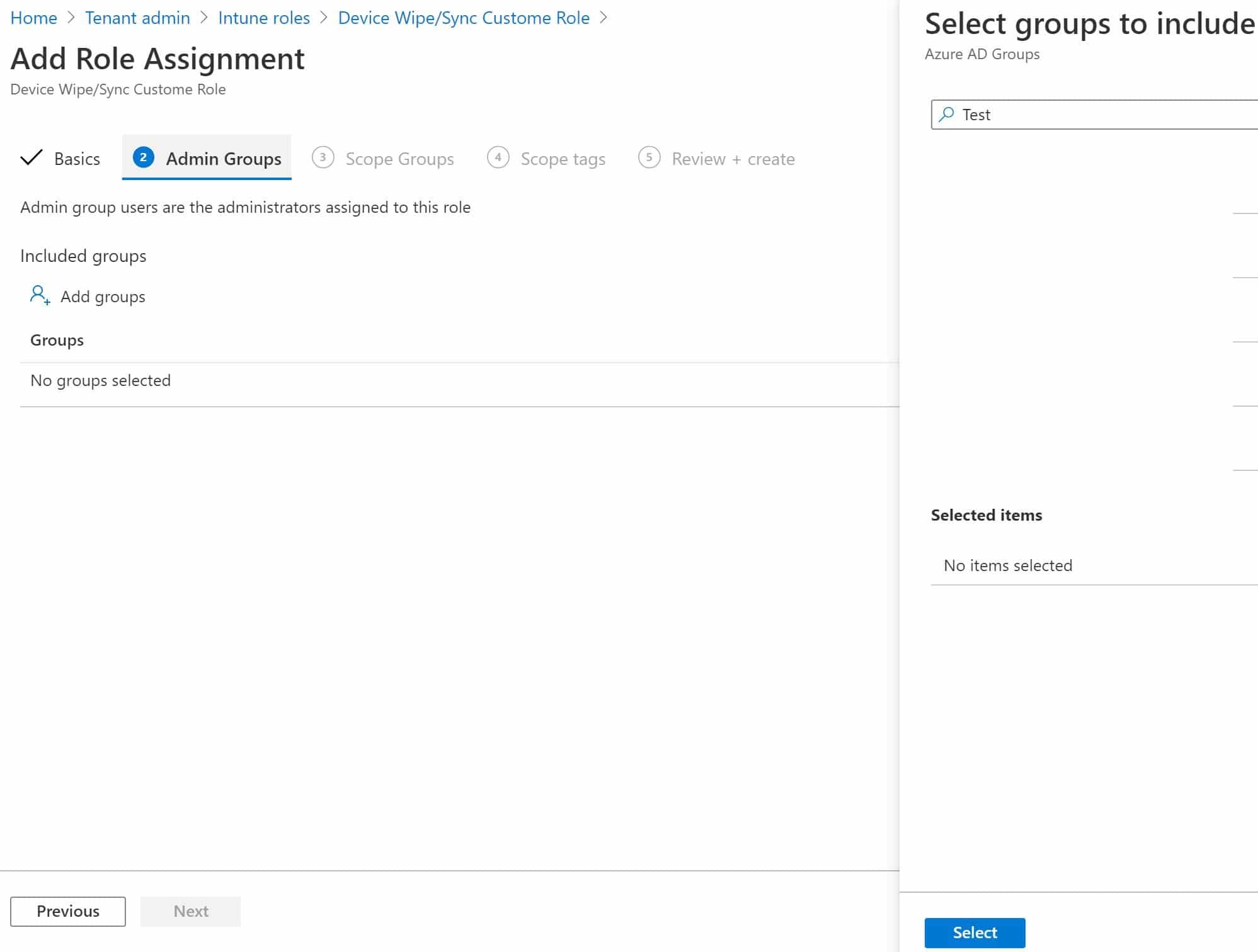
Assign the group which will have these role permissions.
Step 10: Configure Scope Group
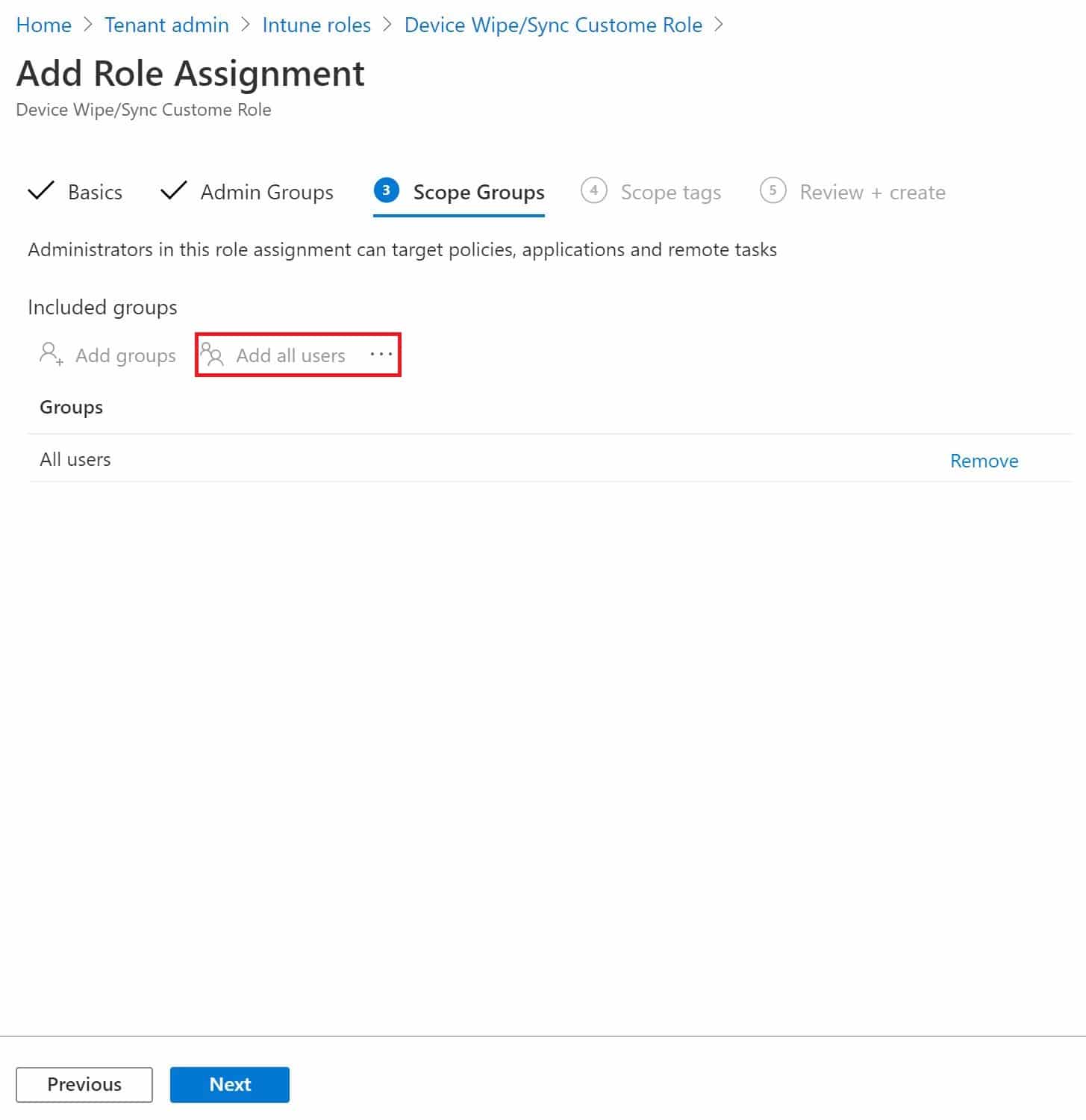
Assign a scope group if you have created scope groups already, or you can assign Add all users that will provide rights on all users' devices in the tenant.
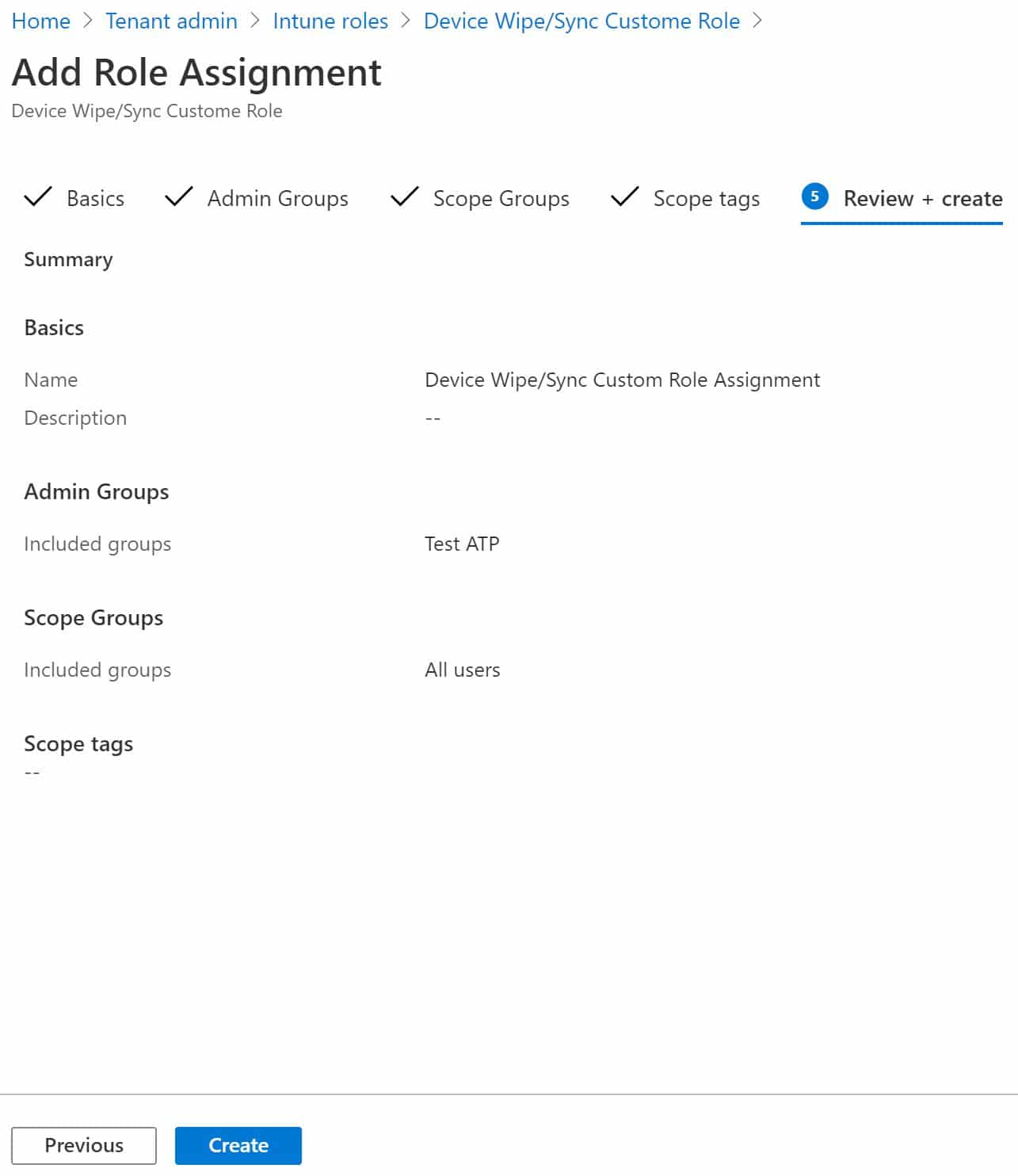
Step 11: Review and Create the Assignment
Review all the settings and create the assignment.
Frequently Asked Questions
What is a custom role in Intune?
A custom role in Intune allows administrators to define granular, role-based access control (RBAC) permissions. Instead of assigning broad admin roles, you can create roles with only the specific permissions a team needs, such as device wipe or sync.
Can I assign multiple permissions to a single custom role?
Yes, you can assign as many permissions as needed when creating a custom role. Simply select all the required permissions during the role creation process under the Permissions tab.
What is the difference between a scope tag and a scope group in Intune?
Scope tags control which Intune objects (policies, apps, devices) an admin can see, while scope groups determine which users' devices the admin can manage. Together they provide fine-grained access control.
Do I need Global Administrator rights to create custom roles in Intune?
You need either Global Administrator or Intune Service Administrator privileges to create and manage custom roles in Microsoft Intune.
Can I edit a custom role after creating it?
Yes, you can modify a custom role at any time by navigating to Tenant administration, selecting Roles, and editing the role's permissions, scope tags, or assignments.