Self-Service Password Reset (SSPR) is a feature in Azure Active Directory (Azure AD) that allows users to reset their passwords on their own without the need for help from an administrator. When users forget their passwords or get locked out of their accounts, they can use SSPR to regain access quickly and easily. This is done through various authentication methods, such as answering security questions, using email or phone verification, or using an authenticator app.
Benefits of enabling SSPR
- Convenience for Users: SSPR empowers users to regain access to their accounts without waiting for help, which saves time and reduces frustration.
- Improved Productivity: With SSPR, users can quickly reset their passwords, leading to less downtime and increased productivity.
- Reduced Help Desk Workload: Administrators spend less time handling password-related requests, allowing them to focus on other critical tasks.
- Enhanced Security: SSPR includes multi-factor authentication options, making it more secure than traditional password reset methods.
- Customizable Settings: Administrators can configure SSPR according to the organization's security policies and choose appropriate verification methods.
Requirements for setting up SSPR
Licensing: Password change (cloud-only users who already know their password) works on any Microsoft Entra ID tier, including Free. Password reset (users who forgot their password) requires at minimum Microsoft 365 Business Standard, Business Premium, or Microsoft Entra ID P1 or P2. If you also need on-premises writeback -- syncing the reset password back to a hybrid Active Directory domain controller -- that specifically requires Microsoft 365 Business Premium or Entra ID P1/P2; it is not covered by Business Standard alone. Verify your organization's licensing against Microsoft's current SSPR licensing guidance before rolling this out.
Necessary user permissions for SSPR configuration
Authentication Policy Administrator: To enable SSPR and configure settings, you need at least the Authentication Policy Administrator role in Microsoft Entra ID (Global Administrator also works, but Microsoft recommends using the least-privileged role that can perform the task).
Enabling Self Service Password Reset in Microsoft Entra ID
The classic Azure Portal blades for Azure AD have been superseded by the Microsoft Entra admin center. Use the steps below, which reflect the current admin experience.
Step 1: Sign in to the Microsoft Entra admin center
Go to https://entra.microsoft.com and sign in with an Authentication Policy Administrator account.
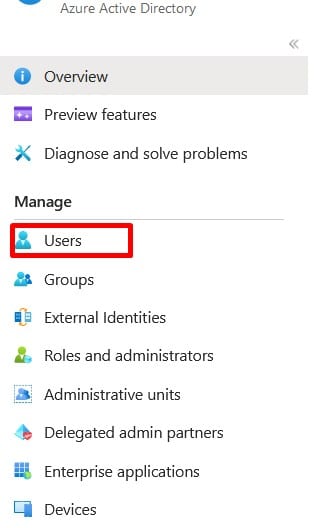
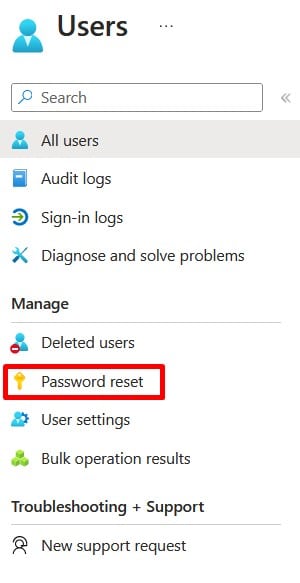
Step 2: Browse to Password Reset
Go to Entra ID > Password reset from the left-hand navigation (if you don't see this option, check that a Microsoft Entra ID license is assigned to your admin account).
Step 3: Configure Properties
On the Properties page, under Self service password reset enabled, choose All, Selected (to target a specific group), or None.
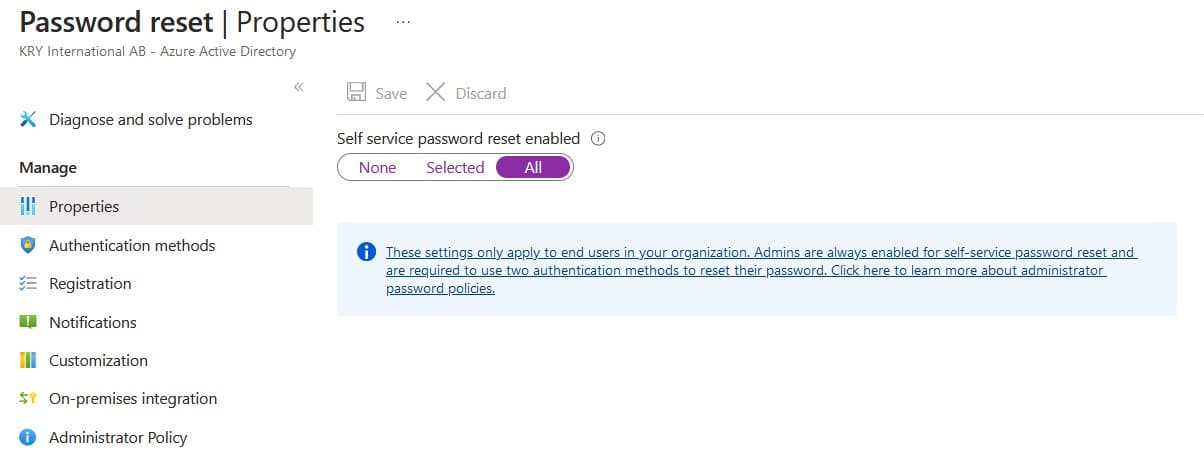
Note: These settings only apply for end users -- admin accounts are always enabled for self-service password reset and require two authentication methods by default.
Self Service Password Reset Authentication Method
Select Authentication methods from the left-hand menu. You can require one or two verification methods for password reset. As of the Authentication methods policy (which replaced the legacy per-user MFA/SSPR method settings after their retirement on September 30, 2025), authentication methods for SSPR are managed centrally under Protection > Authentication methods > Policies in the Entra admin center. Prioritize the Microsoft Authenticator app and other strong methods over SMS or voice call, which Microsoft now treats as less secure fallback options rather than a primary recommendation.
Overall, implementing Azure AD Self-Service Password Reset is a win-win situation for organizations and their users. It streamlines the password reset process, improves security, and boosts productivity, contributing to a smoother and more efficient IT environment. With the increasing importance of security and user experience, adopting SSPR is a prudent step for any organization seeking to enhance its authentication mechanisms.
Related Reading
- How to Setup MFA for Office 365 Users — SSPR and MFA share authentication methods and are commonly configured together
- Microsoft Entra ID P1 vs P2 Comparison — full licensing breakdown, including exactly which SSPR features each tier unlocks
- Microsoft Entra ID Backup & Recovery — protect the identity configuration (including SSPR/authentication policies) you set up here
- How to Revoke OAuth Refresh Token in Azure Active Directory — a companion step to a password reset when responding to a compromised account