Microsoft Volume Licensing Service Center (VLSC) portal is a place from where you can manage all your enterprise and individual licenses easily. In this post, we will help you add Microsoft Open licenses to your Volume Licensing Service Center.
Once you purchase your Open license for your product, you will receive the following information in your email:
- Agreement Information: xxxxxxxxx
- Authorization Number: xxxxxxxxxxxxxxx
- Indirect Customer Name: xxxxxxxxxxxxxxxxxxxxx
- License Date: 2020-03-11
- License Number: xxxxxxxxxxxxxxxxxx
- Microsoft Invoice Number: xxxxxxxxxxxxx
- Reorder/Upgrade End Date: 2021-09-30
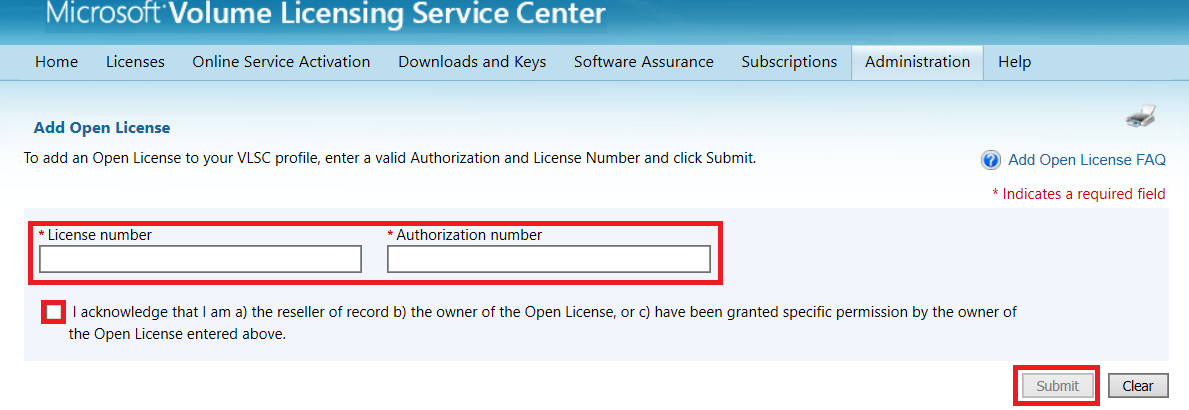
We need the authorization number and license number.
Add Open License to Microsoft Volume Licensing
Step 1: Open the VLSC Portal
You need to open the following link in Internet Explorer or Edge browser: https://www.microsoft.com/Licensing/servicecenter
Log in with your work account or personal account.
Step 2: Add an Open License
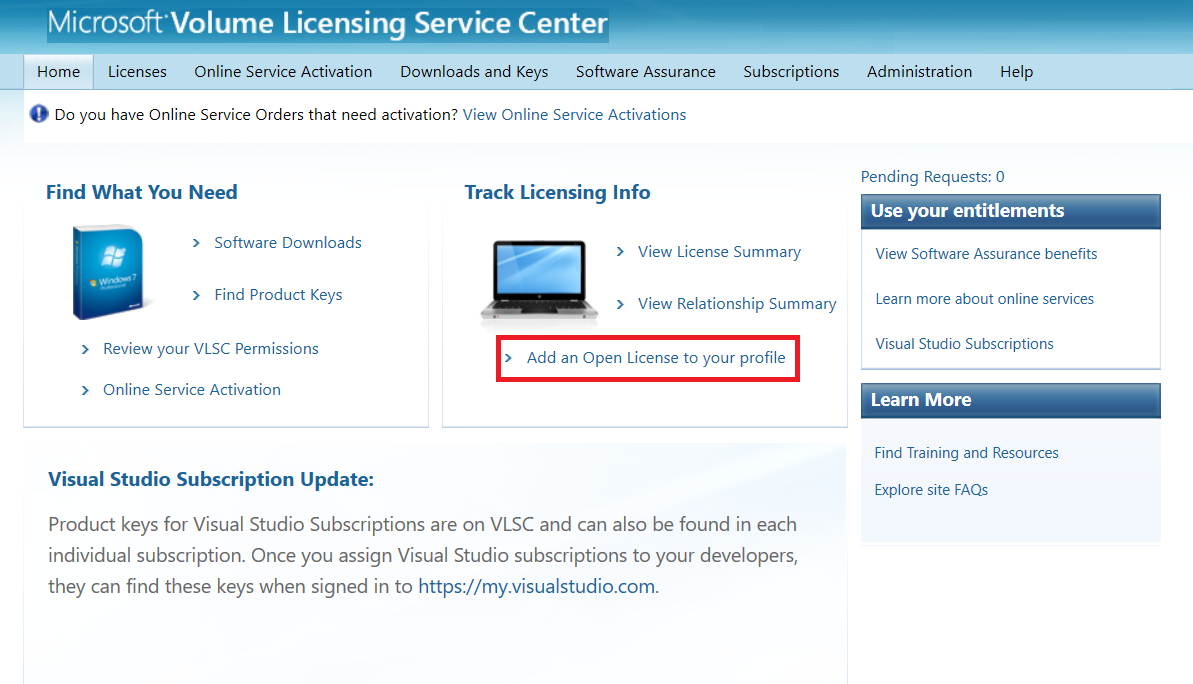
Click on "Add an Open License to your profile"
Step 3: Enter License Details
Input the License number and Authorization number, click submit.

Step 4: Wait for Processing
Your open license will appear in VLSC in about 24 to 48 hours.