Some Microsoft Office 365 licenses are capped up to 300, you can not buy more than 300 (for example - Microsoft 365 Apps for business). If you have more than 300 users, then you need to buy another license and change the assignment for the group.
It is recommended to assign licenses to the group and add/remove members in that group. Here we already have a group "Nurses UK" and have been assigned a "Microsoft 365 Apps for business" License but now this group has more than 300 members so we bought a new license "Office 365 E3". We will change the license assignment for the group.
Note: As of September 1, 2024, Microsoft retired license-assignment editing from the Microsoft Entra admin center and Azure portal. You can still view a group's current license assignments there, but you must make the actual change in the Microsoft 365 admin center. The screenshots below show the older in-place "Update license assignments" screen for reference -- follow the steps underneath them for the current process.
- To confirm which licenses a group currently has, sign in to the Microsoft Entra admin center as a Global Administrator or License Administrator, go to Groups > All groups, select the group, then select Licenses under Manage.
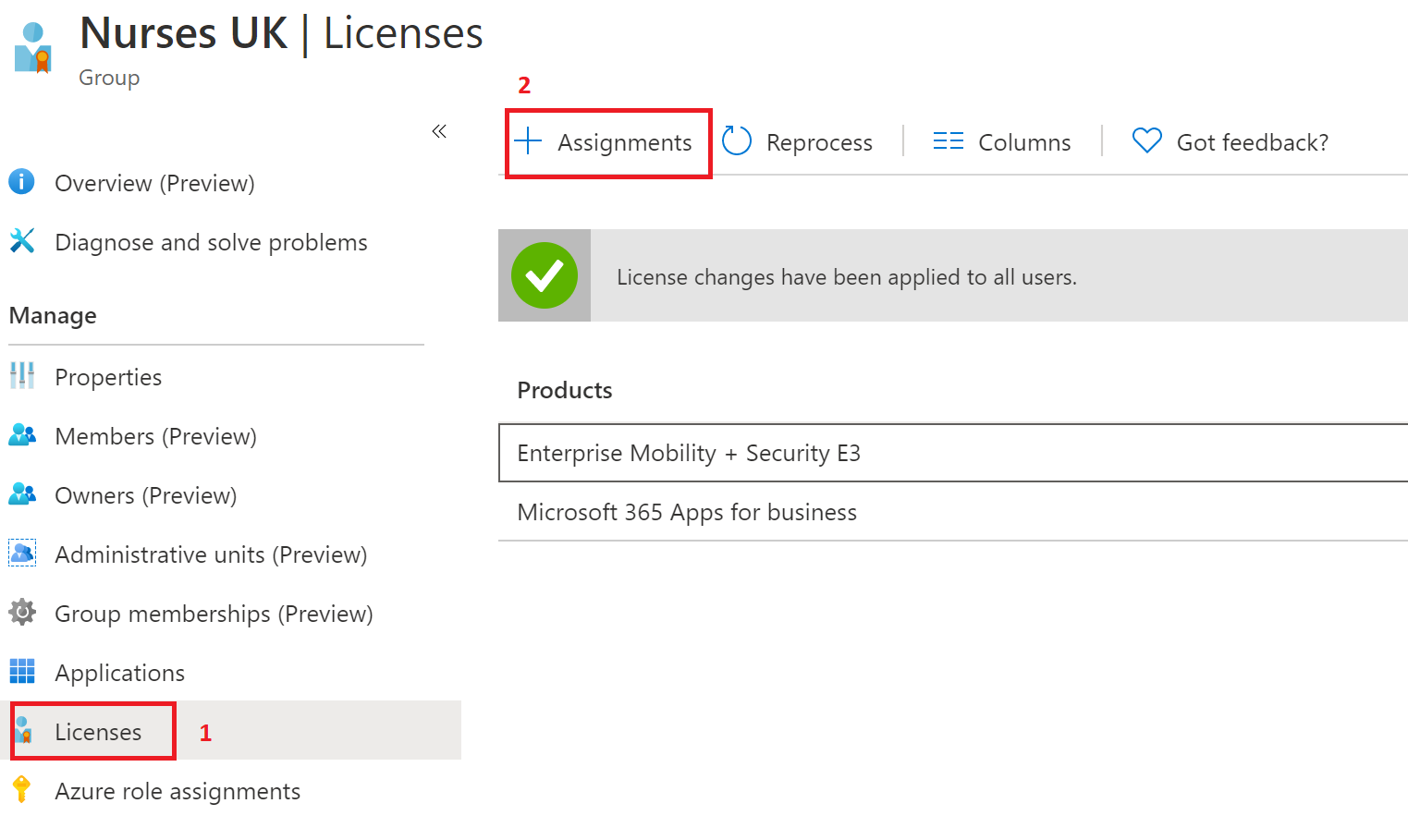
- To change the assignment, sign in to the Microsoft 365 admin center as a License Administrator and go to Billing > Licenses.
- Select Microsoft 365 Apps for business, find the "Nurses UK" group in the list, select the three dots next to it, and choose Unassign.
- Back on the Licenses page, select Assign licenses, search for and select the "Nurses UK" group, then pick the Office 365 E3 subscription and select Assign licenses.
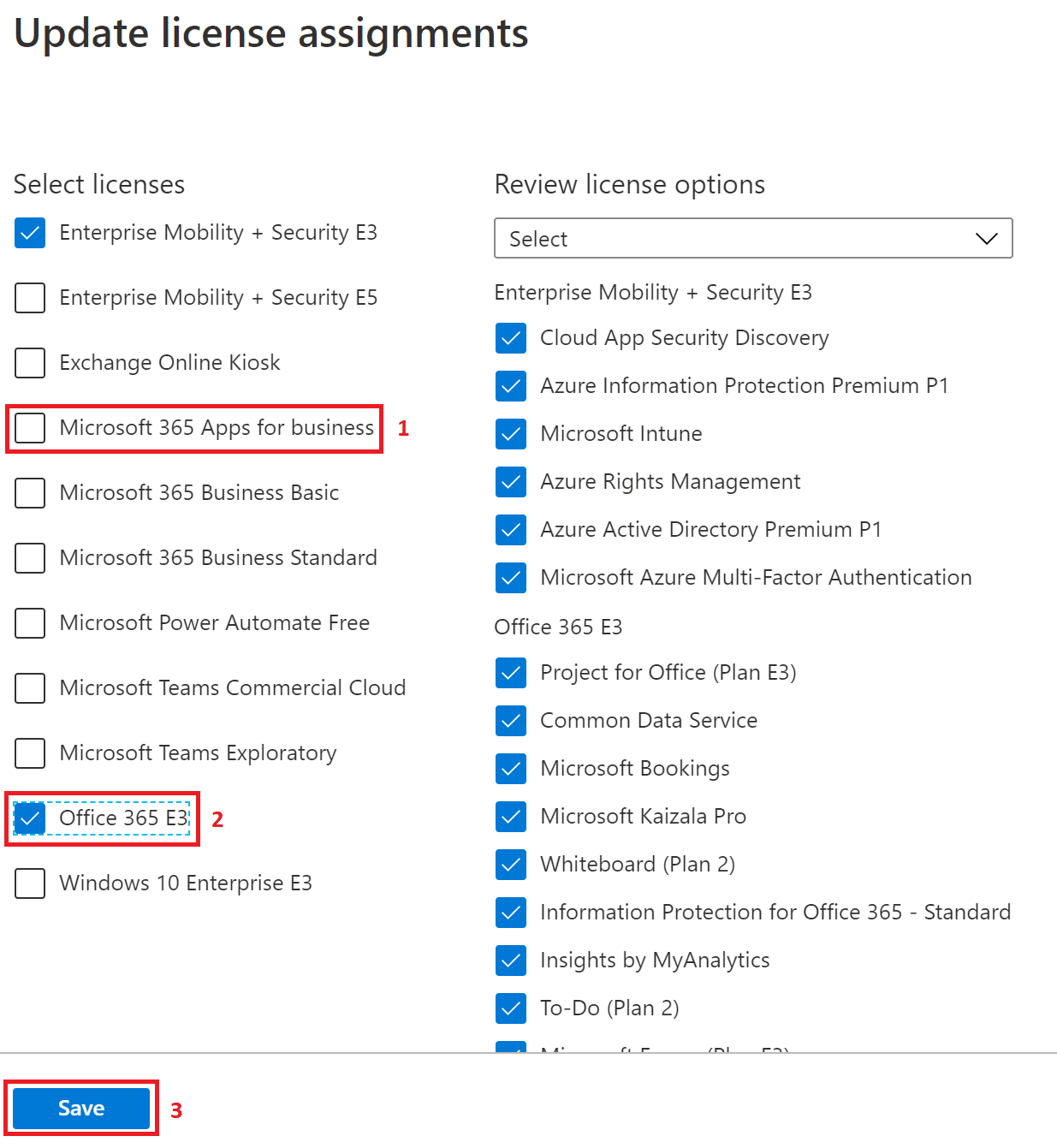
- To confirm the change without a gap in access, you can also do this in the reverse order -- assign Office 365 E3 to the group first, confirm it has processed, then unassign Microsoft 365 Apps for business.
Once the change has processed, go back to the group's Licenses page in the Microsoft Entra admin center and select Reprocess if you need to force Microsoft Entra ID to reapply the updated assignment to all members immediately.
Related
- The 300-seat cap applies across the whole Business family of plans (Business Basic, Standard, Premium, and Apps for Business) combined, not per SKU. Enterprise plans like Office 365 E3 don't have that cap, but they also don't all include the same identity features -- see our Microsoft Entra ID P1 vs P2 comparison to check what your target plan actually bundles.
- Before removing a user's old license, check whether they're a disabled user who still holds a license so you don't pay for seats no one needs.
- Once you've moved to group-based licensing, use dynamic membership rules so users are added to (and licensed via) the group automatically instead of by hand.