PIN and Fingerprint Sign-in Options Unavailable in Windows 10
Are you having trouble accessing the PIN and Fingerprint sign-in options on your Windows 10 PC at work? Sometimes, these options can look gray and you can't use them. But don't worry, there's an easy way to fix this and make these features work again.
The Problem: Disabled Fingerprint Option
The symptom is clear: PIN and Fingerprint Sign-in Options are greyed out or unavailable on Windows 10 PCs within a domain environment. This prevents users from utilizing the convenient biometric authentication features.
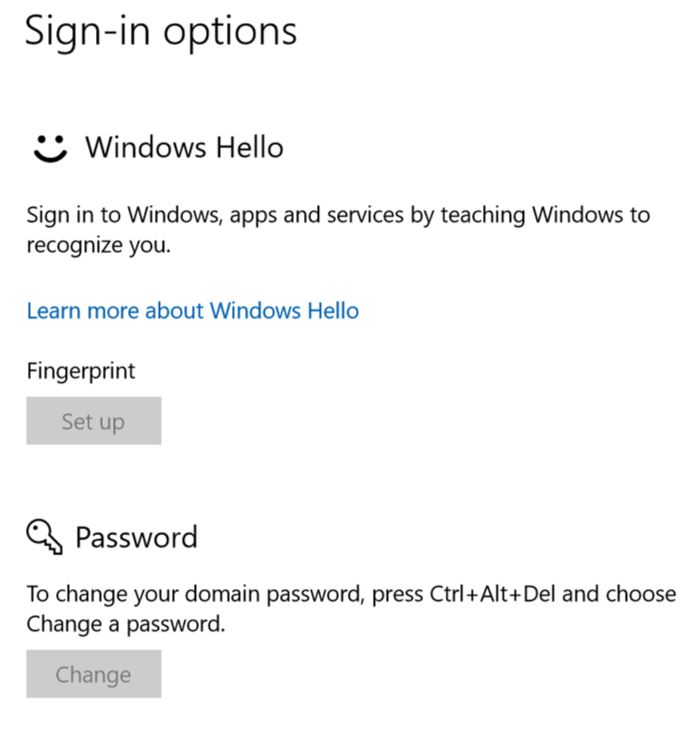
Solution: Enable Biometrics via Group Policy
To fix this issue, we need to edit the Group Policy (Local Group Policy or Domain Policy). Follow these steps:
Step 1: Enable Biometrics for Domain Users
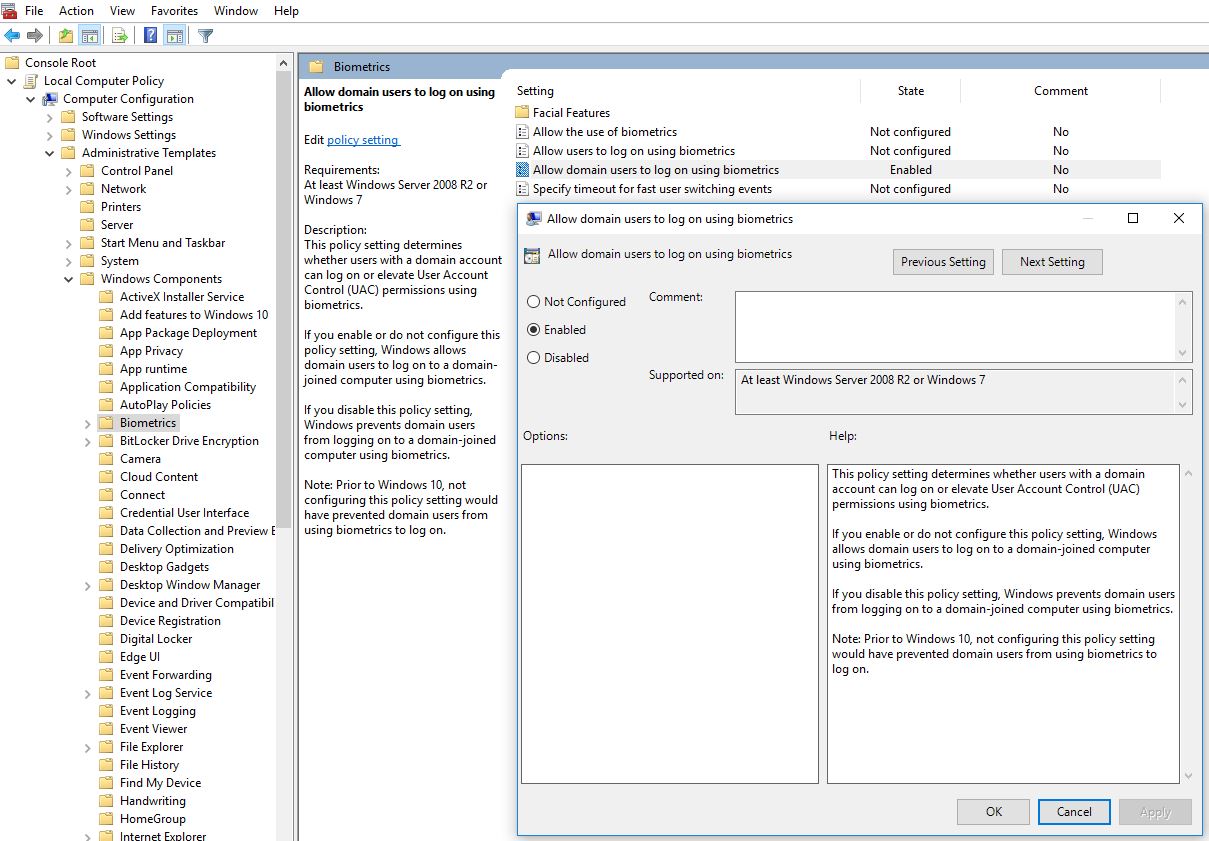
Navigate to the following path in Group Policy Editor:
Computer Configuration > Administrative Templates > Windows Components > Biometrics
Enable the setting: Allow Domain users to log on using biometrics
Step 2: Enable Convenience PIN Sign-in
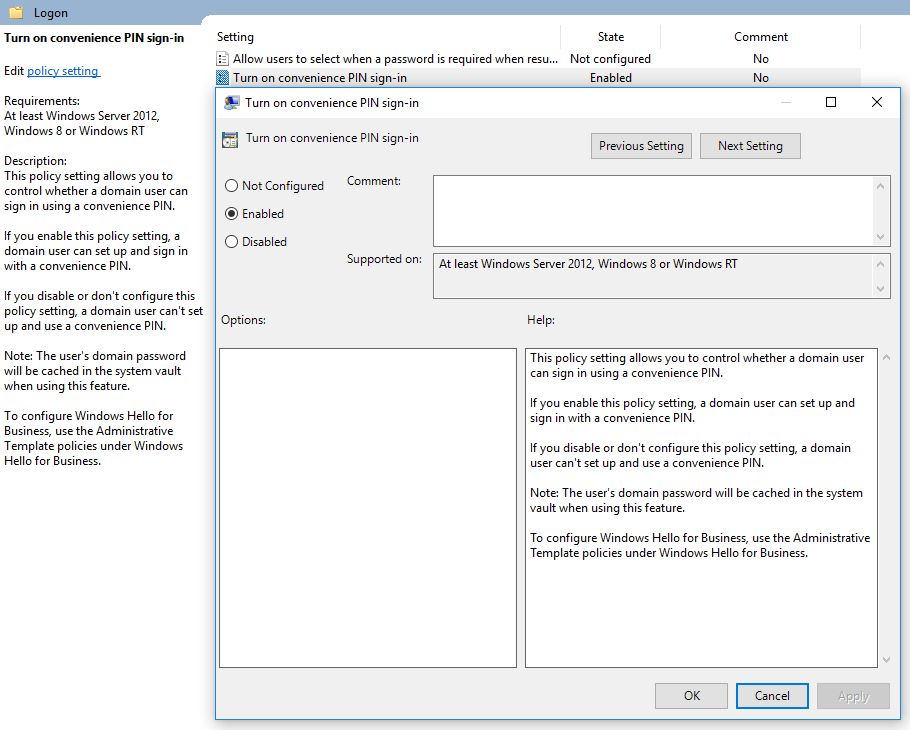
Navigate to:
Computer Configuration > Administrative Templates > System > Logon
Enable the setting: Turn on convenience PIN sign-in
Step 3: Restart the Computer
Restart the computer to apply the policy changes. Note that gpupdate /force doesn't always update these settings reliably, so a full restart is recommended.
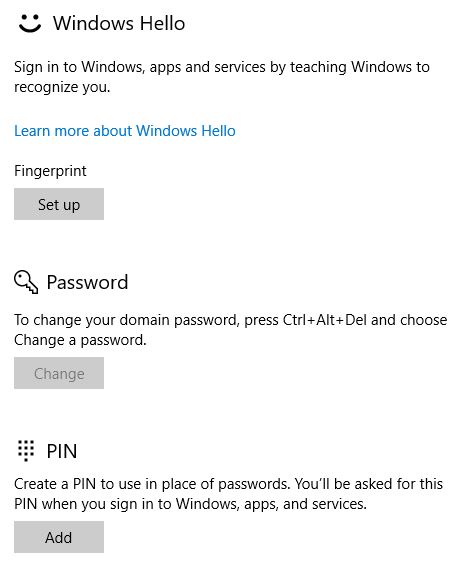
After the restart, the PIN and Fingerprint sign-in options should be available and fully functional.
Security features like biometric authentication are crucial in today's digital landscape. Ensuring their proper functioning not only enhances convenience but also fortifies the overall security of your system.
Frequently Asked Questions
Why are the fingerprint and PIN options greyed out on domain-joined PCs?
By default, Group Policy in a domain environment may restrict biometric and PIN sign-in options. These settings need to be explicitly enabled by an administrator through either Local Group Policy or a Domain GPO.
Do I need to apply this fix on every computer individually?
No. If you configure these settings through a Domain Group Policy Object (GPO), the changes will apply to all computers in the targeted Organizational Unit (OU) automatically.
Will this fix work on Windows 11 as well?
Yes, the same Group Policy settings for biometrics and convenience PIN sign-in are available in Windows 11. The paths in Group Policy Editor remain the same.
What if the fingerprint option is still greyed out after applying the GPO?
Ensure the fingerprint reader driver is installed correctly. Also verify that Windows Hello is supported on the device and that no conflicting policies are applied. Run gpresult /h report.html to check which policies are active on the machine.