Maintaining focus and productivity can be challenging in our digitally immersive world, especially in educational institutions or workplaces where distractions abound. However, with the evolution of device management solutions like Microsoft Intune, administrators now have a powerful tool at their disposal to help curb interruptions and promote a conducive environment for learning or productivity: Quiet Time.
Understanding Quiet Time in Microsoft Intune
Quiet Time in Microsoft Intune is designed to empower administrators to create designated periods during which certain device functionalities are restricted or silenced. These functionalities typically include app notifications, alarms, or even incoming calls, ensuring a focused and uninterrupted environment during specified hours.
Key Benefits of Implementing Quiet Time
Enhanced Focus and Reduced Distractions
By implementing Quiet Time, administrators can create an environment conducive to concentration. For educational institutions, this means fostering an atmosphere where students can focus on learning without the constant barrage of notifications. Similarly, in workplaces, it helps employees maintain their concentration during crucial tasks or meetings.
Customization for Specific Timeframes
Intune's Quiet Time feature offers flexibility, allowing administrators to set specific timeframes for when the restrictions come into effect. Whether it's during class hours, important presentations, or designated work hours, administrators have the autonomy to tailor these settings to their institution or organization's needs.
Management of Device Notifications
Quiet Time isn't just about silencing notifications; it also grants administrators the ability to manage and control the types of notifications that are allowed or restricted during these periods. This level of control ensures that essential messages or alerts can still come through while unnecessary distractions remain muted.
Implementing Quiet Time via Microsoft Intune
The implementation process for Quiet Time through Microsoft Intune is straightforward, yet it yields substantial benefits in enhancing focus and productivity. Administrators can access the Intune portal and create policies specifically tailored for Quiet Time. These policies can define the timeframes, types of notifications to be restricted, and exceptions, providing a granular level of control.
Steps to Configure Quiet Time Policies
Step 1: Access Intune Portal
Log in to the Microsoft Intune portal with administrative credentials.
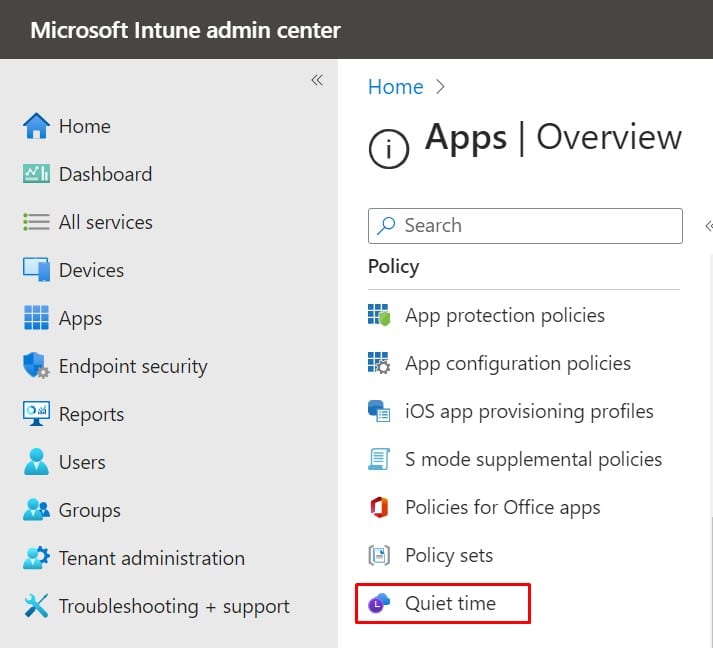
Step 2: Navigate to Policies
Locate the policies section and select Create Policy.
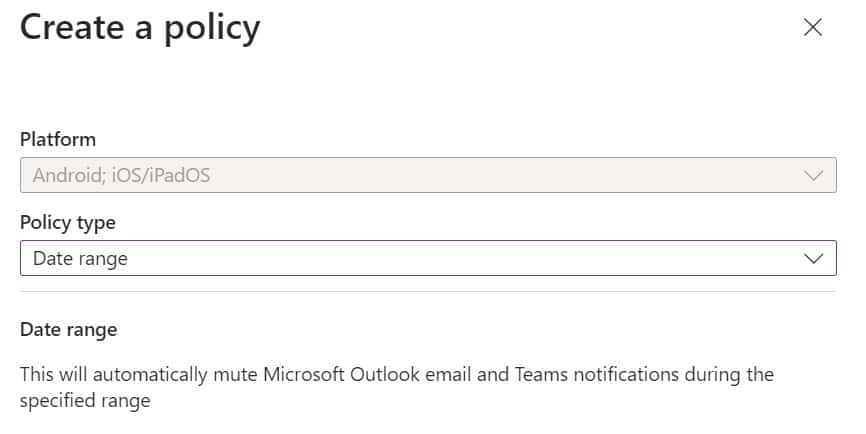
Step 3: Create a Policy
Click on policies and click Create Policy. In Policy type, select the date range or days of the week. Click Create.
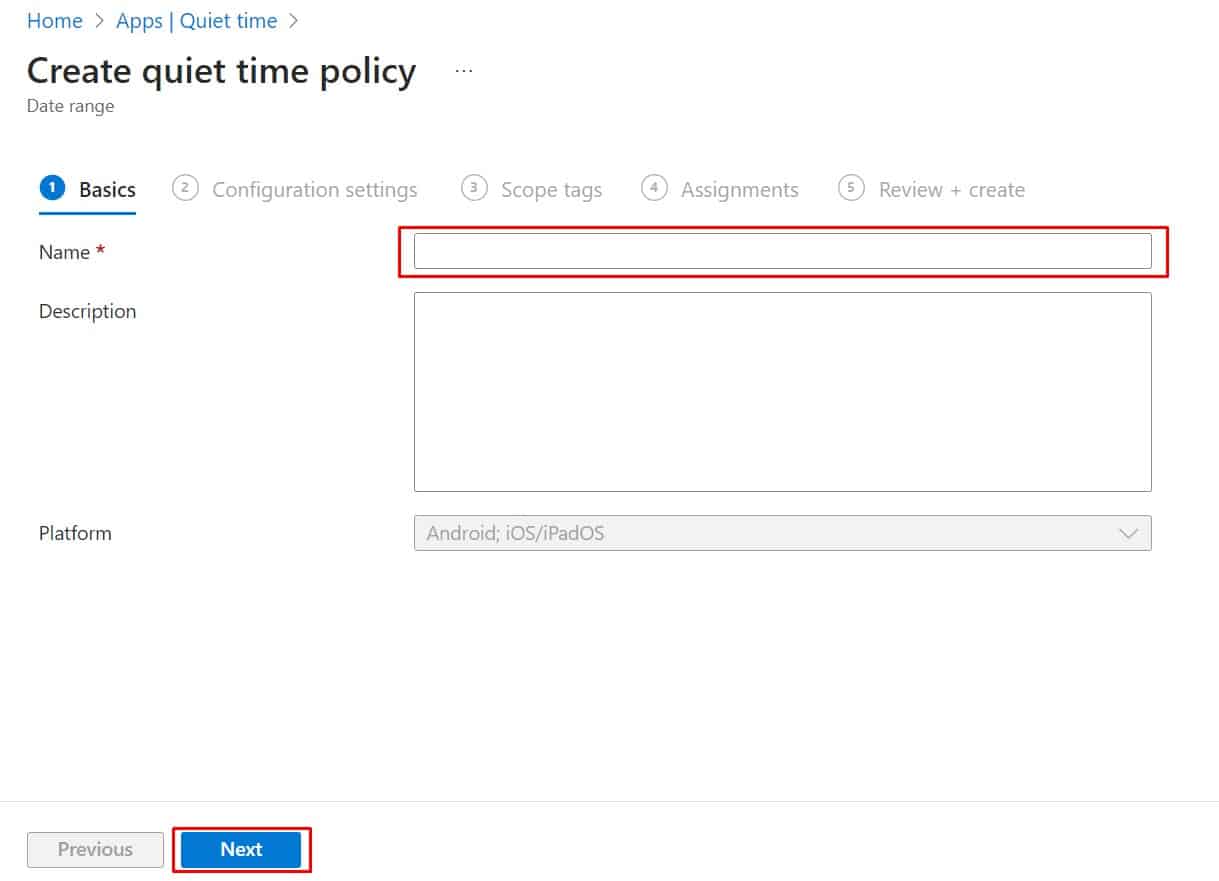
Step 4: Create a Quiet Time Policy
Enter a quiet time policy name and description.
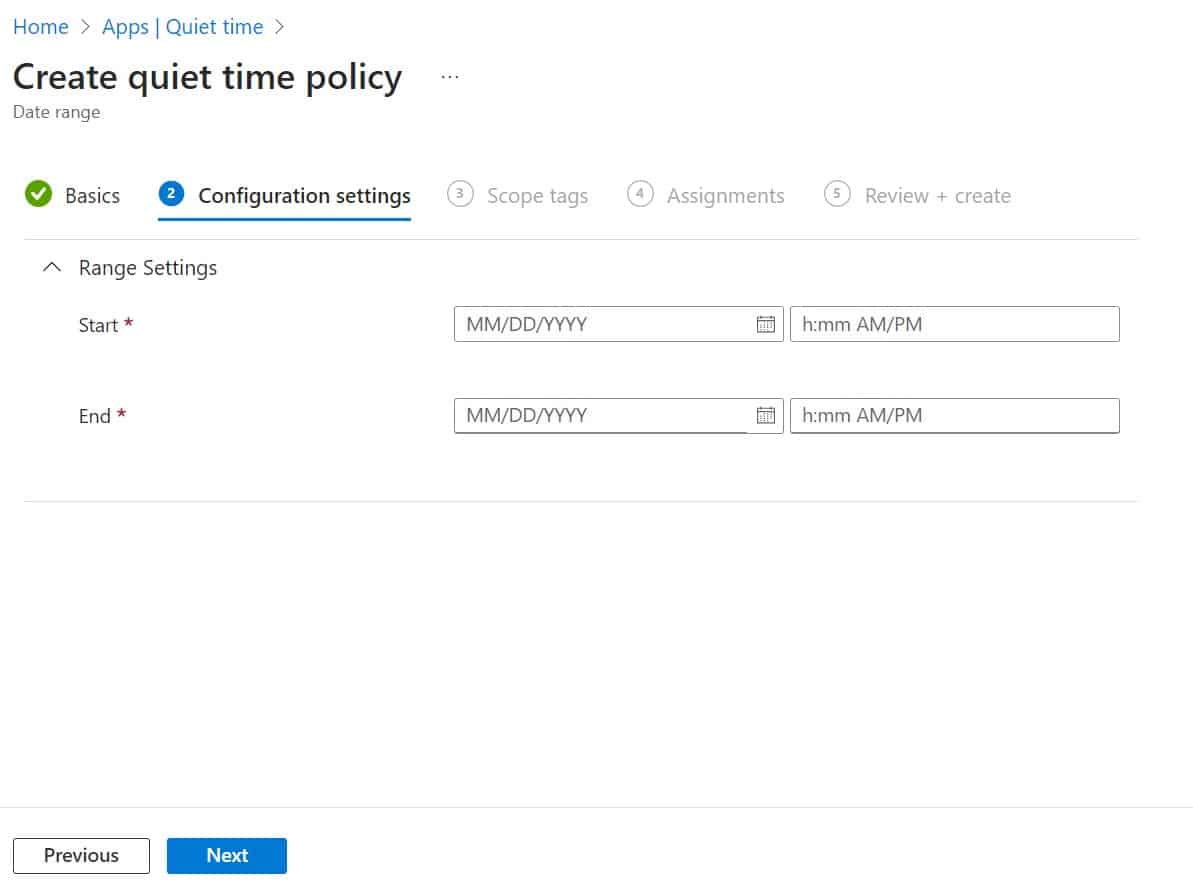
Step 5: Configuration Settings
Enter the start and end date, and click Next.
Step 6: Assignments
Assign the policy to Users or Devices as required.
Quiet Time isn't just about silencing devices; it's a strategic tool to empower concentration and maximize the potential of every learning session or workday. With its customizable settings and easy implementation via Microsoft Intune, Quiet Time is a valuable asset for organizations seeking to foster a more focused and productive environment.
Frequently Asked Questions
What platforms support Quiet Time in Microsoft Intune?
Quiet Time policies in Microsoft Intune are primarily supported on Android and iOS/iPadOS managed devices. Ensure your devices are enrolled in Intune before applying quiet time policies.
Can I allow certain apps to send notifications during Quiet Time?
Yes, Intune allows administrators to configure exceptions for specific apps or notification types. Critical alerts or emergency notifications can be allowed through while other distractions remain muted.
Does Quiet Time affect phone calls and alarms?
Depending on your policy configuration, Quiet Time can restrict incoming calls, alarms, and app notifications. Administrators have granular control over which functionalities are silenced during the quiet period.
Can I schedule Quiet Time for recurring periods?
Yes, you can configure Quiet Time policies to apply on specific days of the week or within defined date ranges, making it easy to set recurring schedules for classrooms or work hours.