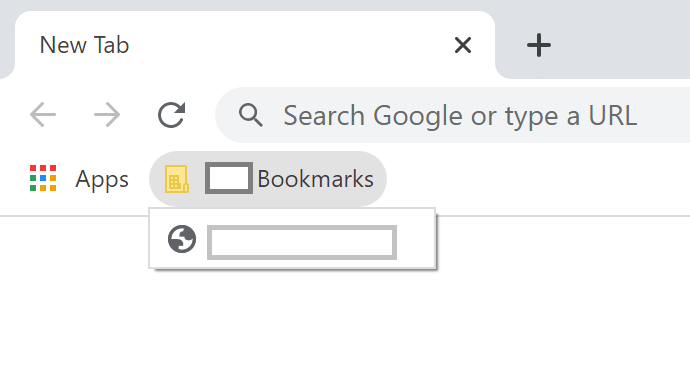
In this article, We will discuss how we can enable a chrome managed bookmark using Intune. We can manage Google Chrome using a custom configuration policy with the help of the Chrome ADMX file.
Chrome Managed Bookmarks
Step 1: Download Chrome for Enterprise
You need to download the Chrome browser for Enterprise. Make sure that you have already installed the Chrome enterprise version on Azure domain-joined client devices.
Step 2: Extract the ADMX file
Extract the Zip file which you downloaded in the first step. Browse to this path: GoogleChromeEnterpriseBundle64\Configuration\admx
You will find chrome.admx file. We need the content of this file later in configurations.
Step 3: Open Intune
Go to https://azure.portal.com and search for Intune.
Step 4: Create a device configuration profile
Select Device Configuration and Profile inside that. Select Create profile.
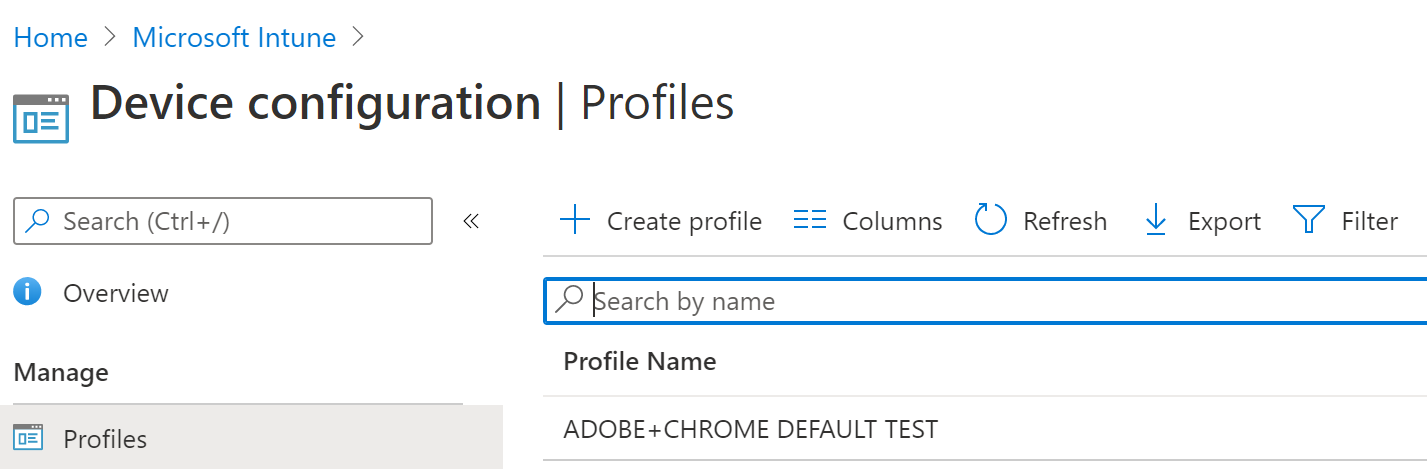
Step 5: Configure the profile type
We will create a profile for Chrome-managed bookmarks:
- Platform: Windows 10 and later
- Profile: Custom
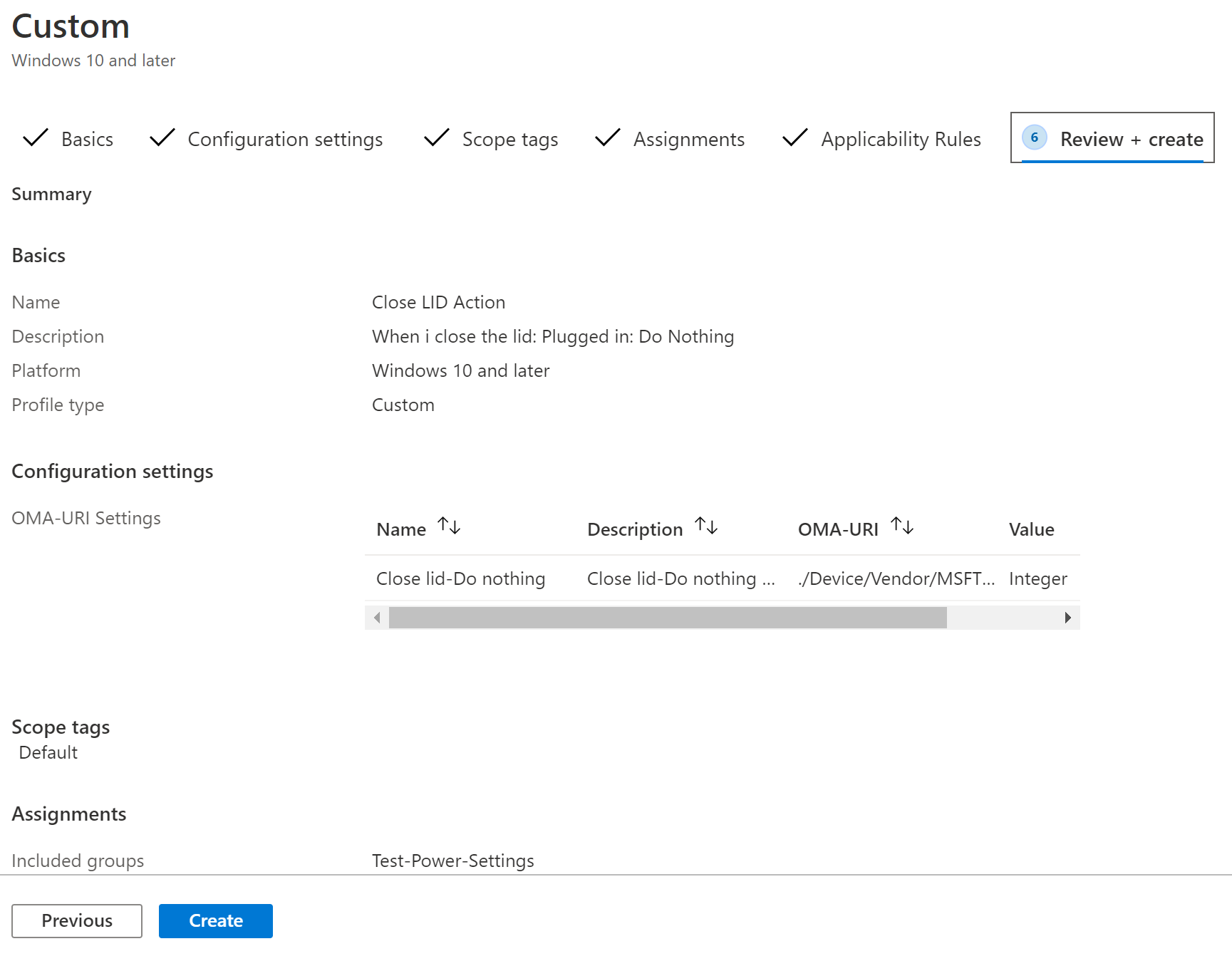
Step 6: Add the Chrome ADMX ingestion setting
We will start with chrome admx ingestion.
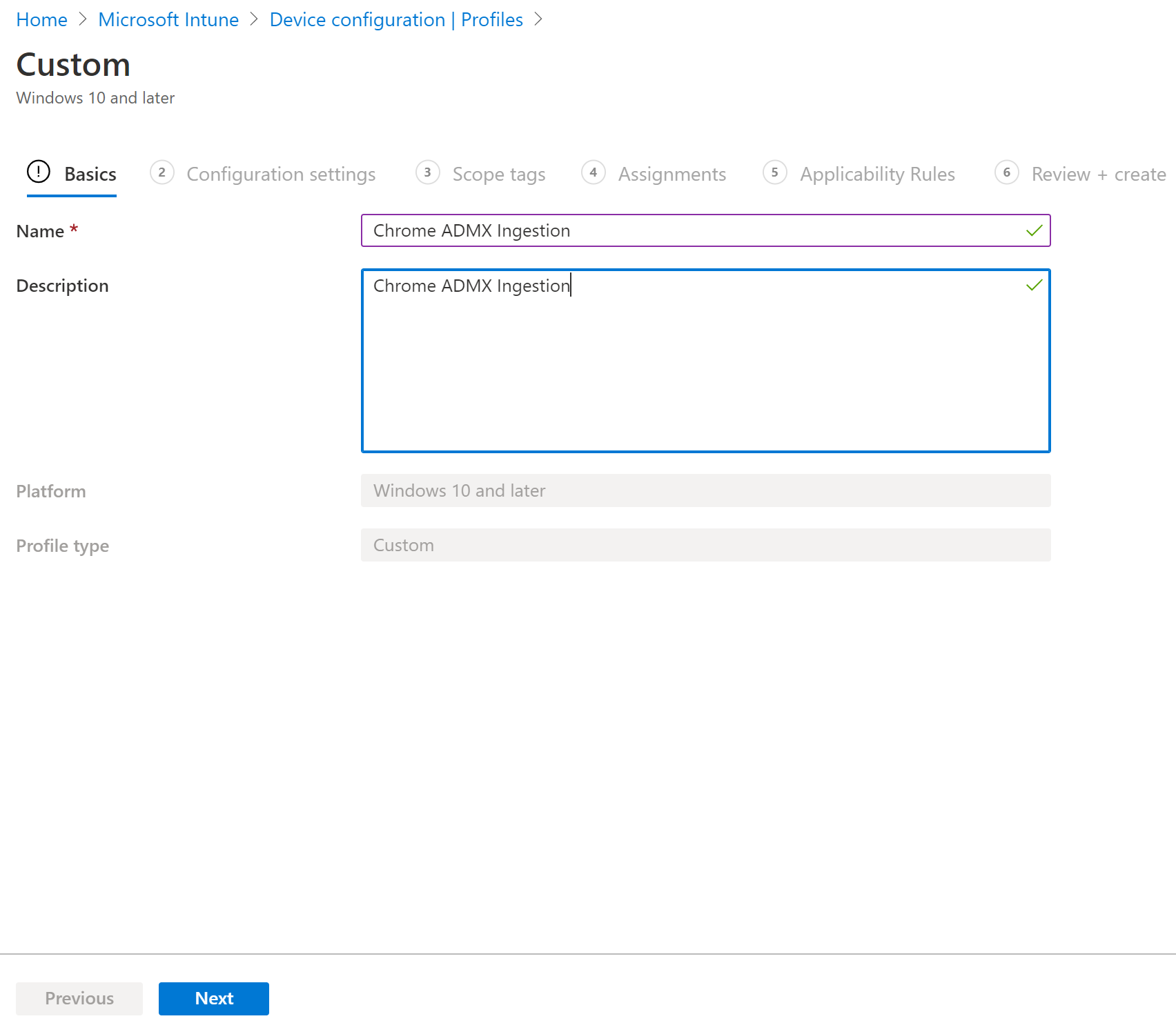
On the settings tab, Select Add. You can use the following values for Edit Row section:
- Name: Chrome ADMX Ingestion
- Description: Chrome ADMX Ingestion
- Data Type: String
- Value: Paste the content of the file which we discussed in step 2
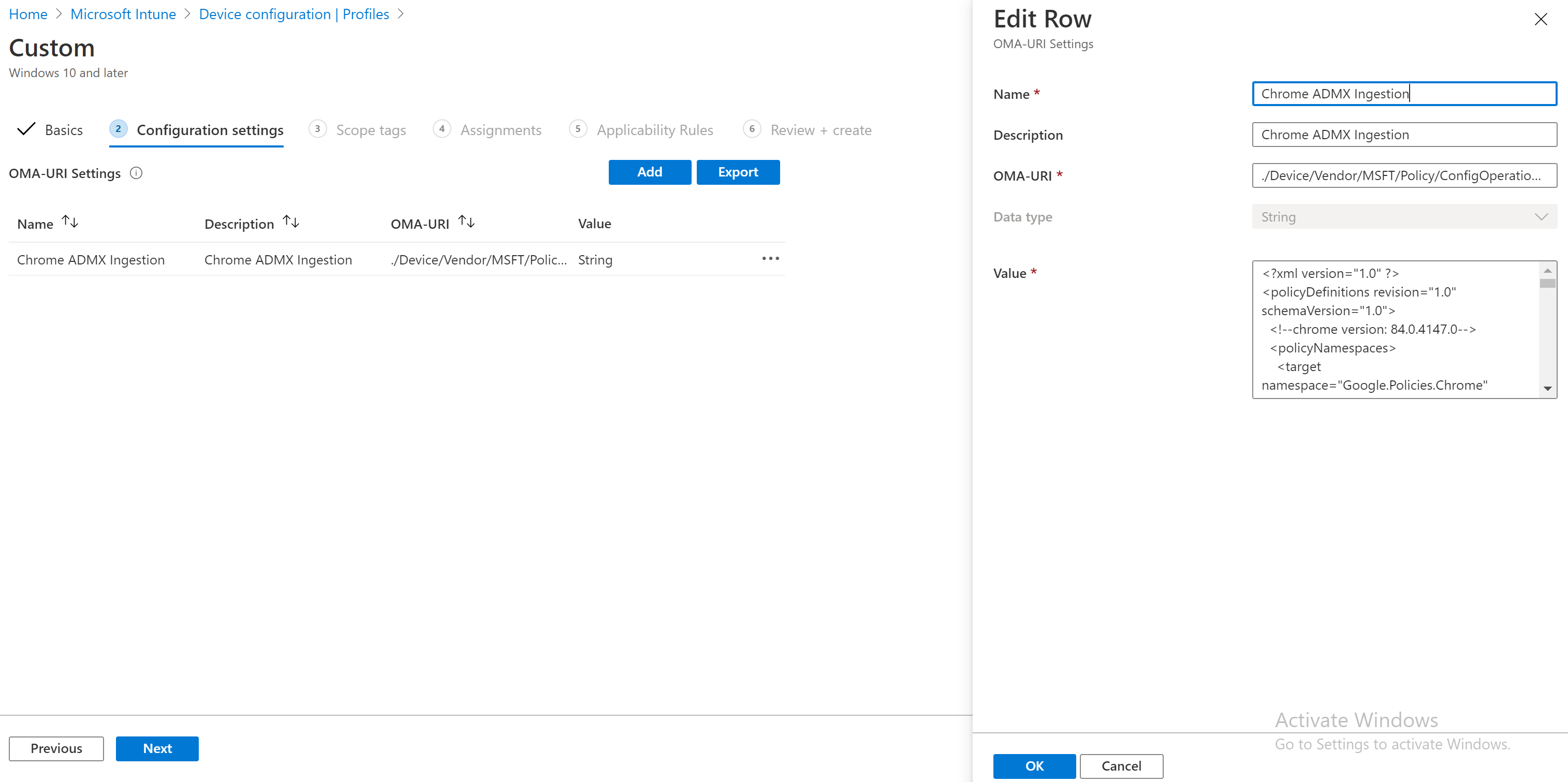
Step 7: Add the Managed Bookmarks setting
Select Add again and fill with following values:
- Name: Chrome - ADMX - ManagedBookmarks
- Description: Chrome - ADMX - ManagedBookmarks
- OMA-URI:
./Device/Vendor/MSFT/Policy/Config/Chrome~Policy~googlechrome/ManagedBookmarks - Data Type: String
- Value:
<enabled/>
<data id='ManagedBookmarks' value='[{"toplevel_name":"Company Bookmarks"},{"url":"microsoft.com","name":"Microsoft"},{"url":"blogs.technet.microsoft.com","name":"Technet"}]'/>
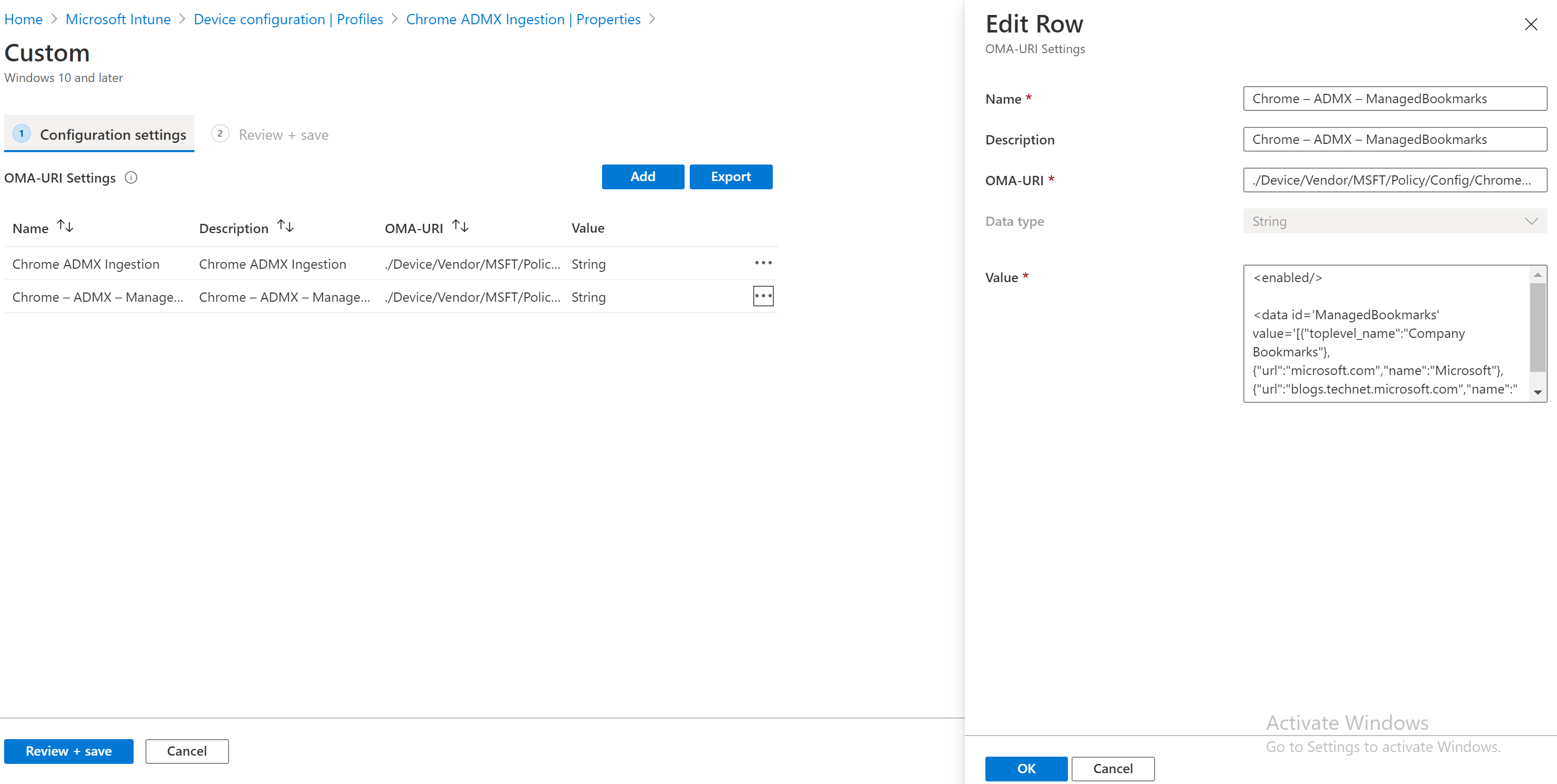
Step 8: Assign to a group
On the Assignment tab, assign to a group.
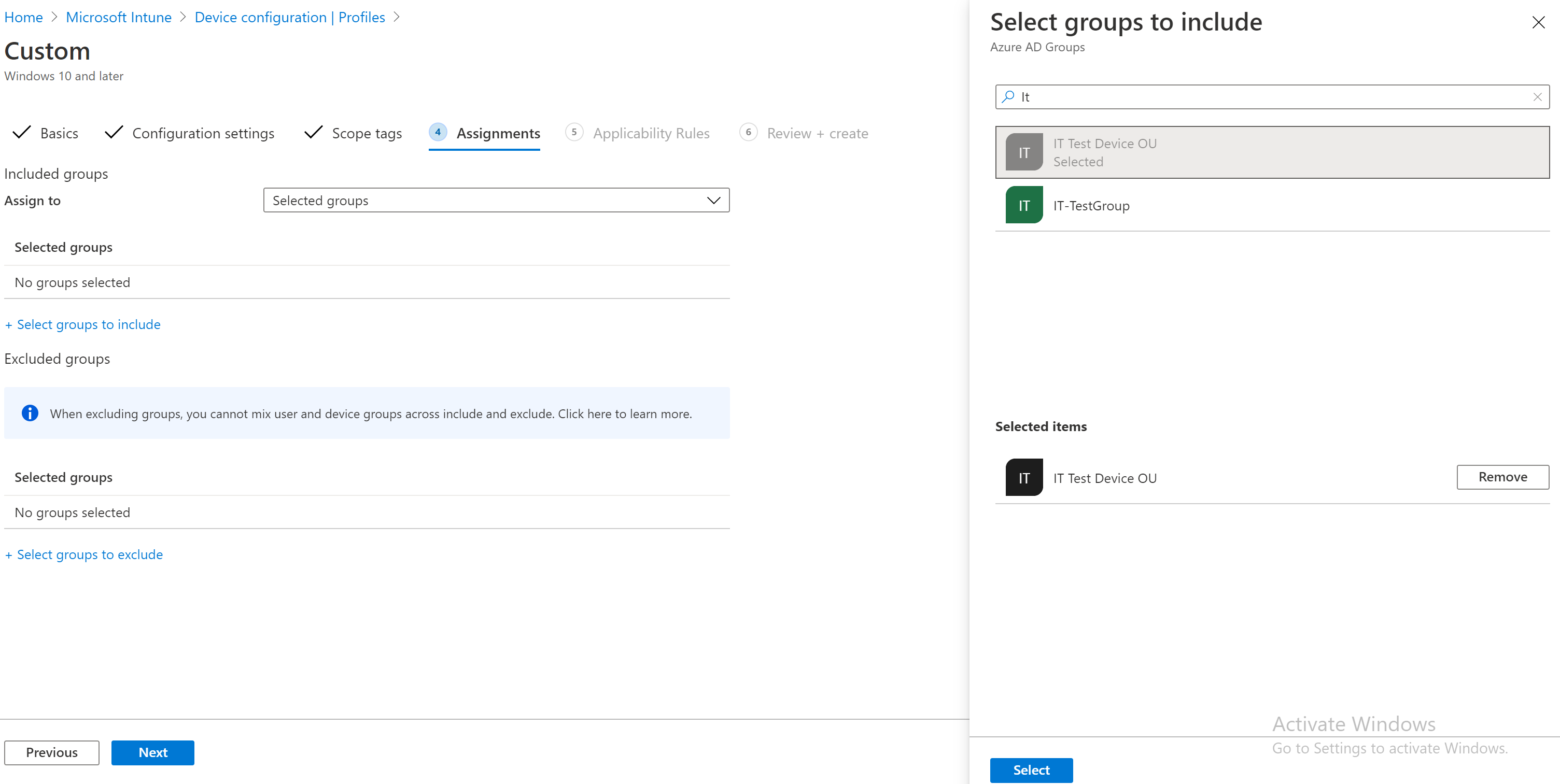
Step 9: Review and create
On Review + create tab, create the profile.
Once you created Chrome favorites or managed bookmarks Intune profile, restart the client device, or manually sync to take effect.
End-User Result