If you cannot connect over Remote Desktop because of a Network Level Authentication (NLA) prompt, this guide gives you four ways to disable it — through System Properties, the registry, PowerShell, or Group Policy — including how to do it on a remote machine you can't currently log into. It also covers how to re-enable NLA afterwards, which you should, because NLA is a security feature.
Quick answer: The fastest fix is to set the registry value
UserAuthenticationto0underHKLM\SYSTEM\CurrentControlSet\Control\Terminal Server\WinStations\RDP-Tcp. On a machine you can't log into, do this remotely with PowerShell or Remote Registry. Re-enable NLA (set it back to1) once the underlying problem is fixed.
What Is Network Level Authentication (NLA)?
Network Level Authentication is a Remote Desktop security feature that forces the connecting user to authenticate before a full remote session is created. Without NLA, the server spins up a session and presents the login screen first, then authenticates — which consumes resources and exposes the Remote Desktop stack to anyone who can reach the port.
NLA matters because it protects against pre-authentication attacks and denial-of-service attempts against RDP. It was a key mitigation for the BlueKeep vulnerability (CVE-2019-0708), where an unauthenticated attacker could exploit Remote Desktop Services. So disabling NLA is a real reduction in your security posture — treat it as a temporary measure, not a permanent configuration.
Why You're Seeing the NLA Error
The most common reason people need to disable NLA is this message:
"The remote computer that you are trying to connect to requires Network Level Authentication (NLA), but your Windows domain controller cannot be contacted to perform NLA. If you are an administrator on the remote computer, you can disable NLA by using the options on the Remote tab of the System Properties dialog box."
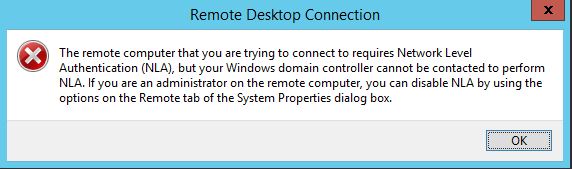
This happens because NLA needs to validate your domain credentials, and to do that the remote computer must reach a domain controller. If the DC is unreachable — broken DNS, a downed VPN, a server that has lost its trust relationship, or a domain controller that is itself offline — NLA can't complete and the connection is refused.
Fix the root cause where you can. Before disabling NLA, check whether the real problem is DNS or network connectivity to a domain controller, an expired computer trust relationship, or a VPN that isn't up. Restoring DC connectivity, or signing in with a local administrator account instead of a domain account, often resolves the error without weakening security. If you also hit other RDP errors, see our guide on the RDP "an internal error has occurred" problem.
Method 1: Disable NLA via System Properties (GUI)
If you can physically log into the computer (locally or through the console):
- Press
Win + R, typeSystemPropertiesRemote, and press Enter — or open System Properties → Remote tab. - Under Remote Desktop, clear the checkbox "Allow connections only from computers running Remote Desktop with Network Level Authentication (recommended)."
- Click Apply, then OK.
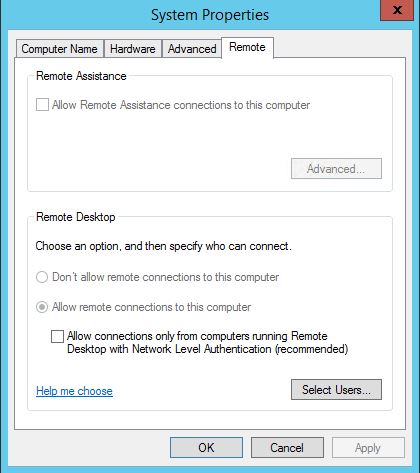
This is the method Microsoft's own error message points you to, and it's the cleanest if you have console access.
Method 2: Disable NLA via the Registry
Use this when you can log into the machine but prefer the registry, or as the basis for a remote change.
- Open Registry Editor (
regedit) with administrative access. - Browse to:
HKEY_LOCAL_MACHINE\SYSTEM\CurrentControlSet\Control\Terminal Server\WinStations\RDP-Tcp - Double-click the value
UserAuthenticationand set its Value data to0. - (Optional) If RDP still negotiates NLA, also check
SecurityLayer— a value of1(Negotiate) or0(RDP Security Layer) avoids forcing TLS+NLA.

The change applies to new connections — no reboot required.
Editing the registry of a remote computer
If you can't log into the machine at all but Remote Registry is reachable:
- Open Registry Editor on a working computer.
- File → Connect Network Registry, and enter the remote computer's name.
- Browse to the same
RDP-Tcpkey and setUserAuthenticationto0.
This requires the Remote Registry service running on the target and appropriate admin rights.
Method 3: Disable NLA with PowerShell (local, remote, or via WMI)
PowerShell is the best option when you need to disable NLA on a server you can't RDP into.
On the local machine:
Set-ItemProperty -Path 'HKLM:\SYSTEM\CurrentControlSet\Control\Terminal Server\WinStations\RDP-Tcp' -Name 'UserAuthentication' -Value 0
On a remote machine (PowerShell Remoting / WinRM):
Invoke-Command -ComputerName "SERVER01" -ScriptBlock {
    Set-ItemProperty -Path 'HKLM:\SYSTEM\CurrentControlSet\Control\Terminal Server\WinStations\RDP-Tcp' -Name 'UserAuthentication' -Value 0
}
On a remote machine using WMI (no PowerShell Remoting needed):
(Get-WmiObject -Class Win32_TSGeneralSetting -Namespace root\cimv2\terminalservices -ComputerName "SERVER01" -Filter "TerminalName='RDP-Tcp'").SetUserAuthenticationRequired(0)
The WMI approach is handy because it works over DCOM when WinRM/PowerShell Remoting isn't enabled on the target, which is often the case on the very servers you're locked out of.
Method 4: Disable NLA via Group Policy (GPO)
To disable NLA across many machines at once, use Group Policy:
- Open the Group Policy Management Console (or
gpedit.mscfor a single machine). - Navigate to: Computer Configuration → Policies → Administrative Templates → Windows Components → Remote Desktop Services → Remote Desktop Session Host → Security
- Open "Require user authentication for remote connections by using Network Level Authentication" and set it to Disabled.
- Run
gpupdate /forceon the targets, or wait for the next policy refresh.
This is the right method for managing many session hosts. Because it weakens security fleet-wide, scope the GPO carefully to only the machines that need it.
Disabling NLA on an Azure VM You Can't RDP Into
If the affected machine is an Azure VM and you've lost RDP access, you don't need console access — use Run Command:
- In the Azure portal, open the VM and go to Operations → Run command.
- Choose RunPowerShellScript.
- Paste and run:
Set-ItemProperty -Path 'HKLM:\SYSTEM\CurrentControlSet\Control\Terminal Server\WinStations\RDP-Tcp' -Name 'UserAuthentication' -Value 0
Run Command executes as SYSTEM through the Azure agent, so it works even when the network path for RDP is blocked. The Serial Console is an alternative if the VM agent isn't responding.
How to Re-Enable NLA
Once you've fixed the underlying issue (restored domain controller connectivity, repaired DNS, or completed your maintenance), turn NLA back on. It's the recommended, more secure configuration.
- System Properties: re-check the "Allow connections only from computers running Remote Desktop with Network Level Authentication" box.
- Registry / PowerShell: set
UserAuthenticationback to1. - GPO: set the "Require user authentication…" policy back to Enabled (or Not Configured).
Set-ItemProperty -Path 'HKLM:\SYSTEM\CurrentControlSet\Control\Terminal Server\WinStations\RDP-Tcp' -Name 'UserAuthentication' -Value 1
Frequently Asked Questions
What does disabling NLA actually do?
It removes the requirement to authenticate before a Remote Desktop session is established. The remote machine will create the session and show the login screen first, then authenticate — which is how RDP behaved before NLA. It makes connecting possible when credential validation against a domain controller is failing, at the cost of weaker pre-authentication protection.
Is it safe to disable Network Level Authentication?
Disabling NLA reduces security and should be temporary. NLA protects Remote Desktop from pre-authentication attacks and was a primary mitigation for the BlueKeep vulnerability (CVE-2019-0708). Disable it only to regain access, fix the root cause, and then re-enable it.
How do I disable NLA on a remote computer I can't log into?
Use PowerShell remotely (Invoke-Command with Set-ItemProperty, or the Win32_TSGeneralSetting WMI class with -ComputerName), or connect to the machine's registry with Connect Network Registry in regedit. For an Azure VM, use Run command in the Azure portal.
Which registry key controls NLA?
UserAuthentication under HKEY_LOCAL_MACHINE\SYSTEM\CurrentControlSet\Control\Terminal Server\WinStations\RDP-Tcp. Set it to 0 to disable NLA and 1 to enable it.
Do I need to reboot after disabling NLA?
No. The change takes effect for new Remote Desktop connections immediately. Existing sessions are unaffected.
How do I disable NLA in Windows 7?
The same methods apply. Use the System Properties → Remote tab and clear the NLA checkbox, or set the UserAuthentication registry value to 0. Note that Windows 7 is end-of-life and unsupported, so re-enabling NLA (or retiring the machine) is strongly recommended.
What causes the "domain controller cannot be contacted to perform NLA" error?
The remote computer can't reach a domain controller to validate your domain credentials. Common causes are DNS misconfiguration, a downed VPN, a broken computer trust relationship, or an offline domain controller. Restoring DC connectivity — or signing in with a local administrator account — often fixes it without disabling NLA at all.