
Deploying network printers across multiple Windows 10/11 devices can be challenging, especially in modern cloud-managed environments. Microsoft Intune provides a powerful solution for automated printer deployment without requiring traditional Group Policy or print servers. This comprehensive guide walks you through deploying network printers using Intune with PowerShell scripts and Win32 app packaging.
What You'll Learn:
- How to package printer drivers for Intune deployment
- PowerShell script configuration for printer installation
- Creating Win32 app packages with IntuneWinAppUtil
- Detection rules and deployment strategies
- Troubleshooting common deployment issues
Prerequisites
Before you begin deploying printers via Intune, ensure you have:
- Microsoft Intune subscription and admin access
- Microsoft Endpoint Manager admin center access
- Printer driver files (.inf, .cab, or extracted drivers)
- Network printer IP address or hostname
- IntuneWinAppUtil.exe tool (download from Microsoft)
- PowerShell execution policy configured appropriately
Step 1: Organize Printer Drivers and Scripts
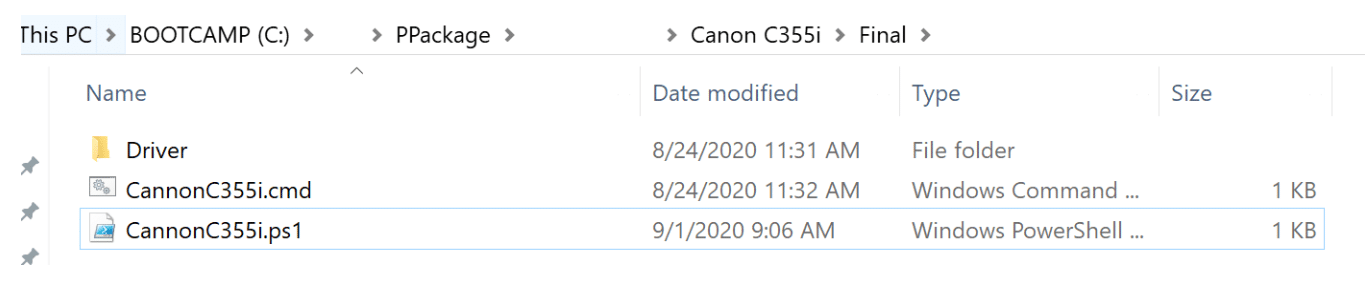
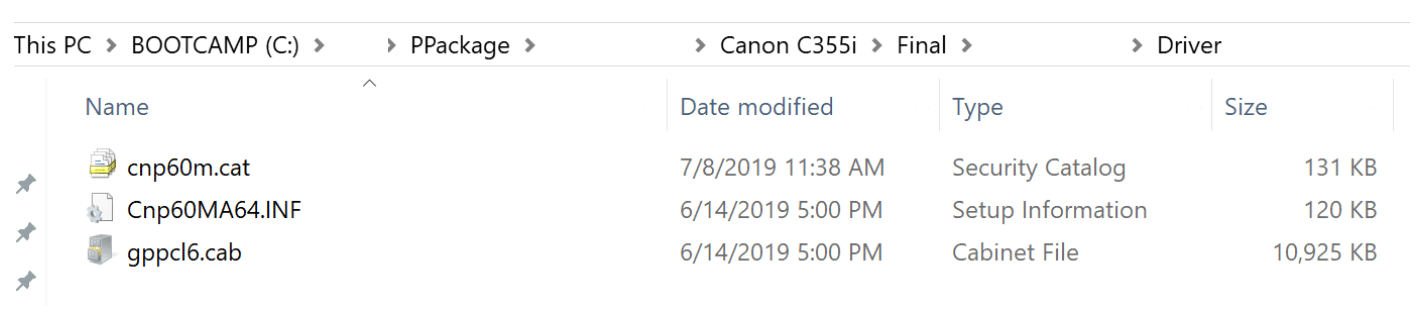
Create a structured folder hierarchy to keep your network printer deployment files organized:
Canon_C355i/
├── Driver/
│   ├── Cnp60MA64.INF
│   ├── [Other driver files]
├── CannonC355i.ps1
└── CannonC355i.cmd
Important: Ensure your driver folder contains the .inf file -- this is essential for driver installation via PowerShell.
Step 2: Configure the Batch File
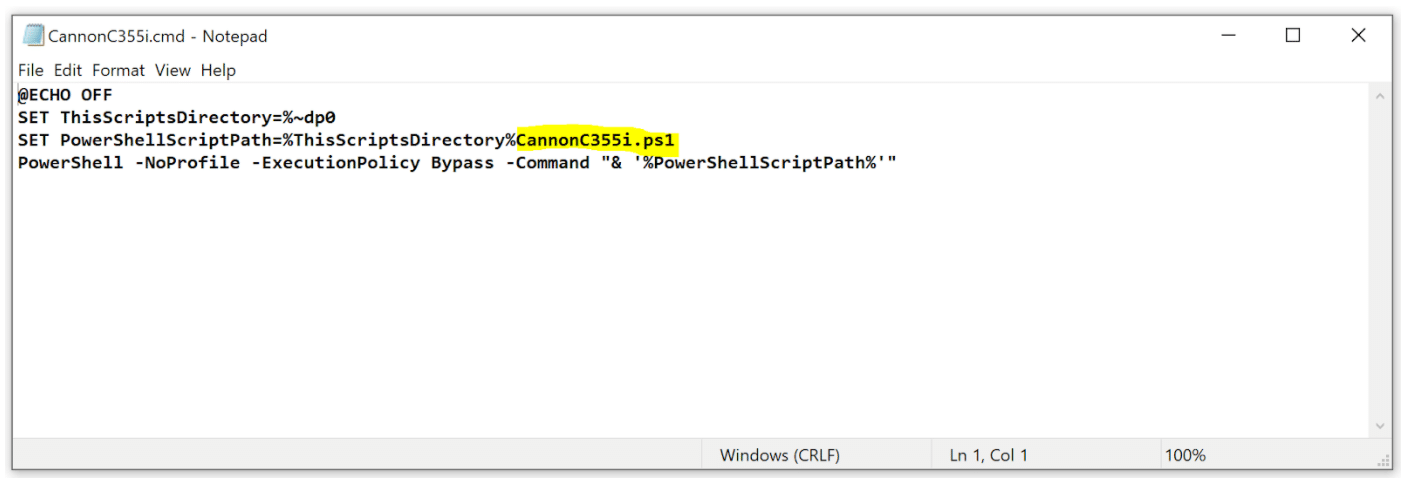
The batch file acts as a wrapper to execute PowerShell with proper execution policies. Create CannonC355i.cmd:
@ECHO OFF
SET ThisScriptsDirectory=%~dp0
SET PowerShellScriptPath=%ThisScriptsDirectory%CannonC355i.ps1
PowerShell -NoProfile -ExecutionPolicy Bypass -Command "& '%PowerShellScriptPath%'"
Key Parameters:
%~dp0- Gets the directory of the batch file-ExecutionPolicy Bypass- Allows script execution without policy restrictions-NoProfile- Speeds up execution by skipping profile loading
Step 3: Configure PowerShell Script for Network Printer Installation
Create CannonC355i.ps1 with the following configuration:
$PSScriptRoot = Split-Path -Parent -Path $MyInvocation.MyCommand.Definition
$DriverName = "Canon Generic Plus PCL6"
$DriverPath = "$PSScriptRoot\Driver"
$DriverInf = "$PSScriptRoot\Driver\Cnp60MA64.INF"
$portName = "10.2.x.x"

# Check if printer port exists
$checkPortExists = Get-Printerport -Name $portname -ErrorAction SilentlyContinue

if (-not $checkPortExists) {
    Add-PrinterPort -name $portName -PrinterHostAddress "10.2.x.x"
}

# Install printer driver using VBScript method
cscript "C:\Windows\System32\Printing_Admin_Scripts\en-US\Prndrvr.vbs" -a -m $DriverName -h $DriverPath -i $DriverInf

# Verify driver installation
$printDriverExists = Get-PrinterDriver -name $DriverName -ErrorAction SilentlyContinue

if ($printDriverExists) {
    Add-Printer -Name "Cannon C355i" -PortName $portName -DriverName $DriverName
    Write-Host "Printer installed successfully"
} else {
    Write-Warning "Printer Driver not installed"
    exit 1
}
Critical Variables to Modify
- $DriverName - Exact driver name from the .inf file (open .inf and look for driver model name)
- $DriverInf - Filename of your .inf file in the Driver folder
- $portName - IP address of your network printer (e.g., "10.2.15.20")
- Add-Printer -Name - Display name for the printer (appears in Windows Settings)
Pro Tip: To find the correct driver name, open your .inf file and search for [Manufacturer] or [Model] sections.
Step 4: Create Intune Win32 App Package
Use the Microsoft Win32 Content Prep Tool to create an .intunewin package:
cd C:\IntuneAppsWinAppsUtil
.\IntuneWinAppUtil.exe
When prompted, enter:
- Source folder:
C:\Package\Canon C355i\Final - Setup file:
CannonC355i.cmd - Output folder:
C:\Package\Canon C355i\Final - Catalog folder:
N(not required)
This generates CannonC355i.intunewin in your output folder.
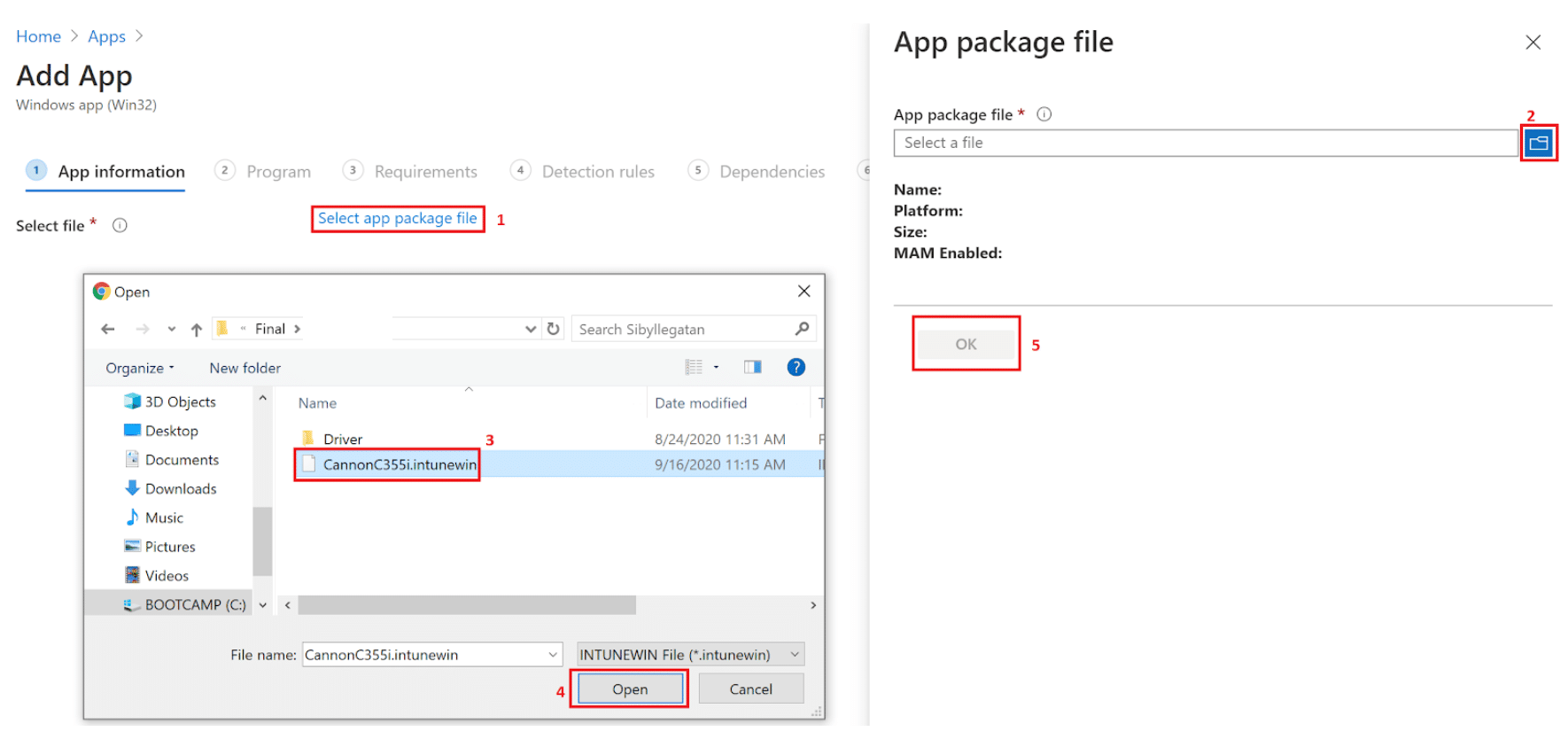
Step 5: Upload to Microsoft Endpoint Manager
1. Navigate to Endpoint Manager
Go to Microsoft Endpoint Manager admin center and select Apps > All apps > Add.
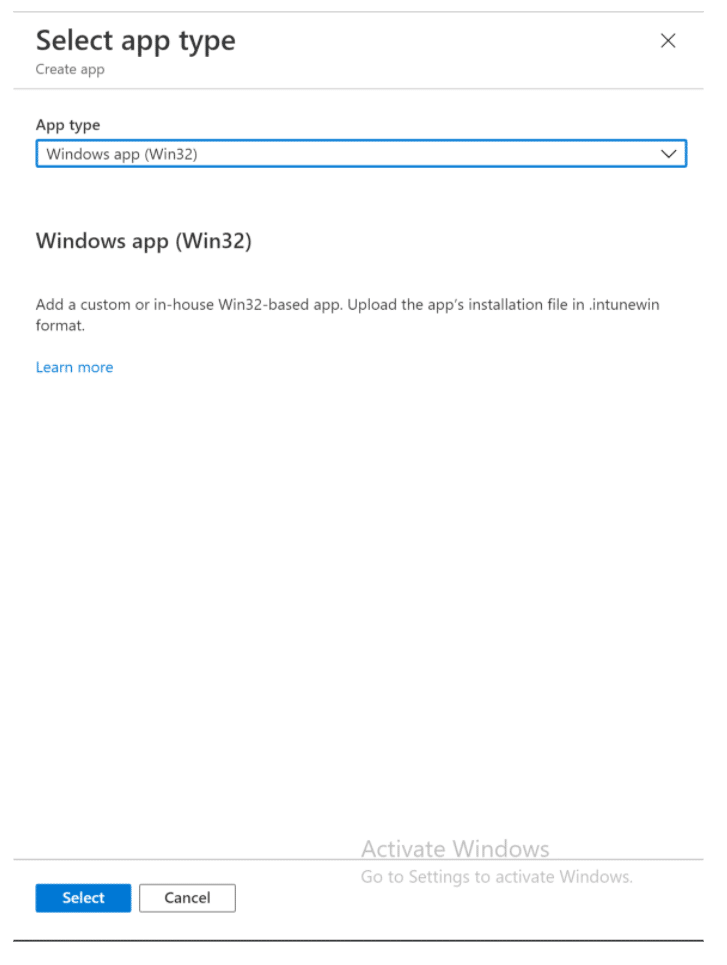
2. Choose App Type
Select app type: Windows app (Win32).
3. Upload the Package
Select the App Package file (.intunewin) created in Step 4.
Step 6: Configure App Information
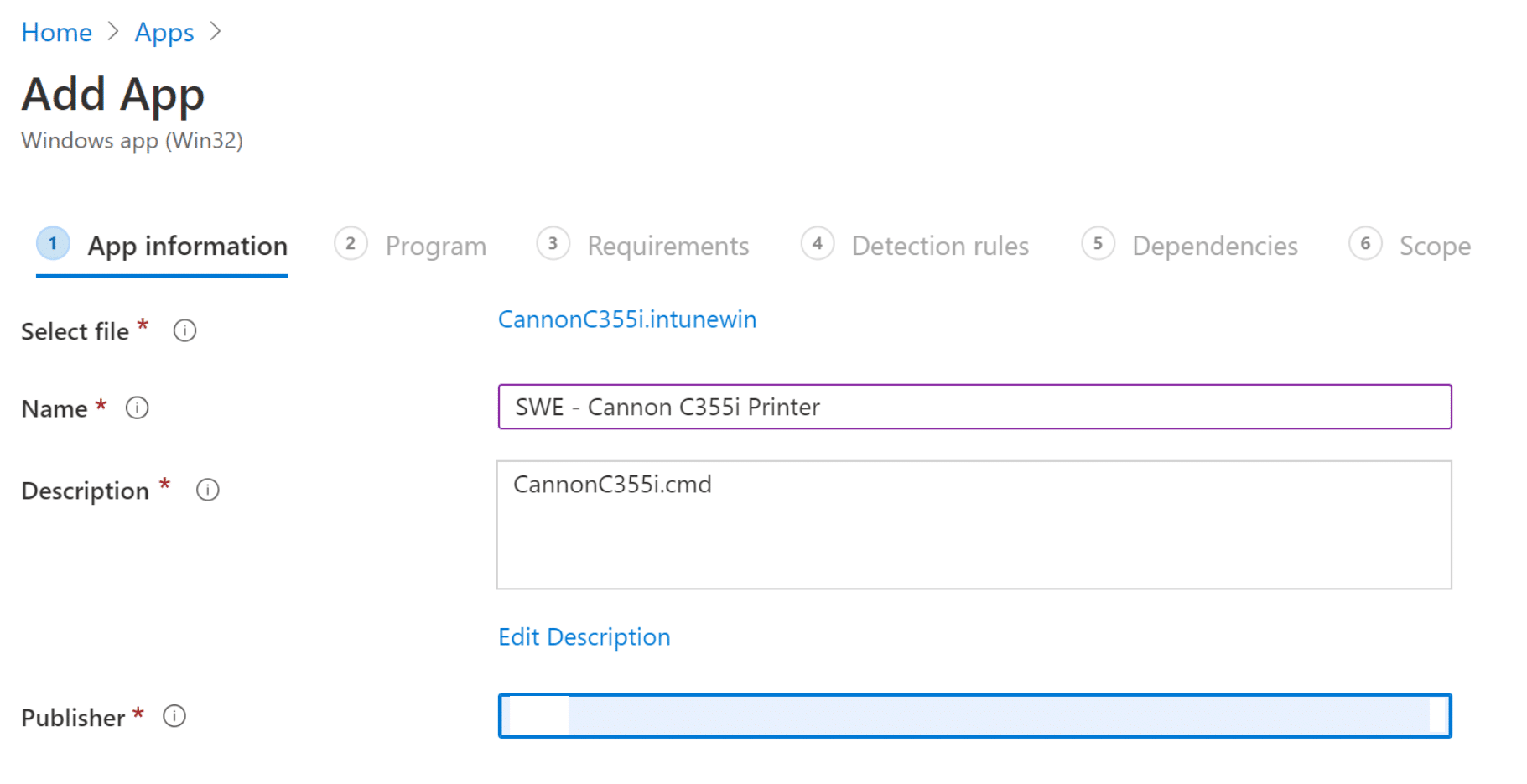
Fill in the app details:
- Name: Canon C355i Network Printer
- Description: Installs Canon C355i printer with IP 10.2.x.x
- Publisher: Your Organization Name
- Category: Productivity (optional but recommended for Company Portal)
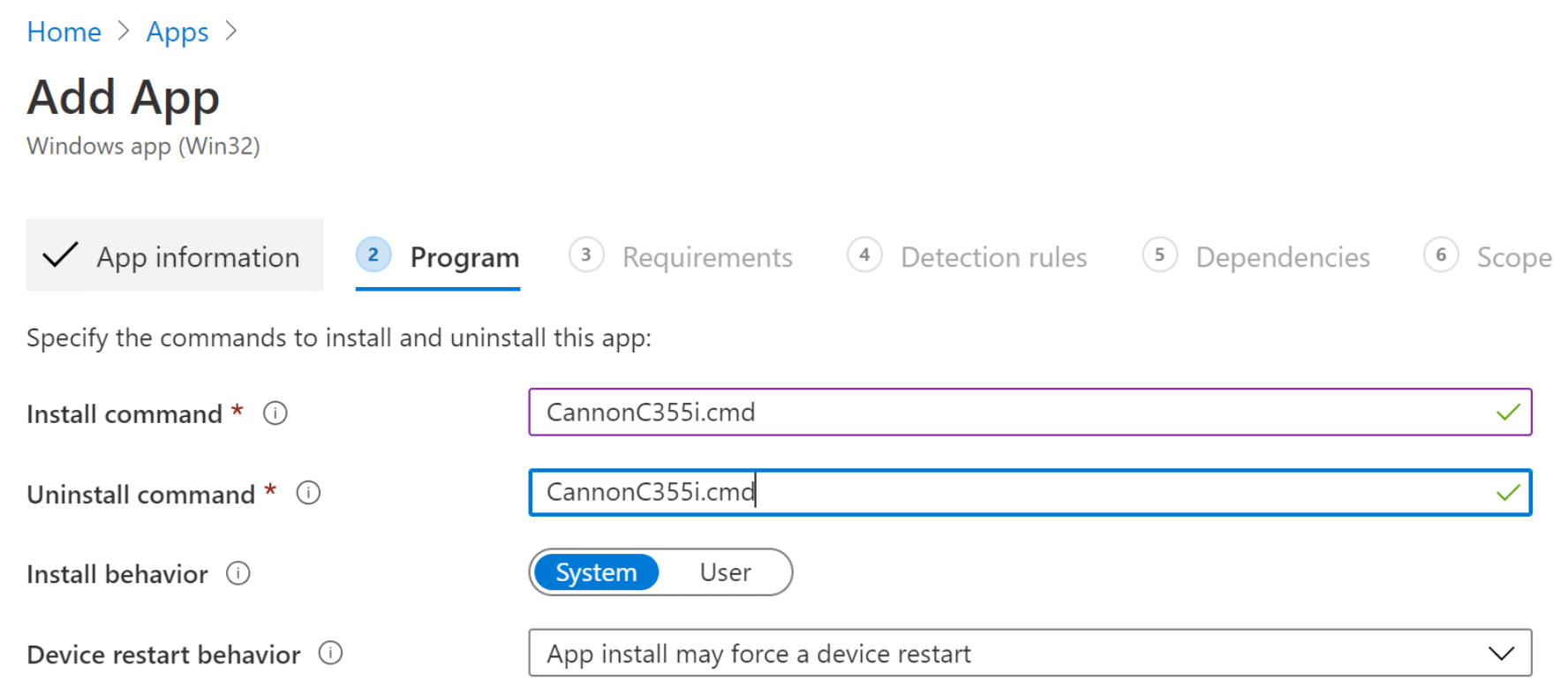
Step 7: Set Installation and Uninstallation Commands
Install command:
CannonC355i.cmd
Uninstall command:
powershell.exe -executionpolicy bypass -command "Remove-Printer -Name 'Cannon C355i'; Remove-PrinterPort -Name '10.2.x.x'"
Install behavior: System
Step 8: Configure Requirements
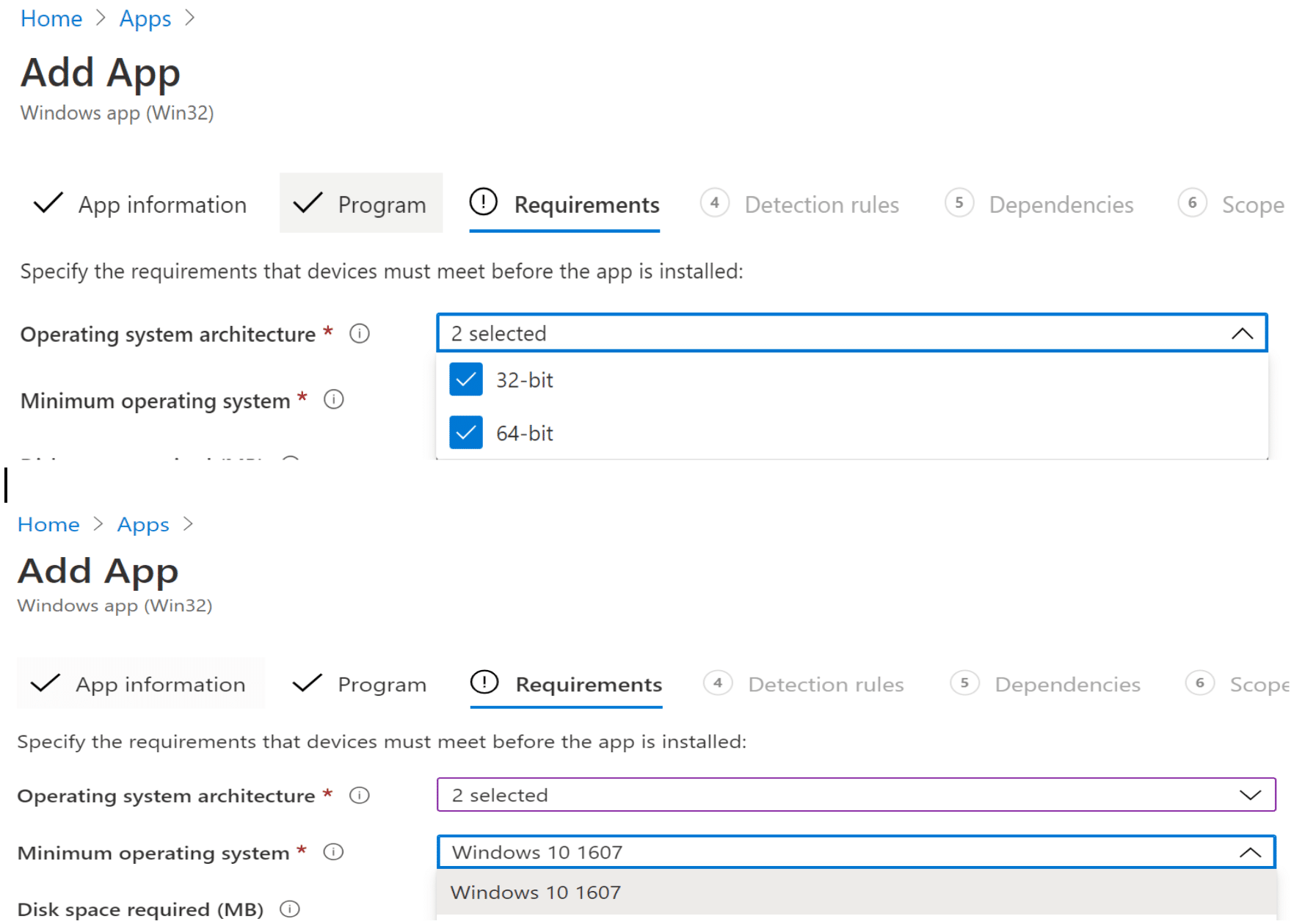
Set the minimum requirements for deployment:
- Operating system architecture: 32-bit and 64-bit
- Minimum operating system: Windows 10 1607 or later
Best Practice: Target Windows 10 1809+ for better printer management APIs.
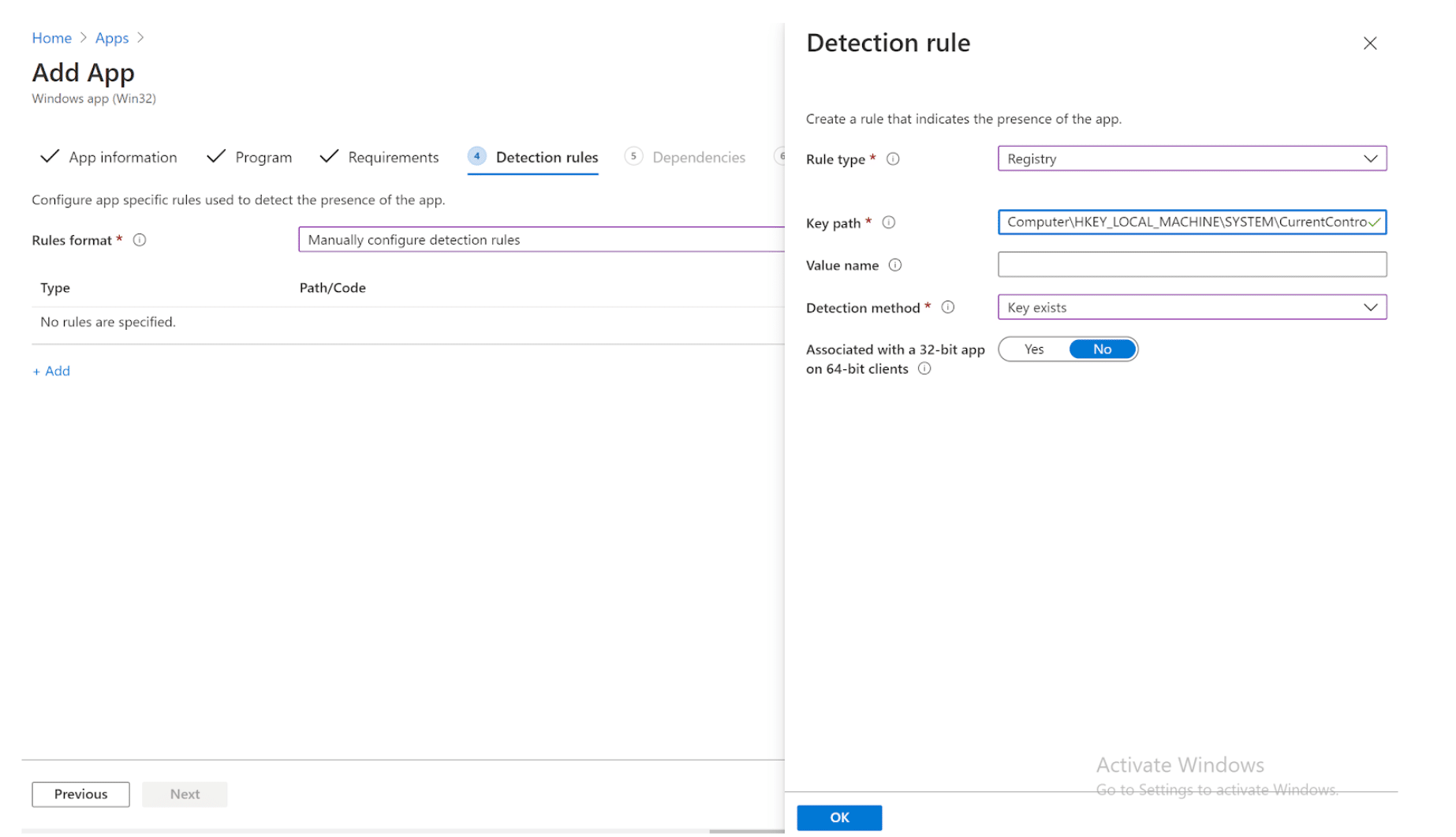
Step 9: Detection Rules Configuration
This is crucial for Intune to verify successful installation.
- Detection method: Manually configure detection rules
- Rule type: Registry
- Key path:
HKEY_LOCAL_MACHINE\SYSTEM\CurrentControlSet\Control\Print\Printers\Cannon C355i
- Detection method: Key exists
Important: The printer name in the registry path MUST match exactly with the printer name in your PowerShell script (Add-Printer -Name parameter).

Step 10: Assign to Groups
- Click Add group under Required or Available
- Select Azure AD groups containing target devices or users
- Click Review + save
Assignment Options:
- Required: Installs automatically on assigned devices
- Available: Users can install from the Company Portal
- Uninstall: Removes the printer from assigned devices
Best Practices for Intune Printer Deployment
- Test Locally First: Always test PowerShell scripts locally before packaging
- Use Standard Drivers: Universal printer drivers reduce package complexity
- Group Organization: Create Azure AD groups for printer assignments by location
- Version Control: Include version numbers in app names for tracking updates
- Documentation: Document printer IP addresses and driver versions
- Pilot Deployment: Test on a small group before organization-wide rollout
- Company Portal: Make printers available instead of being required for user flexibility
Security Considerations
- Execution Policy: Scripts run with bypass policy - validate content thoroughly
- Driver Sources: Only use drivers from trusted manufacturer websites
- Network Segmentation: Ensure printers are on appropriate VLANs
- Audit Logging: Enable logging for compliance tracking
- User Permissions: Deploy printers with SYSTEM context to avoid permission issues
Frequently Asked Questions
Can I deploy printers to Azure AD joined devices only?
Yes, this method works perfectly with Azure AD joined devices without requiring on-premises infrastructure. The Win32 app package runs locally on the device using the SYSTEM account.
How do I update printer drivers deployed through Intune?
Create a new version of the app package with updated drivers and upload it as a new version of the existing app in Intune. The detection rules will trigger a reinstallation with the updated drivers.
Can users uninstall Intune-deployed printers?
Yes, unless you configure uninstall protection. Consider making printers "Available" rather than "Required" to give users more flexibility.
Does this work with Universal Print?
This guide is for traditional network printers using IP-based connections. Microsoft Universal Print uses a different cloud-based deployment method through Microsoft 365 and does not require Win32 app packaging.
How many printers can I deploy per package?
One printer per package is recommended for granular control and easier troubleshooting. However, you can include multiple printer installations in a single PowerShell script if needed.
What if my printer requires authentication?
This method supports IP-based printers without authentication. For printers that require user authentication or secure print release, consider Microsoft Universal Print or a traditional print server with Hybrid Cloud Print.
Deploying network printers through Microsoft Intune streamlines printer management in modern cloud-first environments. By following this guide, you can automate printer installation across your organization without relying on traditional infrastructure dependencies, such as Group Policy or print servers.
The Win32 app packaging method provides flexibility for complex scenarios while maintaining centralized control through Intune. Start with a pilot deployment, monitor results, and gradually expand to your entire organization.