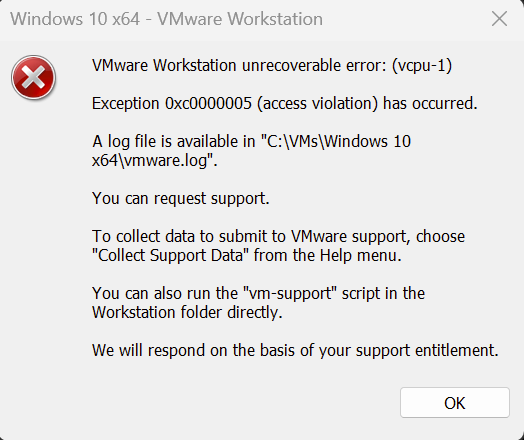
The Exception 0xc0000005 (access violation) error is a common issue that occurs when launching virtual machines in VMware Workstation, particularly after upgrading to Windows 11 or installing it on a new system. This error prevents your virtual machine from starting and displays an unrecoverable error message.
Complete Error Message
VMware Workstation unrecoverable error: (vcpu-1)
Exception 0xc0000005 (access violation) has occurred.
Solution 1: Disable Virtualization Security and Hyper-V
This is the official fix recommended by VMware in their knowledge base article 2146361.
Steps to Implement:
Disable Virtualization Security via Group Policy:
- Press
Win + Rand typegpedit.msc - Navigate to: Computer Configuration > Administrative Templates > System > Device Guard
- Disable "Turn On Virtualization Based Security"
Turn Off Hyper-V Feature:
- Open Control Panel > Programs > Programs and Features
- Click "Turn Windows features on or off"
- Uncheck "Hyper-V" and all related components
- Restart your computer
Disable Hypervisor Launch Type:
- Open Command Prompt as Administrator
- Run the following command:
bcdedit /set hypervisorlaunchtype off
- Restart your computer
Solution 2: Disable 3D Graphics Acceleration
A common fix for Exception 0xc0000005 involves disabling hardware acceleration for graphics.
Steps:
- Open VMware Workstation
- Select your virtual machine (ensure it's powered off)
- Go to VM > Settings
- Navigate to the Hardware tab
- Select "Display"
- Uncheck "Accelerate 3D graphics"
- Click OK and start your virtual machine
Solution 3: Upgrade to VMware Workstation 17 or Later
If you're running Windows 11, upgrading VMware Workstation is often the most effective solution.
Recommended Version:
- VMware Workstation 17 Pro or later
- Tested version: 17.0.0 build-20800274 (confirmed working)
- Latest version: VMware Workstation 17.5+ (highly recommended)
Why This Works:
VMware Workstation 16 and earlier versions have compatibility issues with Windows 11. VMware Workstation 17 includes native support for Windows 11's security features and virtualization requirements.
Download:
Visit the official VMware Workstation Pro download page to get the latest version.
Solution 4: Disable Core Isolation (Memory Integrity)
Windows 11's enhanced security features can conflict with VMware virtualization.
Steps:
- Open Windows Security
- Go to Device Security
- Click on "Core isolation details"
- Turn off "Memory integrity"
- Restart your computer
- Launch VMware Workstation
Common Scenario: Migrating VMs to Windows 11
Many users encounter this error when:
- Copying a suspended Windows 10 guest VM
- Moving from VMware Workstation 15/16 on older Windows versions
- Upgrading to VMware Workstation 16+ on Windows 11
Resolution: Upgrading to VMware Workstation 17.5 typically resolves all compatibility issues.
Troubleshooting Tips
If the error persists after trying the above solutions:
- Update Windows 11: Ensure you have the latest Windows updates installed
- Check BIOS Settings: Verify that virtualization (VT-x/AMD-V) is enabled in BIOS
- Remove Windows Subsystem for Linux (WSL): If installed, temporarily disable WSL
- Clean VMware Installation: Uninstall and reinstall VMware Workstation completely
The Exception 0xc0000005 access violation error in VMware Workstation is primarily a compatibility issue with Windows 11. While multiple solutions exist, upgrading to VMware Workstation 17.5 or later is the most reliable fix. If upgrading isn't immediately possible, disabling virtualization security features and 3D graphics acceleration can serve as temporary workarounds.
For persistent issues, ensure your Windows 11 installation is fully updated, and all Windows security features that conflict with VMware are properly disabled.