Enforcing a lock screen after inactivity means if the computer or PC is idle for a specific time, it should be locked automatically. This is really helpful in terms of the security of the computer.
We can achieve this easily by using Group Policy. Follow the steps below to configure a GPO that locks the screen after a defined period of inactivity.
Lock Screen GPO Windows 10
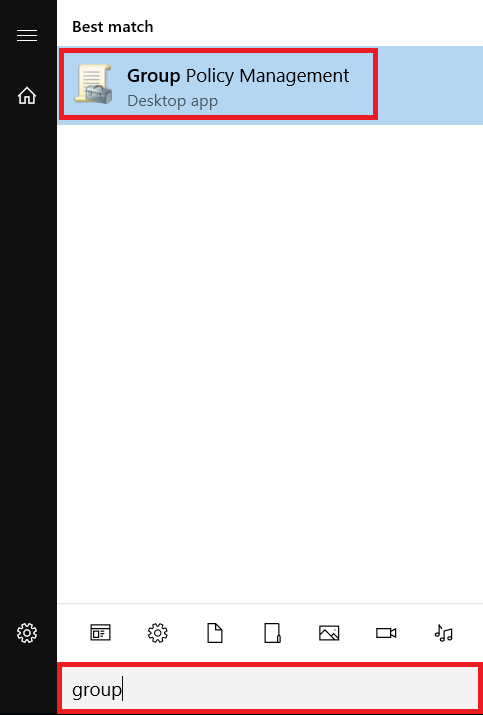
Step 1: Open Group Policy Management
Click on Start Menu and search for Group Policy Management, then click to open it.
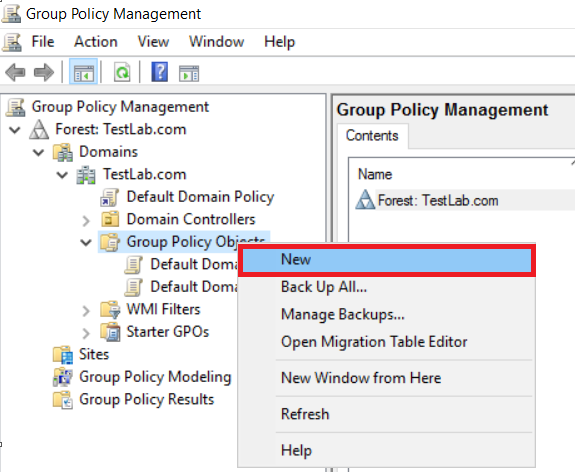
Step 2: Create a New GPO
Right-click Group Policy Objects and click New.
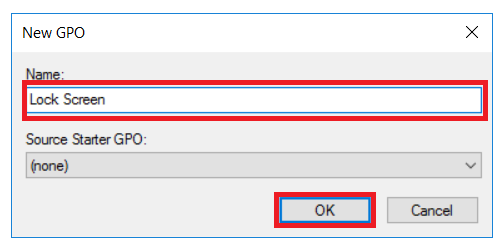
Step 3: Name the GPO
Provide a GPO name and click Ok.
Step 4: Edit the GPO
Once the Lock Screen GPO is created, right-click on it and click Edit.
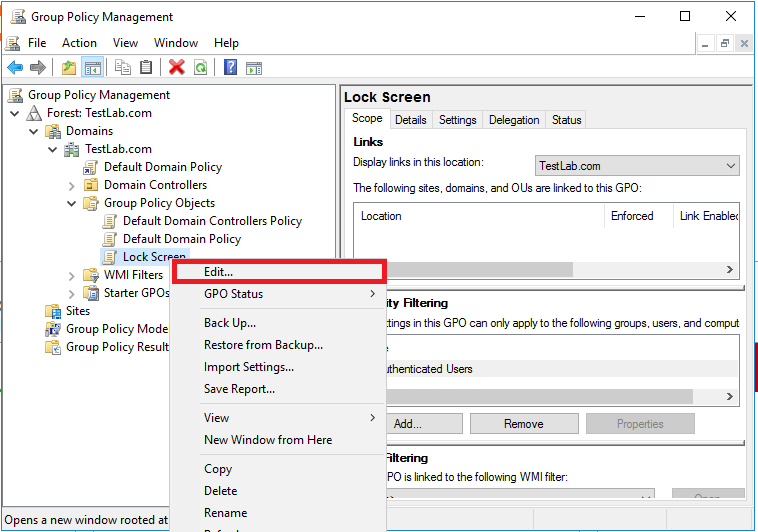
Step 5: Configure the Inactivity Limit
Navigate to the following path:
Computer Configurations --> Policies --> Windows Settings --> Security Settings --> Local Policies --> Security Options
On the right pane, find Interactive logon: Machine inactivity limit and double-click it.
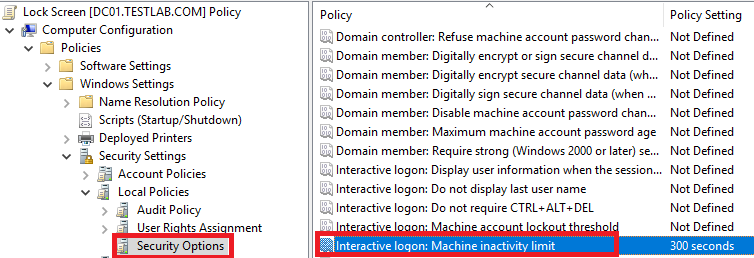
Step 6: Set the Timeout Value
Enable the Define this policy setting checkbox. Enter the required value in seconds. For example, if you want to lock the computer after 15 minutes, enter 900.
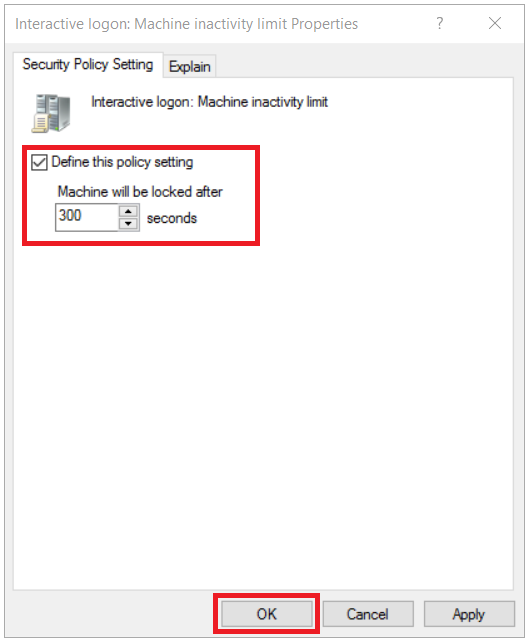
Step 7: Apply the Policy
Restart client PCs or run the following command to apply the screen lock policy immediately:
gpupdate /force
Step 8: Link the GPO
Link this new GPO to your Computer OU.
Note: You can use the same procedure to configure a lock screen using GPO for a standalone PC.
Frequently Asked Questions
How long does it take for the lock screen GPO to take effect?
The GPO takes effect after the next Group Policy refresh cycle, which is typically every 90 minutes. You can force an immediate update by running gpupdate /force on the client PC or by restarting it.
What is the value format for the machine inactivity limit?
The value is specified in seconds. For example, 300 = 5 minutes, 600 = 10 minutes, and 900 = 15 minutes.
Does this GPO work on Windows 11 as well?
Yes, the Interactive logon: Machine inactivity limit policy setting works on both Windows 10 and Windows 11 in domain-joined environments.
Can I set a different inactivity timeout for different groups of users?
Yes, you can create multiple GPOs with different inactivity timeout values and link each one to a different Organizational Unit (OU) containing the target computer accounts.