If you've enabled Multi Admin Approval (MAA) for device wipe in Intune — and you should — you've probably also run into the friction it creates during a real offboarding event. MAA is designed to stop a single compromised or careless admin from wiping devices unilaterally. That's a good trade for one device. It's painful when you need to wipe 50 devices from an HR leavers list and the portal wants you to click through an approval justification one device at a time.
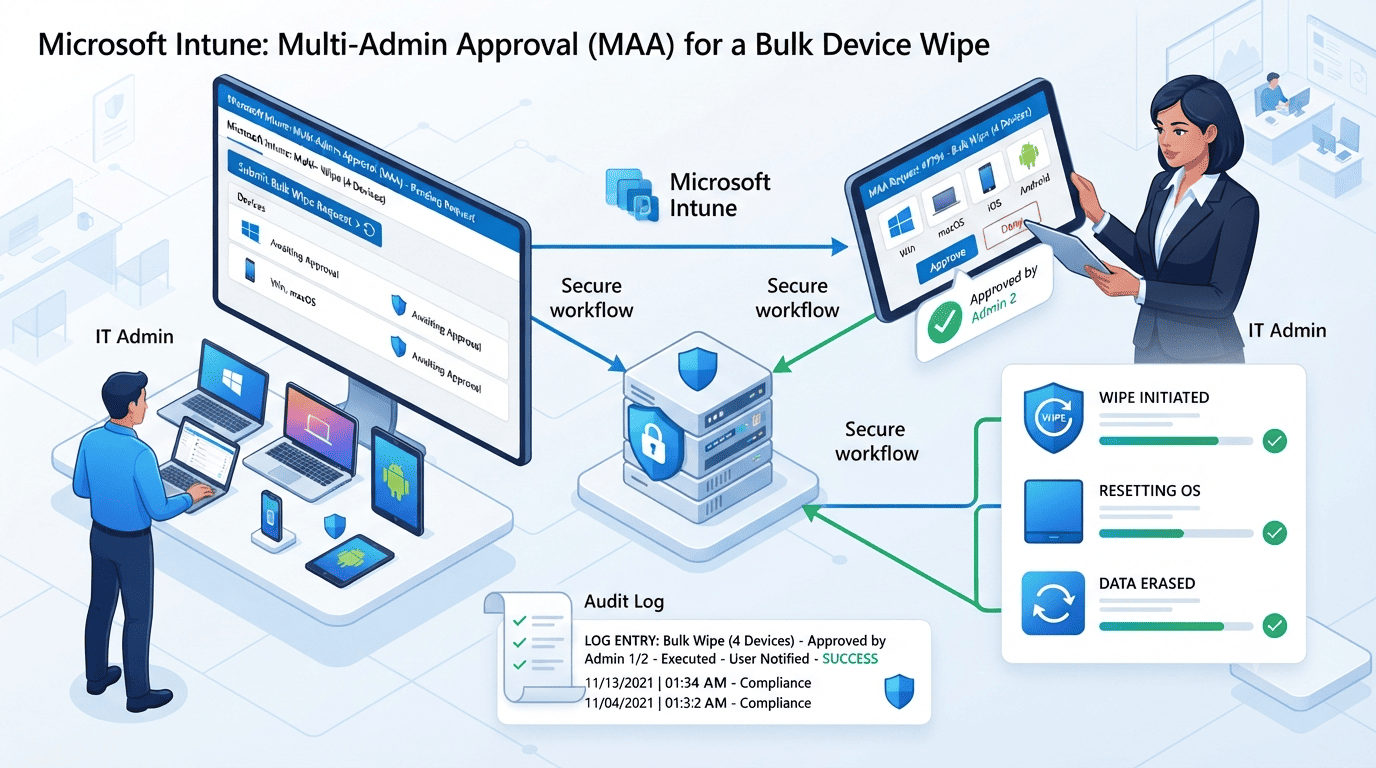
This post walks through a PowerShell + Microsoft Graph API workflow that automates the submission side of a bulk wipe while still fully respecting the MAA approval gate. It does not bypass MAA — a second admin still has to approve every request. It just removes the manual clicking from the part of the process that doesn't need a human.
The Scenario
You have a CSV or list of device names — typically pulled from HR offboarding data — that need to be wiped. Submitting these one by one through the Intune admin center doesn't scale past a handful of devices, and it's error-prone at volume. The goal is to script the submission step so it correctly creates MAA-gated approval requests instead of failing, while leaving the actual approval decision with a second administrator.
Prerequisites:
- Microsoft Graph PowerShell SDK (
Microsoft.Graph.Authentication) withDeviceManagementManagedDevices.ReadWrite.Allscope - An MAA access policy covering Device wipe already configured (see how to set up Intune Multi Admin Approval if you haven't)
- A source list of device names to wipe, ideally cross-referenced against confirmed leavers
Step 1: Resolve Device Names to Device IDs
The Graph API wipe action requires the device's GUID, not its display name, so the first step is building a name-to-ID mapping.
If you already have pending or historical approval requests referencing these devices, you can pull the mapping directly from the approval request objects, which include both the device name and its ID:
$requests = Invoke-MgGraphRequest -Method GET `
  -Uri "https://graph.microsoft.com/beta/deviceManagement/operationApprovalRequests"

$deviceMap = $requests.value | ForEach-Object {
    [PSCustomObject]@{
        DeviceName = $_.payloadName
        DeviceId   = $_.payloadId
        RequestId  = $_.id
    }
}

$deviceMap | Format-Table -AutoSize
If you're starting fresh from just a list of device names with no existing requests, query the managed devices endpoint directly and match on name:
$deviceNames = @("DEVICE-NAME-1", "DEVICE-NAME-2", "DEVICE-NAME-3")

$deviceMap = foreach ($name in $deviceNames) {
    $result = Invoke-MgGraphRequest -Method GET `
        -Uri "https://graph.microsoft.com/beta/deviceManagement/managedDevices?`$filter=deviceName eq '$name'"

    foreach ($device in $result.value) {
        [PSCustomObject]@{
            DeviceName = $device.deviceName
            DeviceId   = $device.id
        }
    }
}

$deviceMap | Format-Table -AutoSize
Export the result so you have a stable reference for the rest of the workflow:
$deviceMap | Export-Csv -Path "C:\Temp\device_wipe_mapping.csv" -NoTypeInformation
Step 2: Verify Before You Touch Production
This is the step worth not skipping. Before submitting anything destructive at scale, pull each device's live details and cross-reference against your source list of confirmed leavers:
$deviceMap = Import-Csv -Path "C:\Temp\device_wipe_mapping.csv"

$verification = foreach ($d in $deviceMap) {
    $dev = Invoke-MgGraphRequest -Method GET `
        -Uri "https://graph.microsoft.com/beta/deviceManagement/managedDevices/$($d.DeviceId)"

    [PSCustomObject]@{
        DeviceName   = $d.DeviceName
        AssignedUser = $dev.userPrincipalName
        LastSync     = $dev.lastSyncDateTime
        Compliance   = $dev.complianceState
    }
}

$verification | Format-Table -AutoSize
Check the assigned user, last sync date, and compliance state against what you expect before proceeding. A bulk wipe is not the place to discover a stale or mismatched CSV — at scale, a small mapping error goes from affecting one device to affecting dozens.
Step 3: Understand the MAA-Aware Request Format
If your tenant has an MAA access policy covering device wipe, a plain Graph API wipe call will fail. As of the mid-2026 update that extended MAA enforcement to Graph API automation, the call needs a specific header carrying the justification, Base64-encoded:
$justificationText = "Reason for the bulk action"
$justificationBase64 = [Convert]::ToBase64String(
    [System.Text.Encoding]::UTF8.GetBytes($justificationText)
)

$headers = @{ "x-msft-approval-justification" = $justificationBase64 }
The key thing to understand: when this call succeeds in creating a pending approval request, the API returns HTTP 412 Precondition Failed — not a 200 or 204. That's expected behavior, not an error. It means "your request was accepted and is now awaiting a second admin's approval." You'll see it appear in the Intune portal under Tenant administration > Multi Admin Approval > All requests with a status like "In review."
A 409 Conflict response means the device already has an active pending request. You'll need to resolve that one first — approve, complete, cancel, or wait for it to expire — before a new one can be created for the same device.
Step 4: The Bulk Submission Script
Putting it together, here's the script that reads the CSV and submits a wipe request for every device, correctly interpreting the response codes:
$deviceMap = Import-Csv -Path "C:\Temp\device_wipe_mapping.csv"

$justificationBase64 = [Convert]::ToBase64String(
    [System.Text.Encoding]::UTF8.GetBytes("Reason for the bulk action")
)
$headers = @{ "x-msft-approval-justification" = $justificationBase64 }

foreach ($d in $deviceMap) {
    try {
        Invoke-MgGraphRequest -Method POST `
            -Uri "https://graph.microsoft.com/beta/deviceManagement/managedDevices/$($d.DeviceId)/wipe" `
            -Headers $headers
        Write-Host "SUBMITTED (immediate): $($d.DeviceName)" -ForegroundColor Green
    }
    catch {
        if ($_.Exception.Message -match "412|PreconditionFailed") {
            Write-Host "PENDING APPROVAL CREATED: $($d.DeviceName)" -ForegroundColor Yellow
        }
        elseif ($_.Exception.Message -match "409|Conflict") {
            Write-Host "ALREADY HAS ACTIVE REQUEST: $($d.DeviceName)" -ForegroundColor Red
        }
        else {
            Write-Host "REAL FAILURE: $($d.DeviceName) - $($_.Exception.Message)" -ForegroundColor Magenta
        }
    }
    Start-Sleep -Milliseconds 500
}
The three outcomes are handled distinctly:
| Color | Response | Meaning |
|---|---|---|
| Yellow (412) | Precondition Failed | Working as intended — a new pending approval request was created |
| Red (409) | Conflict | Blocked by an existing active request on that device; needs to be cleared first |
| Magenta (other) | Anything else | A genuine problem — permissions, malformed request, or something worth investigating individually |
Step 5: Approve and Complete
Submitting the requests is only half the workflow. Because MAA requires a different admin to approve each request, and because completion is tied to whichever identity originally submitted it:
- A second, eligible approver reviews and approves the batch — either through the portal (Multi Admin Approval > All requests) or via a scripted loop calling the approve action on each request ID.
- The original requesting admin — the one who ran the submission script — then completes each approved request, either in the portal or by resubmitting the same wipe call with the resulting approval code.
Requests that aren't completed within the tenant's expiration window, typically a few days, automatically expire and would need to be resubmitted.
Lessons Learned
A few things worth taking away if you're setting this up for your own tenant:
- 412 is success, not failure, for MAA-gated automation. Make sure your error handling doesn't mistake it for a broken call — a naive
try/catchthat treats every non-2xx response as a failure will report a working batch as a pile of errors. - Completion is identity-locked to the original requestor, and cancellation is identity-locked to the approver. There's no built-in delegate mechanism. If the person who submits or approves a batch action becomes unavailable, the request itself can become stuck until it expires.
- Duplicate active requests block new ones for the same device, even after the original's expiration timestamp has passed. There can be a delay between the stated expiration time and the backend actually clearing the record, so don't assume a request is usable again the instant the clock passes.
- Verify before you submit. At bulk scale, a small mapping error goes from affecting one device to affecting dozens.
MAA is a genuinely useful control, and this workflow doesn't bypass it — it makes the "many devices at once" case tractable without falling back to error-prone manual clicking through the portal.
Frequently Asked Questions
Why does the Intune Graph API return 412 Precondition Failed when wiping a device?
When Multi Admin Approval is enabled for device wipe, a Graph API wipe call that includes a valid x-msft-approval-justification header doesn't execute the wipe immediately. Instead, it creates a pending approval request and returns HTTP 412 Precondition Failed to signal that the action is now awaiting a second admin's approval. This is expected behavior, not an error condition.
What does the x-msft-approval-justification header do?
It carries the business justification for a sensitive action — such as a device wipe — as a Base64-encoded string in the request header. When an MAA access policy covers the action, Graph API calls without this header, or with an invalid one, will fail outright rather than creating a valid approval request.
Can I bulk wipe devices in Intune if Multi Admin Approval is enabled?
Yes. You can script the submission of wipe requests for many devices at once through the Graph API, and each one will correctly land as a pending approval request rather than executing immediately. A second, eligible admin still has to approve every request individually — MAA's two-person control isn't bypassed, only the manual submission step is automated.
What does a 409 Conflict response mean when submitting a wipe request?
It means the target device already has an active pending operation approval request. You need to resolve the existing request — by approving, completing, cancelling, or letting it expire — before a new wipe request can be created for that same device.
Who can complete an approved MAA wipe request?
Only the original admin who submitted the request can complete it after approval. Likewise, only the approver who reviewed it can cancel it. There's no built-in delegation, so if either person is unavailable, the request sits until it hits the tenant's expiration window and has to be resubmitted.
Does this workflow bypass Intune Multi Admin Approval?
No. Every wipe request submitted this way still requires approval from a second, eligible admin before it executes. The script only automates building the device list and submitting requests correctly — the human approval checkpoint that MAA exists to enforce is untouched.
Related: Intune Multi Admin Approval: The 5-Minute Control That Stops Mass Device Wipes