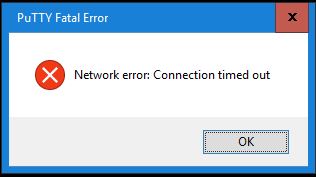
I had a case where the SSH service on an ESXi host showed as Running, lockdown mode was off, and SSH still timed out with Network error: Connection timed out. Restarting the SSH service made no difference.
In my case the cause was the ESXi firewall: the SSH Server rule had been unchecked, so the service was running but the host dropped every connection on port 22. Below is that fix plus the other causes, sorted by the error you see.
Applies to: ESXi 6.x, 7.x and 8.x.
Start with the error message
| What the SSH client says | Most likely cause |
|---|---|
| Connection timed out | ESXi firewall rule disabled or limited to certain IPs, or a network firewall blocking port 22 |
| Connection refused | The SSH service (TSM-SSH) isn't running |
| Access denied / password rejected | Wrong password, root account locked out, or lockdown mode |
Test the port from your workstation first:
Test-NetConnection esxi01.lab.local -Port 22
TcpTestSucceeded : False means something on the network path, or the ESXi firewall, is blocking the connection.
Fix 1: Enable the SSH Server firewall rule (my case)
vSphere Client: select the host → Configure → System → Firewall → Edit, then make sure SSH Server is ticked.
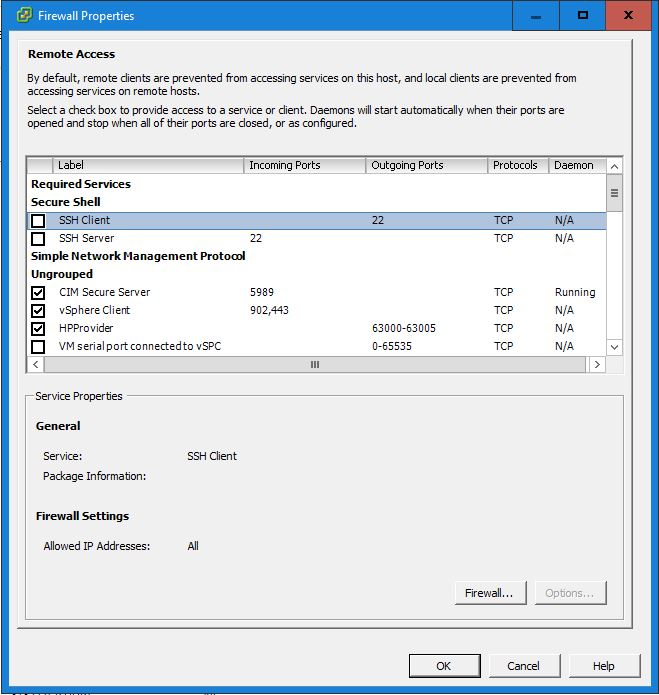
From the ESXi Shell (DCUI) or another working session:
esxcli network firewall ruleset list --ruleset-id sshServer
esxcli network firewall ruleset set --ruleset-id sshServer --enabled true
The rule is enabled by default, so if it's off, someone turned it off. Check whether a host profile or hardening script will switch it off again.
Fix 2: Check the allowed-IP restriction
The rule can be enabled but only accept connections from certain subnets. That also produces a timeout from anywhere else.
esxcli network firewall ruleset allowedip list --ruleset-id sshServer
Either add your management subnet:
esxcli network firewall ruleset set --ruleset-id sshServer --allowed-all false
esxcli network firewall ruleset allowedip add --ruleset-id sshServer --ip-address 10.10.0.0/24
…or temporarily allow all addresses with --allowed-all true.
Fix 3: Start the SSH service
- vSphere Client: host → Configure → System → Services → SSH → Start
- Host Client: Manage → Services → TSM-SSH → Start
- DCUI: F2 → Troubleshooting Options → Enable SSH
- PowerCLI:
Get-VMHost esxi01.lab.local | Get-VMHostService |
  Where-Object Key -eq "TSM-SSH" | Start-VMHostService
Fix 4: Lockdown mode
When lockdown mode is on, only users on the host's Exception Users list can log in over SSH. Check it under Configure → System → Security Profile → Lockdown Mode. If it's on and that's intended, add a break-glass account to the exception list rather than turning lockdown off.
Fix 5: Root account locked out
Too many failed logins lock the root account for a while, and every new attempt resets the timer. See ESXi 6.x root account locked out for how to unlock it.
Do it all at once with PowerCLI
To check SSH across a whole cluster:
Get-Cluster "Prod" | Get-VMHost | ForEach-Object {
  [pscustomobject]@{
    Host     = $_.Name
    Service  = ($_ | Get-VMHostService | Where-Object Key -eq "TSM-SSH").Running
    Firewall = ($_ | Get-VMHostFirewallException -Name "SSH Server").Enabled
  }
}
Security note
Leave SSH stopped on production hosts when nobody is using it. vSphere raises a warning when SSH is enabled for this reason. Start it when you need it, and stop it when you're done.
Related: ESXi 6.x root account locked out · Unable to delete an orphaned VM from the vSphere 6.5 Web Client · Finding VMs with a fixed or round-robin multipath policy