An Office 365 license is a subscription plan that allows users to access Microsoft office applications (Word, Excel, Outlook, Teams, etc.) and other productivity services provided by Microsoft's cloud-based platform Office 365. There are different types of Office 365 licenses available, each with its own set of features and pricing.
Each license fee is based on a monthly or yearly subscription. Cloud-based applications provide a lot of features and security but at the same time, it can be very costly if license management is not handled carefully. An example is that users who have been disabled in Office 365 / Azure Active Directory still have licenses assigned and you are paying for those licenses according to your subscription.
Find Disabled Users with Licenses
The following script will generate a list/count of users who are in a disabled state but have any type of license. You will get a prompt to allow the permissions to read all Users and organizations.
Connect-Graph -Scopes User.Read.All, Organization.Read.All
Get-MgUser -Filter 'accountEnabled eq false and assignedLicenses/$count ne 0' -ConsistencyLevel eventual -CountVariable licensedUserCount -All -Select UserPrincipalName,DisplayName,AssignedLicenses | Format-Table -Property UserPrincipalName,DisplayName,AssignedLicenses

Write-Host "Found $licensedUserCount licensed and disabled users."

Revoke a License from Office 365 User
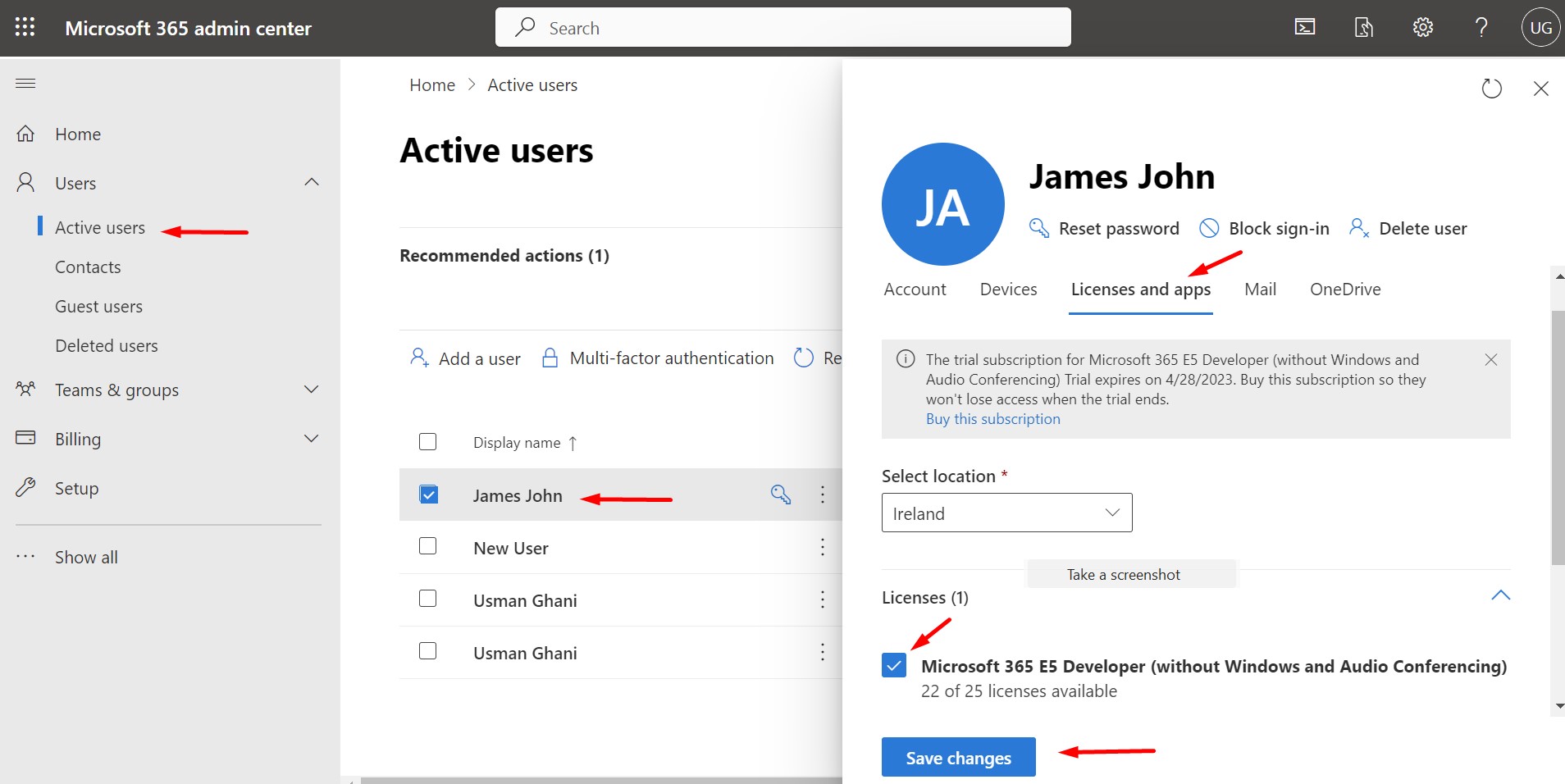
Open Office 365 admin portal https://admin.microsoft.com.
- Select Active Users from the left menu.
- Click on the User to remove the license.
- Click on the Licenses and apps tab.
- Uncheck the license which you want to revoke and click Save.
Remove a License from Azure Active Directory Portal
Open Azure AD portal http://portal.azure.com.
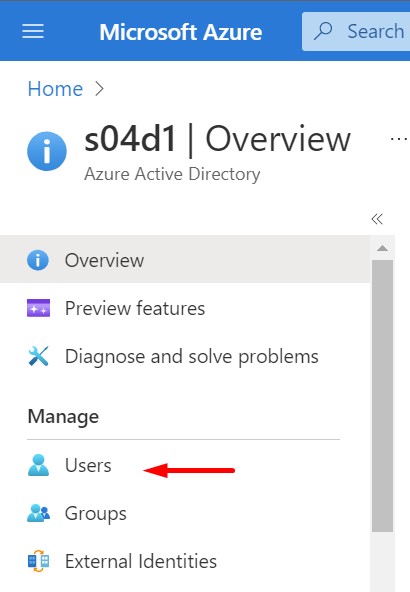
- Open Azure Active Directory.
- Select Users from the left menu.
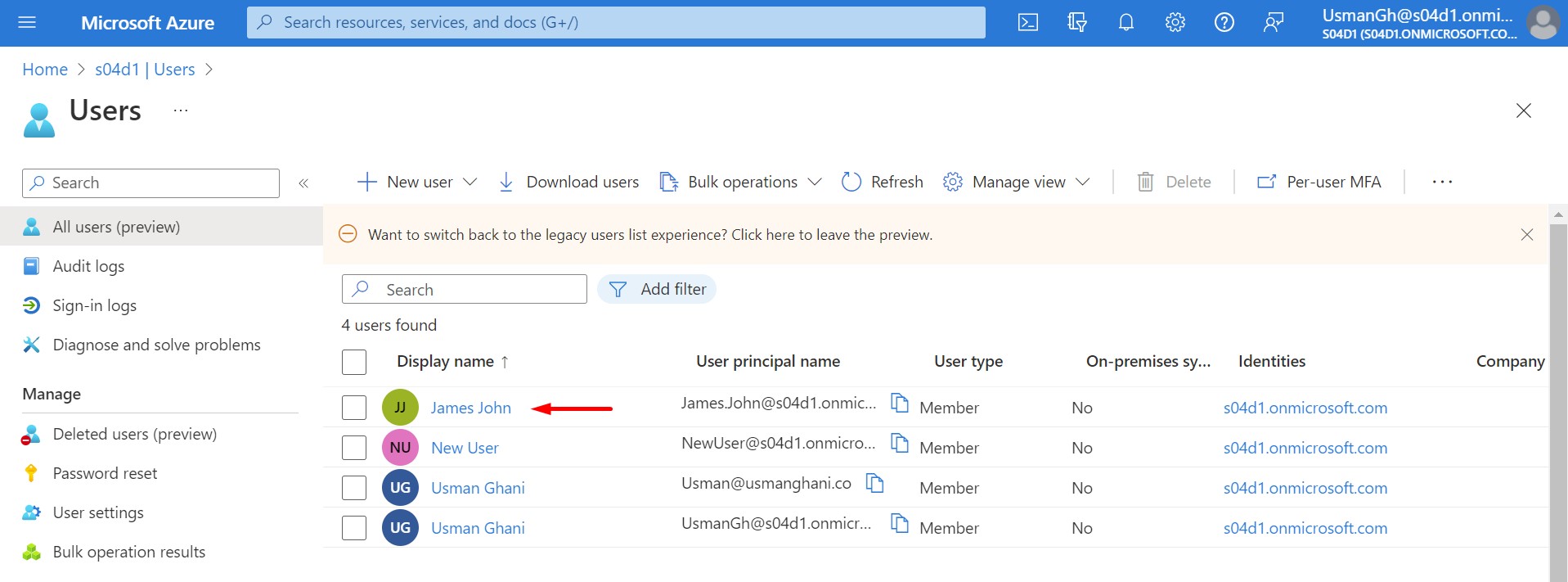
- Select the User to revoke the license.
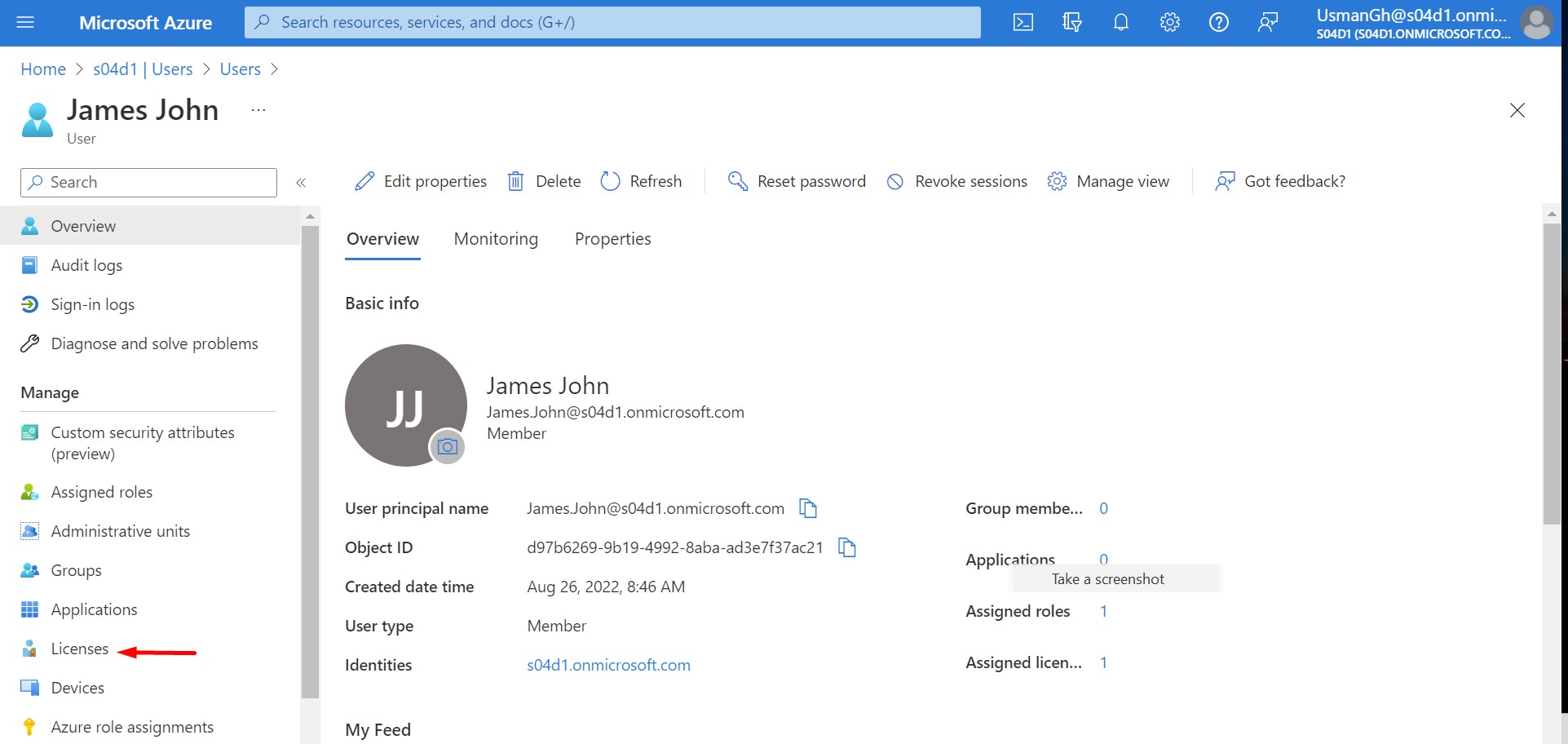
- Click on Licenses from the left menu and select the License.
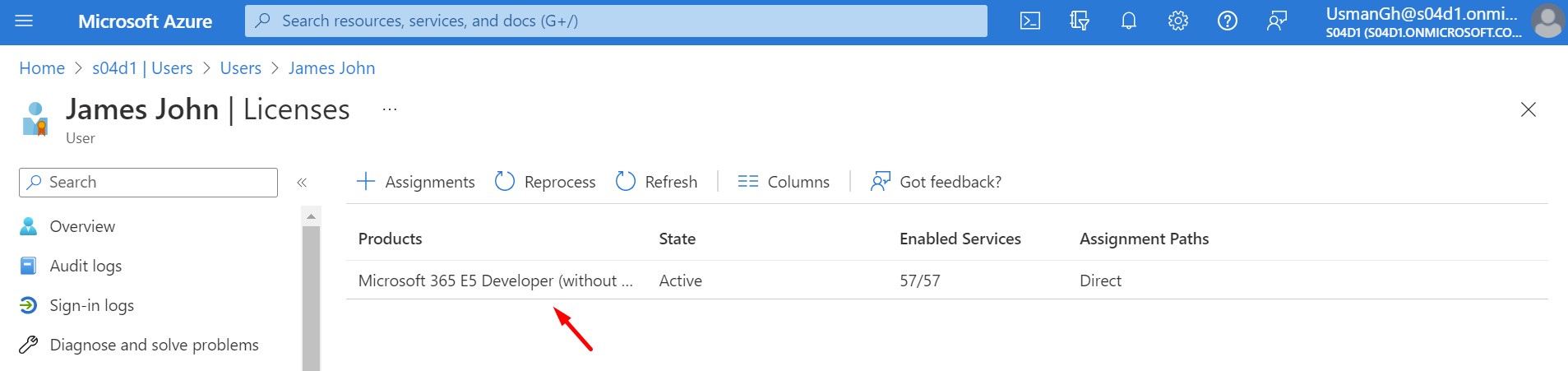
- Click on Remove license.
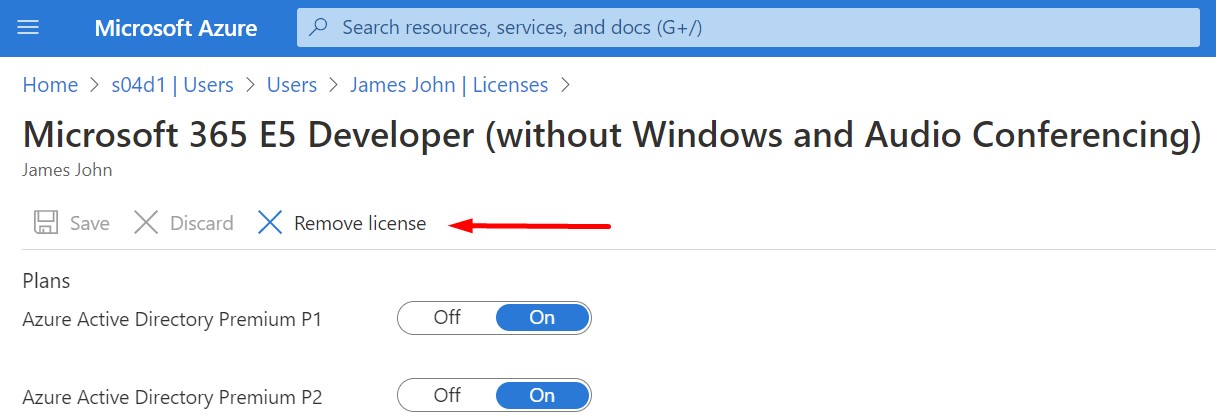
Unassign a License for Multiple Users
Open Azure AD portal http://portal.azure.com.
- Open Azure Active Directory.
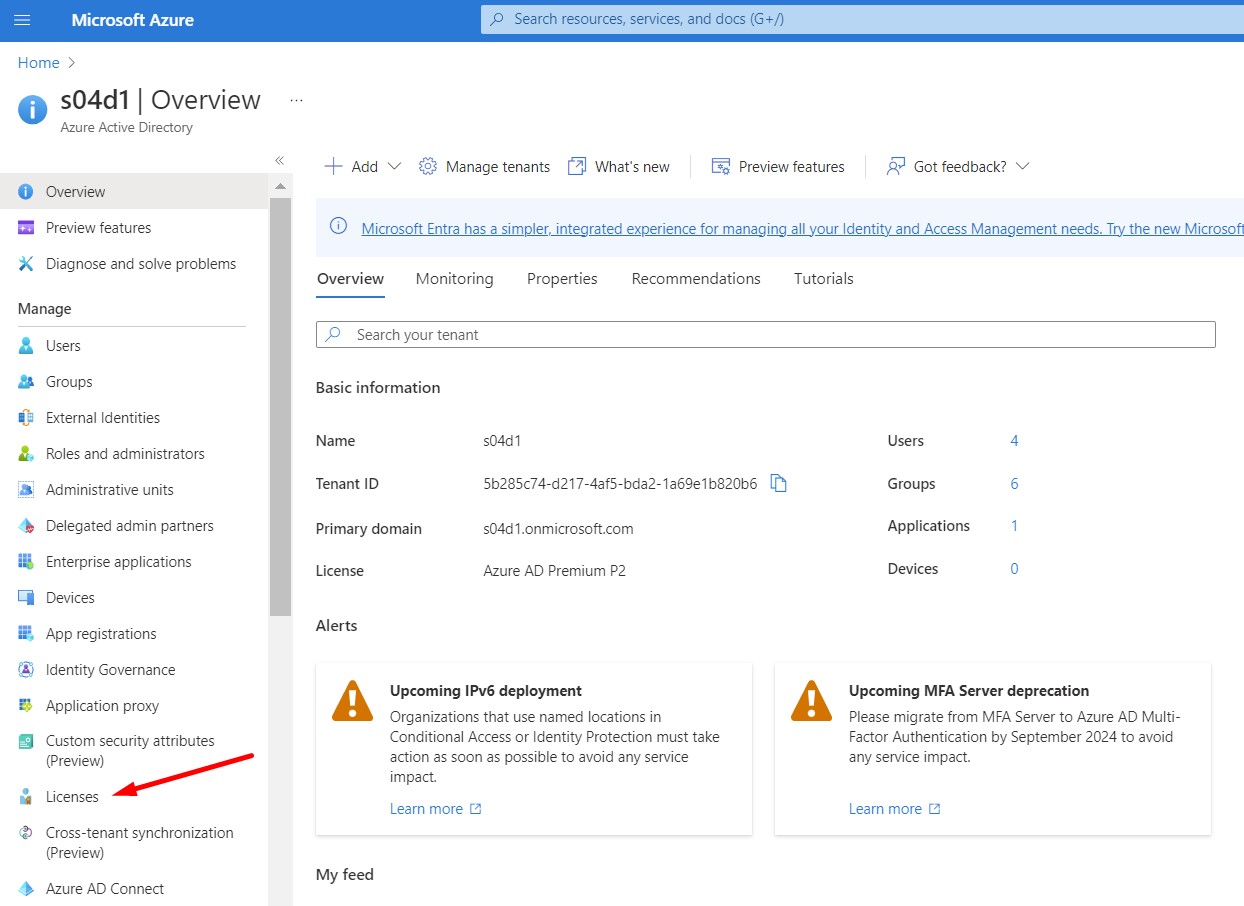
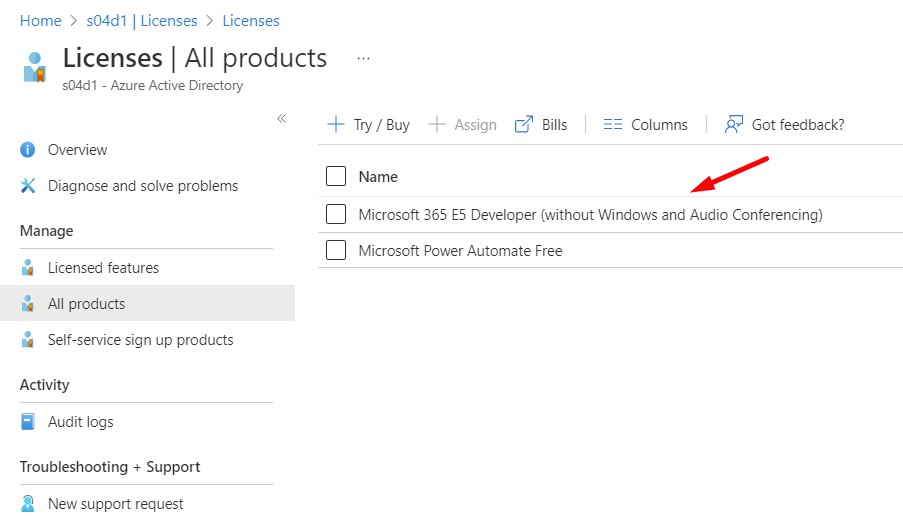
- Click on Licenses from the left menu.
- Click on All products.
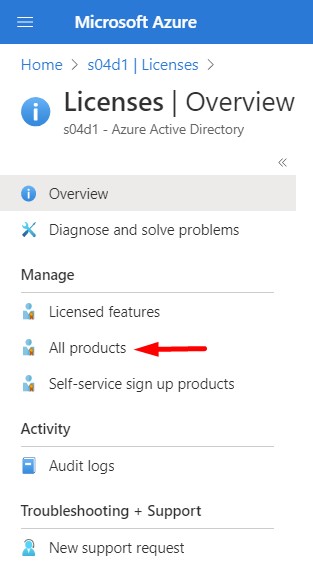
- Click on the License.
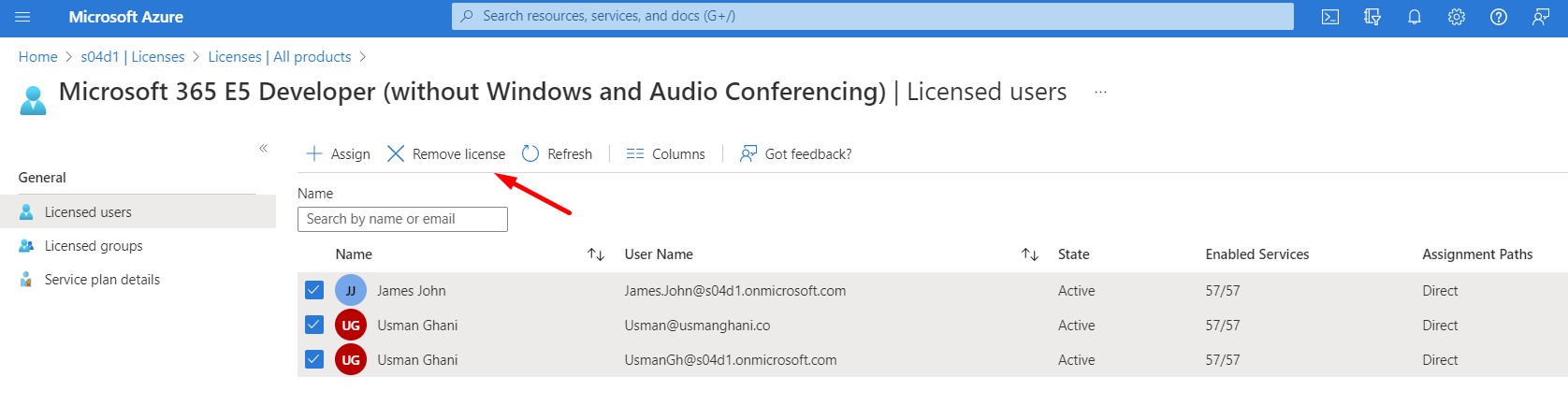
- Select multiple users and click Remove license to revoke licenses.
Note: If you remove the license from an active/disabled user, the user's data will be removed after 30 days. If you want to keep the data, then it's better to back up or leave the license assigned.