Sooner or later someone asks "which devices did we wipe last month, and who did it?", or worse, "can we get back the device someone just deleted from Intune?" This post covers both: exporting wipe and retire history, and what you can and can't recover after a device record is deleted.
Applies to: Microsoft Intune (Intune admin center), Windows, iOS/iPadOS, Android and macOS devices.
Wipe vs retire vs delete
These three actions are often confused, and the difference matters for recovery:
| Action | What happens on the device | Intune record |
|---|---|---|
| Wipe | Factory reset. Optionally keeps user data, or keeps the enrollment state on Windows | Removed after the wipe completes |
| Retire | Removes company data, apps and profiles; personal data stays | Removed after the device checks in |
| Delete | Nothing. The device isn't touched | Record removed immediately |
Run wipe or retire before deleting the user from Entra ID. Once the user is gone, you can't send those actions to their devices.
Export the list of wiped and retired devices
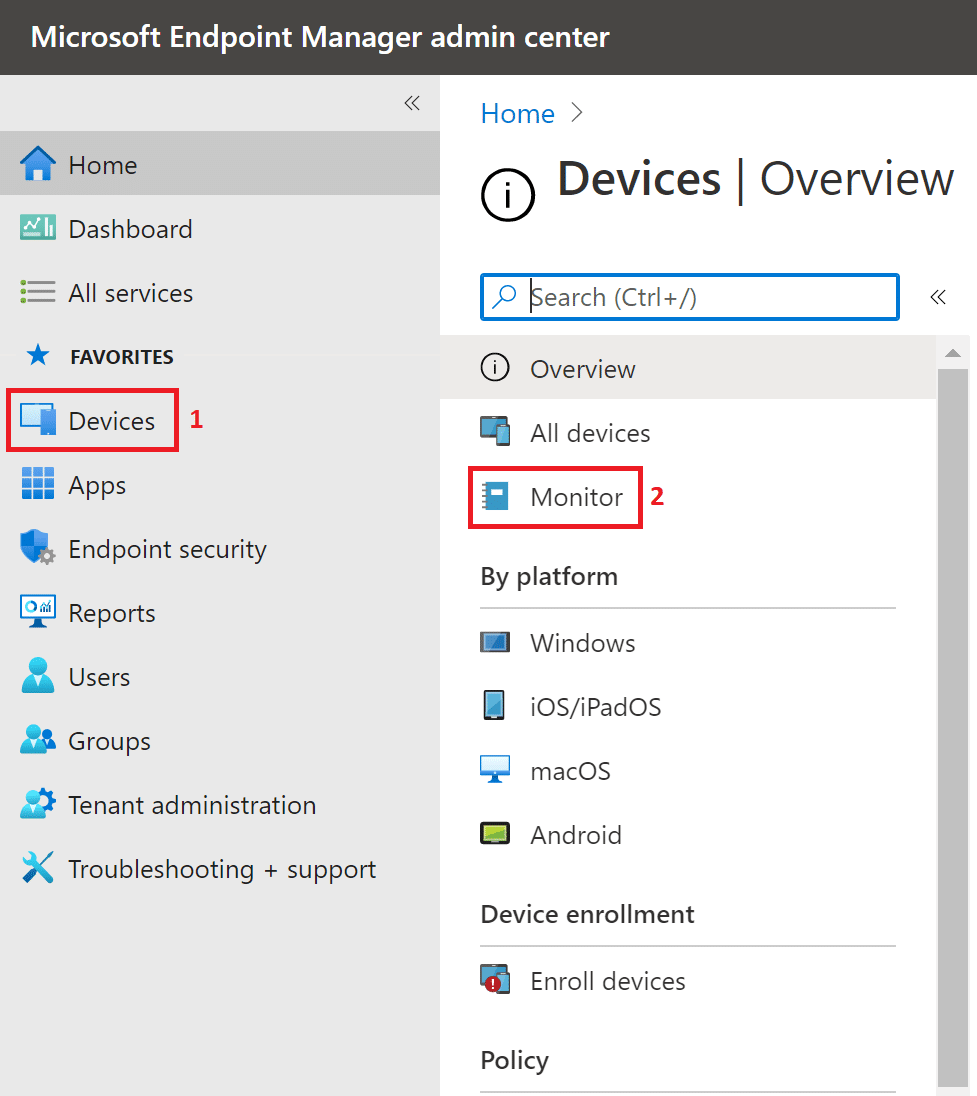
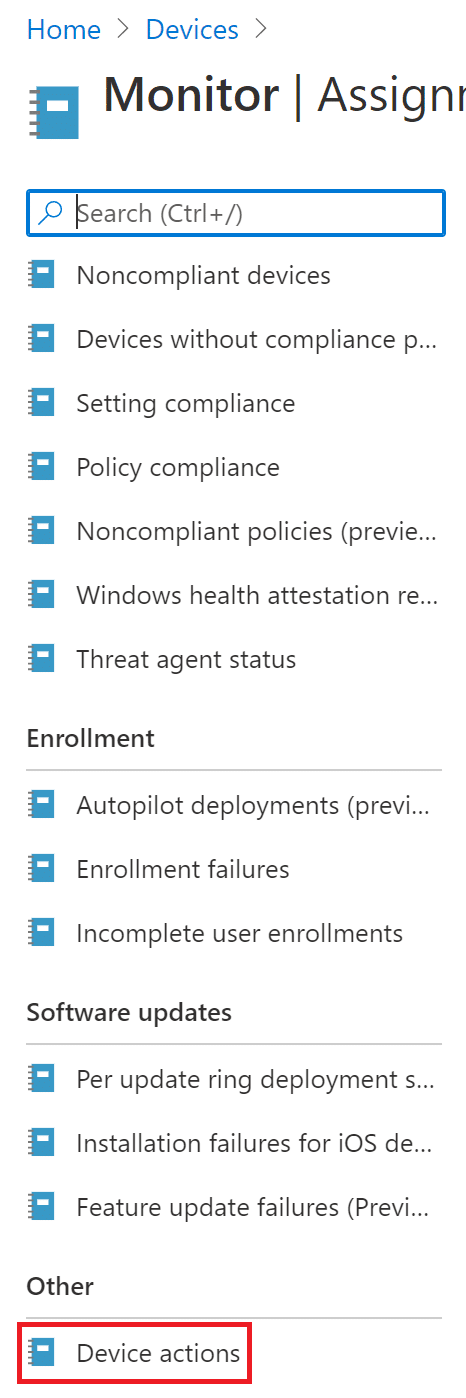
Step 1: Open Device actions
Sign in to the Intune admin center (intune.microsoft.com) and go to Devices → Monitor → Device actions.
Step 2: Filter and export
The report lists remote actions (wipe, retire, delete, sync, restart, and others) with the device, the action, its status, who started it and when. Filter on Action = Wipe or Retire, then click Export to download a CSV.

The report only covers recent history, so export it regularly if you need a long-term record, or use the audit logs below.
Export with PowerShell (Microsoft Graph)
Handy for scheduled reports:
Connect-MgGraph -Scopes "DeviceManagementManagedDevices.Read.All"

$uri = "https://graph.microsoft.com/v1.0/deviceManagement/remoteActionAudits"
$audits = @()
do {
    $page    = Invoke-MgGraphRequest -Method GET -Uri $uri
    $audits += $page.value
    $uri     = $page.'@odata.nextLink'
} while ($uri)

$audits |
  Where-Object { $_.action -in 'factoryReset','removeCompanyData','delete' } |
  Select-Object deviceDisplayName, action, actionState, initiatedByUserPrincipalName, requestDateTime |
  Export-Csv C:\Temp\intune-device-actions.csv -NoTypeInformation
In the API, factoryReset is a wipe, removeCompanyData is a retire, and delete is a record deletion.
Who did it? Intune audit logs
For a fuller history, including who deleted a device record, use Tenant administration → Audit logs and filter by Category = Device and activities such as Wipe ManagedDevice, Retire ManagedDevice or Delete ManagedDevice. Intune audit logs are kept much longer than the device actions report.
Can you recover a deleted Intune device?
There's no recycle bin for Intune device records. What you can do depends on what was deleted.
Only the Intune record was deleted
The device itself isn't affected, but it's no longer managed and gets no policies or apps.
- Windows (Entra joined or hybrid joined): the device can usually re-enroll by itself through automatic MDM enrollment when it next refreshes its Entra ID token. If it doesn't, the user can reconnect under Settings → Accounts → Access work or school. Some devices need re-enrolling or resetting.
- Corporate iOS/iPadOS and Android Enterprise: these usually need to be re-enrolled, which for fully managed and supervised devices means a reset.
- Autopilot devices: the Autopilot registration (hardware hash) is separate from the Intune record and usually still exists. Check under Devices → Enrollment → Windows Autopilot → Devices. A reset with Autopilot brings the device back with the right profile.
The Entra ID device object was deleted too
This is the costly one. Entra ID device objects can't be restored, and their BitLocker recovery keys are deleted with them. If the device is encrypted and later needs its recovery key, the key is gone. Before deleting stale devices in Entra ID, export their BitLocker keys, or disable the devices first and delete them later.
The device was wiped
A wipe is final. The data can only come back from your backups, such as OneDrive Known Folder Move or your backup tool.
Prevent accidental wipes and deletions
- Turn on multi-admin approval for wipe, retire and delete, so a second admin must approve each request. See Intune multi-admin approval, and for bulk scenarios, bulk wipe with multi-admin approval via Graph.
- Give helpdesk staff a custom Intune role without wipe and delete rights.
- Clean up stale devices on a schedule instead of in panicked batches: find stale devices in Intune.
Related: Find stale users and devices in Entra ID · Intune error 80180014